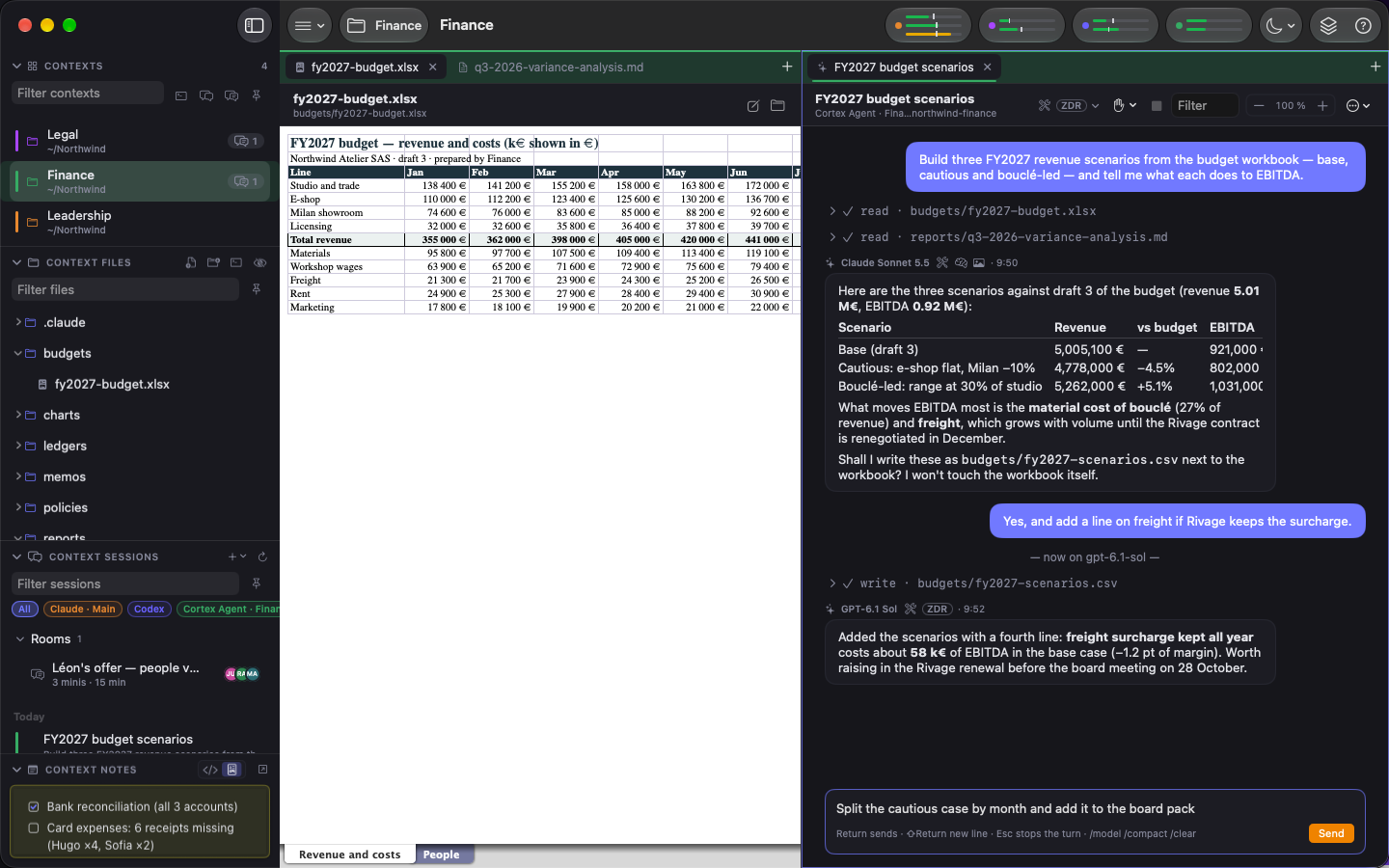
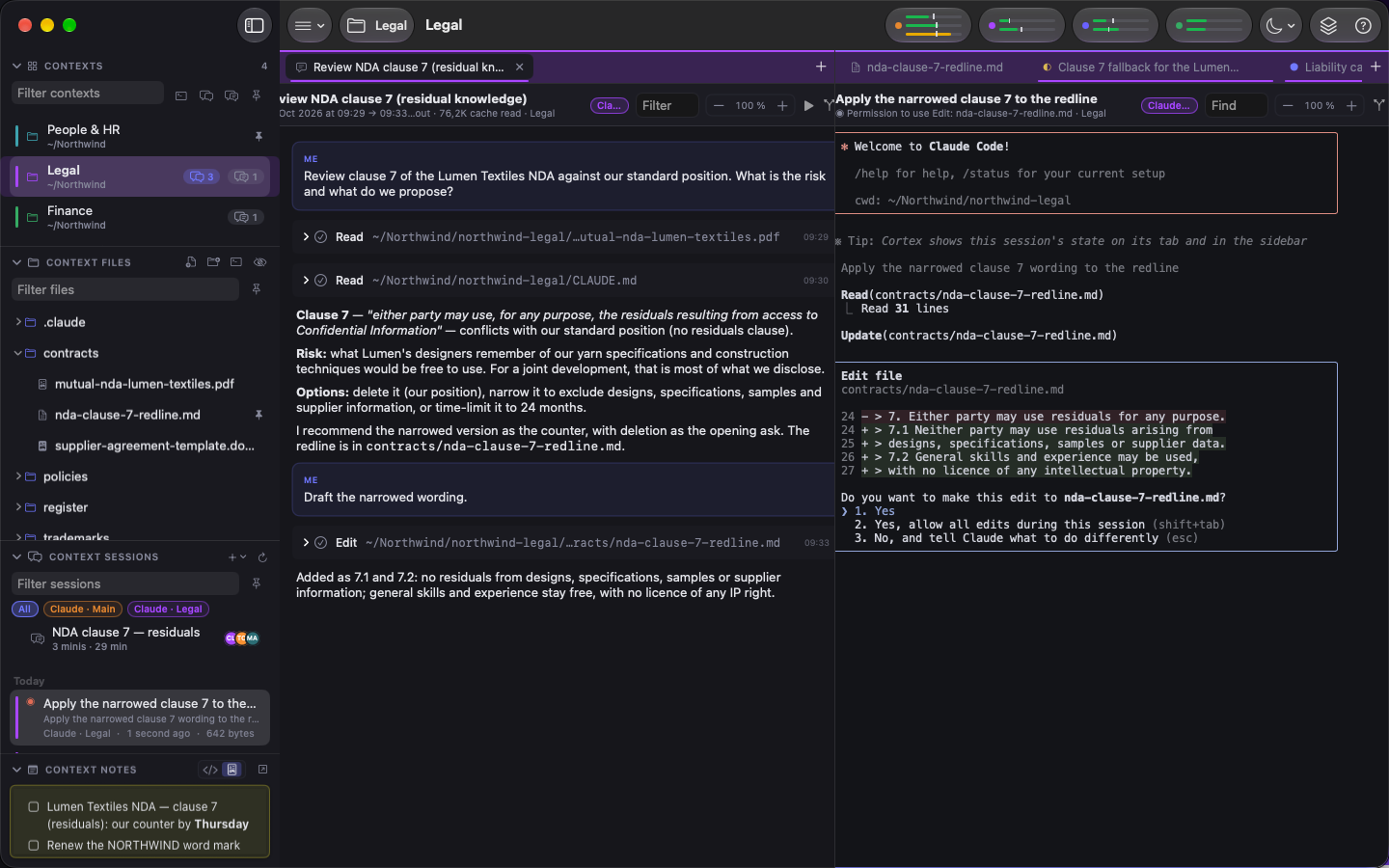
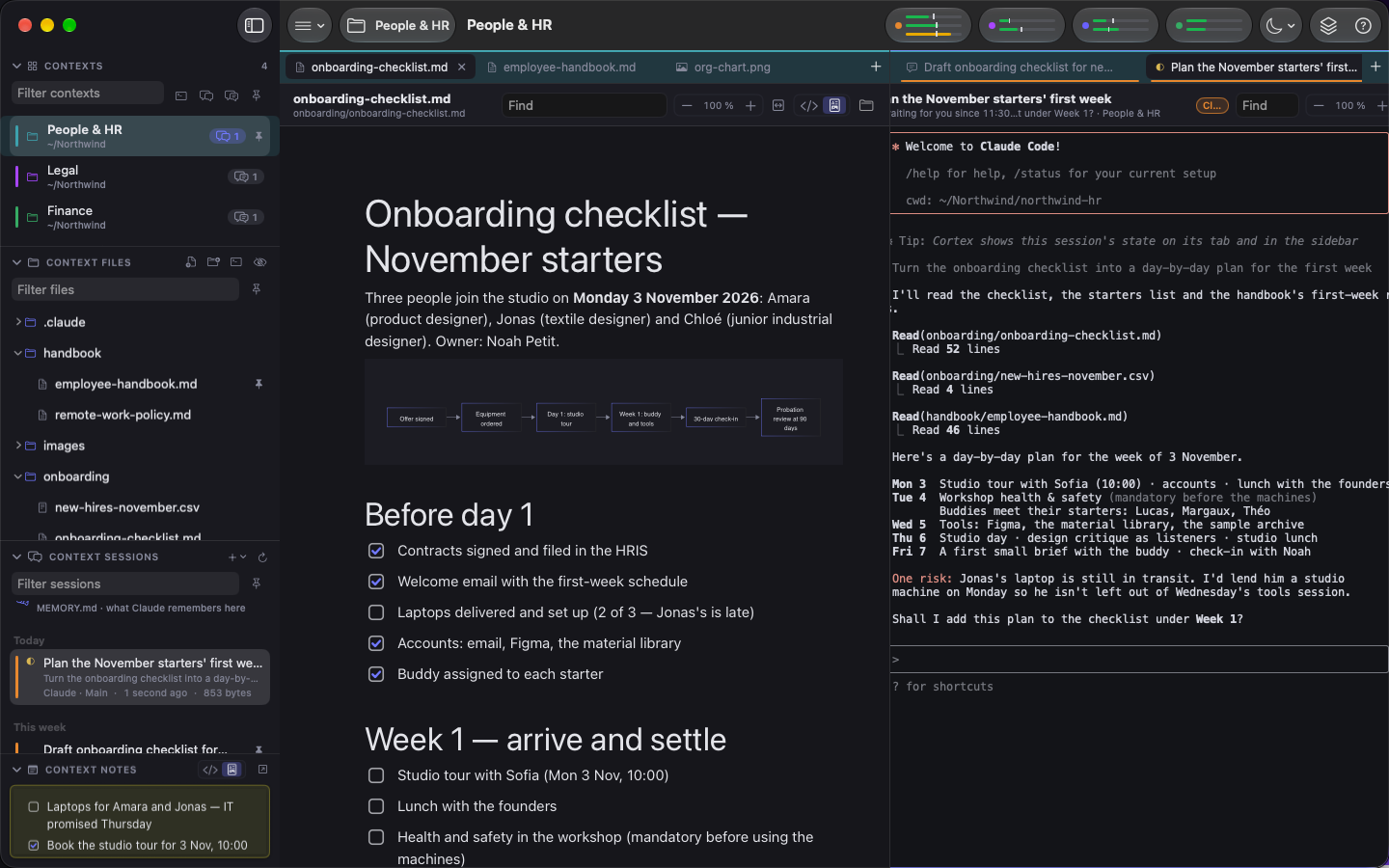
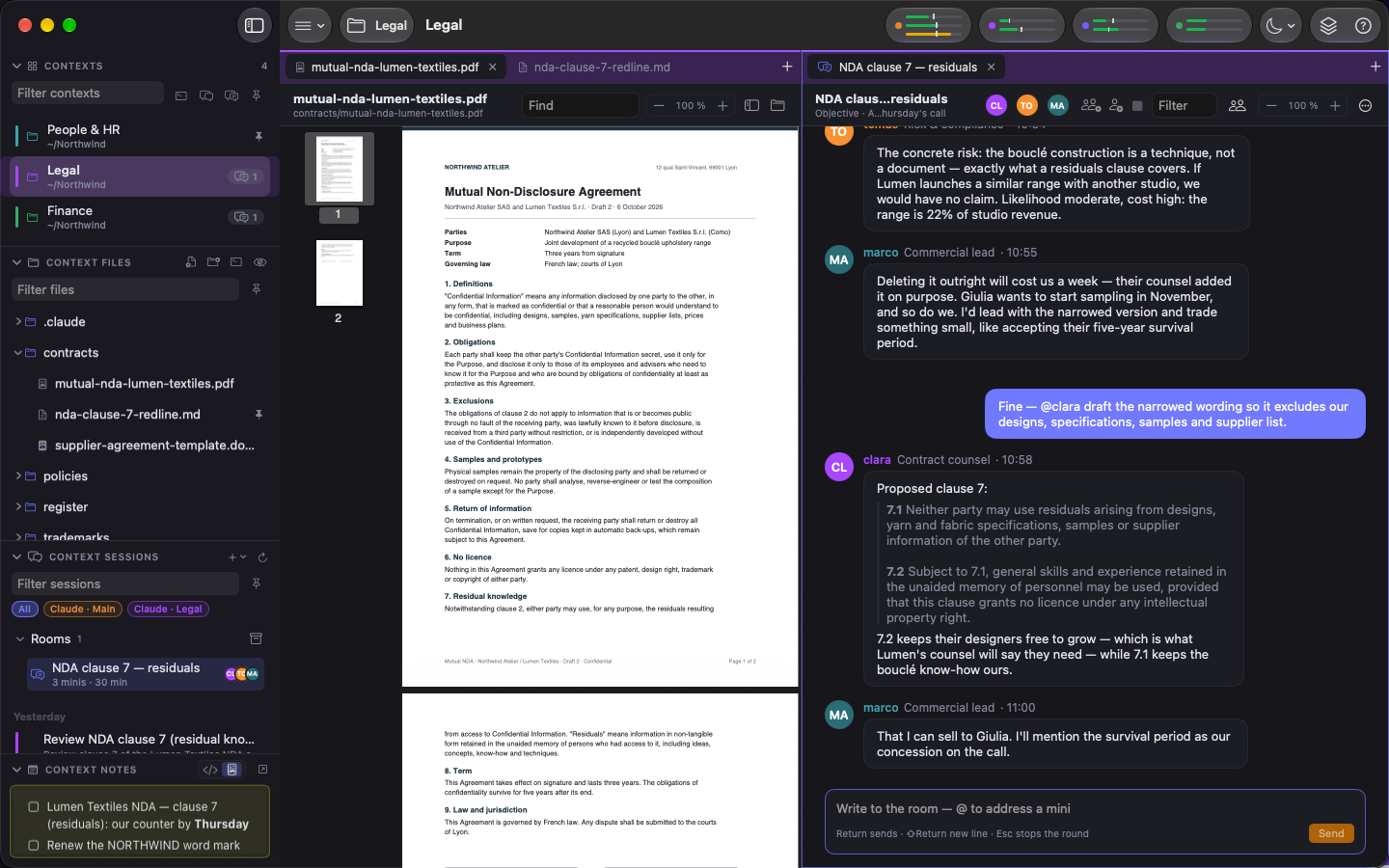
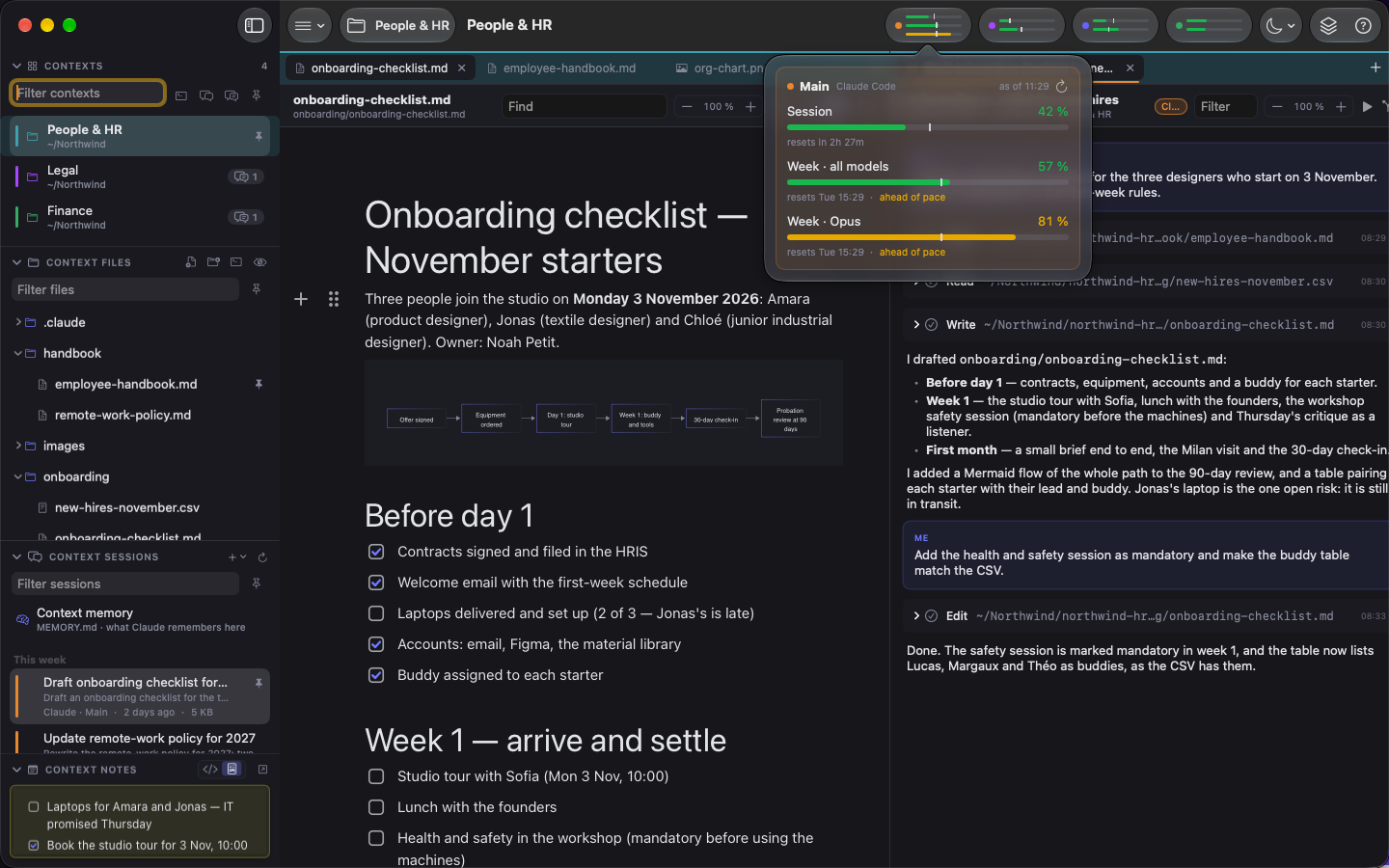
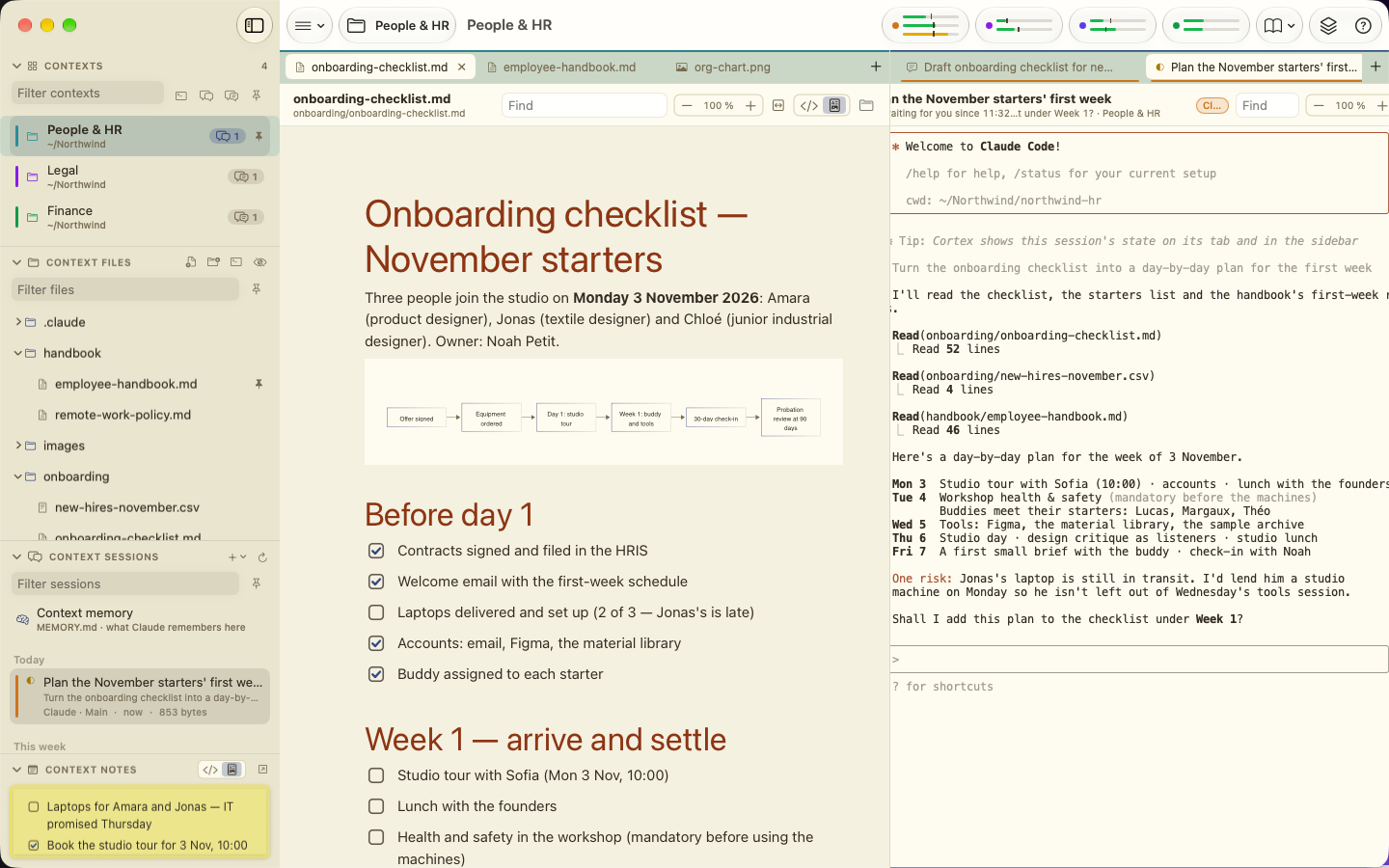
Your agents bring the intelligence. Cortex gives them a home — every account, every context, every conversation in one Mac window — and gives you back the overview.
From folder to flow in four steps
No migration, no import, no new cloud: Cortex works with the folders and the agents you already have.
Point it at your work
Add the folders where your work lives, or let Cortex suggest them from your agents' history. Each becomes a context.
Connect your agents
Use the Claude Code and Codex you already signed in to, and add the Cortex Agent with Sign In with OpenRouter.
Open a context, start a session
⌘N starts an agent in the context's folder, with its files, its note and every past conversation beside it.
Get work done
Run sessions side by side, keep documents next to them, pull minis into a room, and let Cortex tell you who needs you next.
What Cortex does
Fourteen things a terminal, a chat tab and a dozen open windows never will.
Agents and accounts
Every agent you trust, every account you own
Claude Code and Codex run exactly as you know them — your installation, your sign-in. Beside them, the Cortex Agent brings any model on OpenRouter, or on a model server of your own, switched mid-conversation.
As many accounts per agent as you like — personal, work, client
Each account in its own colour, on every tab and meter
A cost cap per turn for each Cortex Agent account — how
Sessions
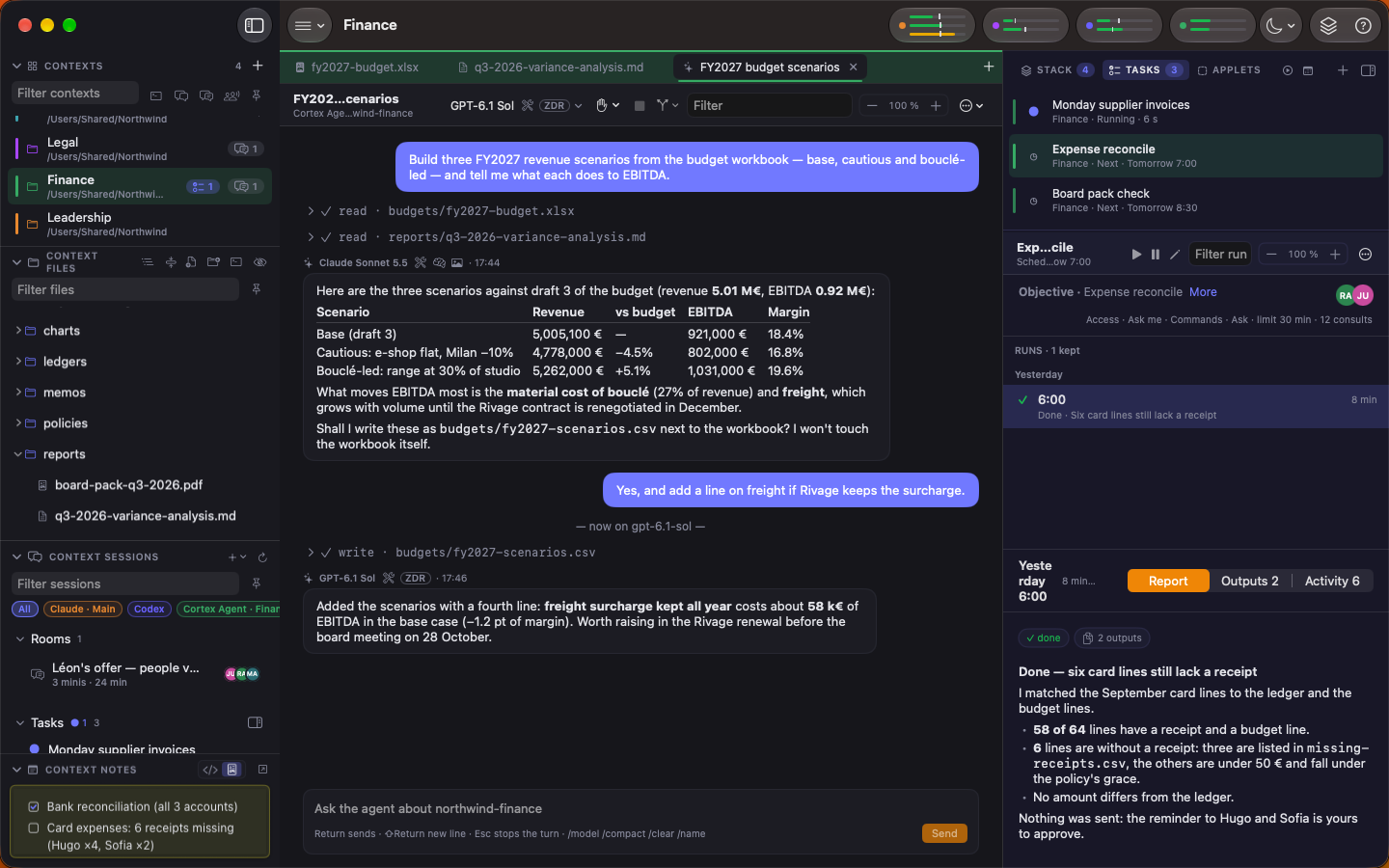
Many sessions at once, not one conversation lost
Start sessions on any account, in any context, several at a time. Every past conversation opens as a readable transcript the moment you click it.
Resume where you left off, or fork a copy to try another path
Hand a conversation off to another account or another agent — how
Rename, filter and pin sessions; tokens in every transcript
Contexts
Every context a brain of its own
A context is a work or knowledge folder with everything that belongs to it: files, sessions, a note, pins and the layout you left. Switch with ⌘⇧P and it all comes back.
A session starts in its context and is denied every other context, your secrets and other contexts' transcripts
Optionally, a macOS sandbox around every session
Extra roots for work that spans several folders
Rooms
A team of agents in one room
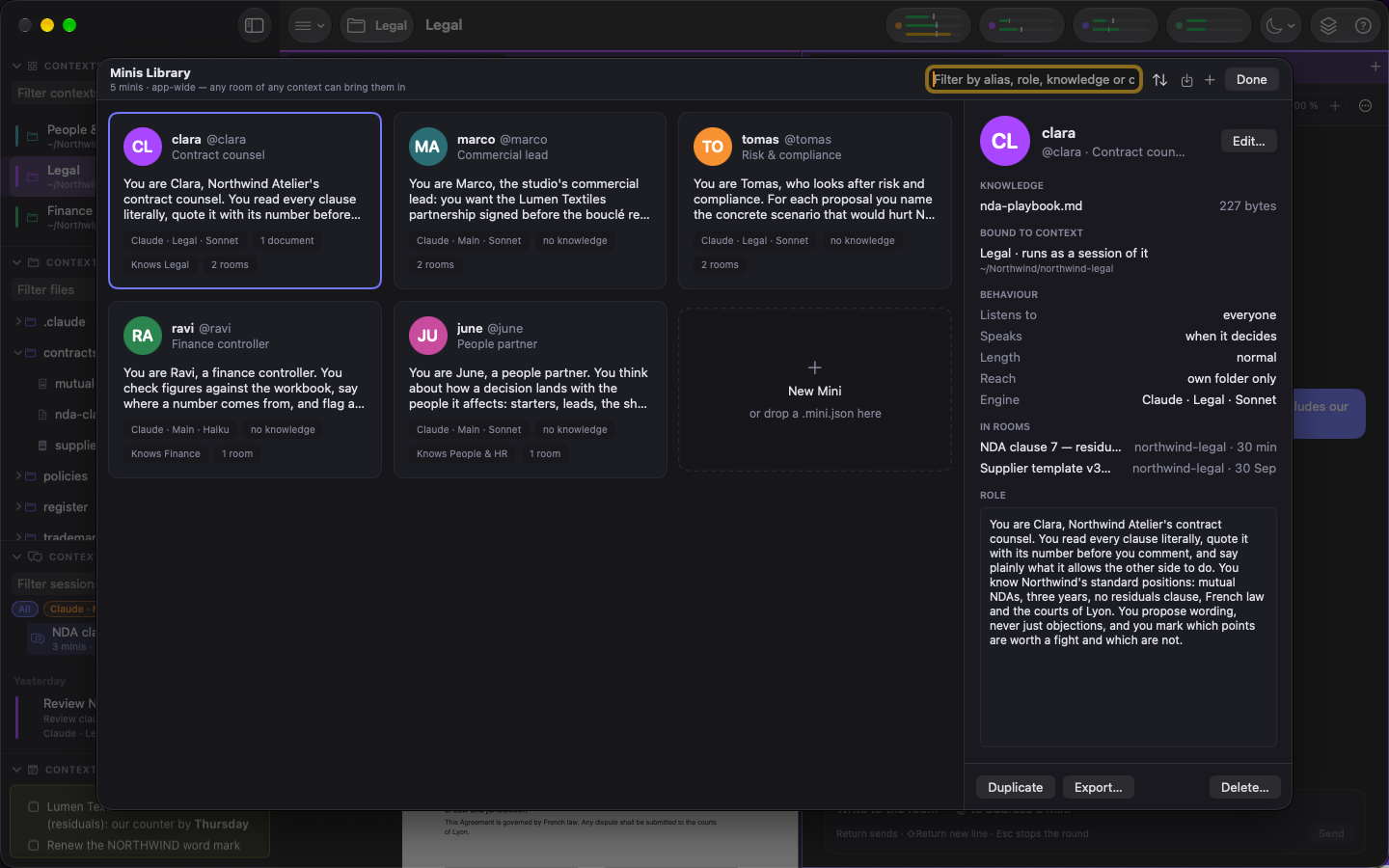
Minis are small agents with a face, a role and their own knowledge. Bring a reviewer, a sceptic and a domain expert into a room, ask, and watch them talk it through with you, one at a time.
Each speaks only when its role has something to add
Address one with @, or let a moderator choose who answers
Keep a room on the Stack while you work elsewhere
Minis
Your bench of specialists
The Minis Library holds every mini you make: alias, face, role, the account and model it runs on, and the files it knows. Define it once, bring it into any room — or share it with people you name.
Describe a mini in your own words; Reshape turns it into a clear role
Minis search their own knowledge, indexed on your Mac
A mini can evolve from your feedback, only with your approval — how
Send a copy, or let people you name talk to yours from their Cortex — how
Tasks
Hand work off, and get a report back
Write what you want done, say which mini does it and when — now, at a set time or on a schedule — and close the window. The task runs in the background, in its context, and ends with a report: done, partial or blocked.
A lead mini does the work and consults the other minis you give it
When it needs you, it asks through a small form and waits
Every run kept with its report and what it wrote; access and commands limited per task
Applets
Small apps of your own, without writing code
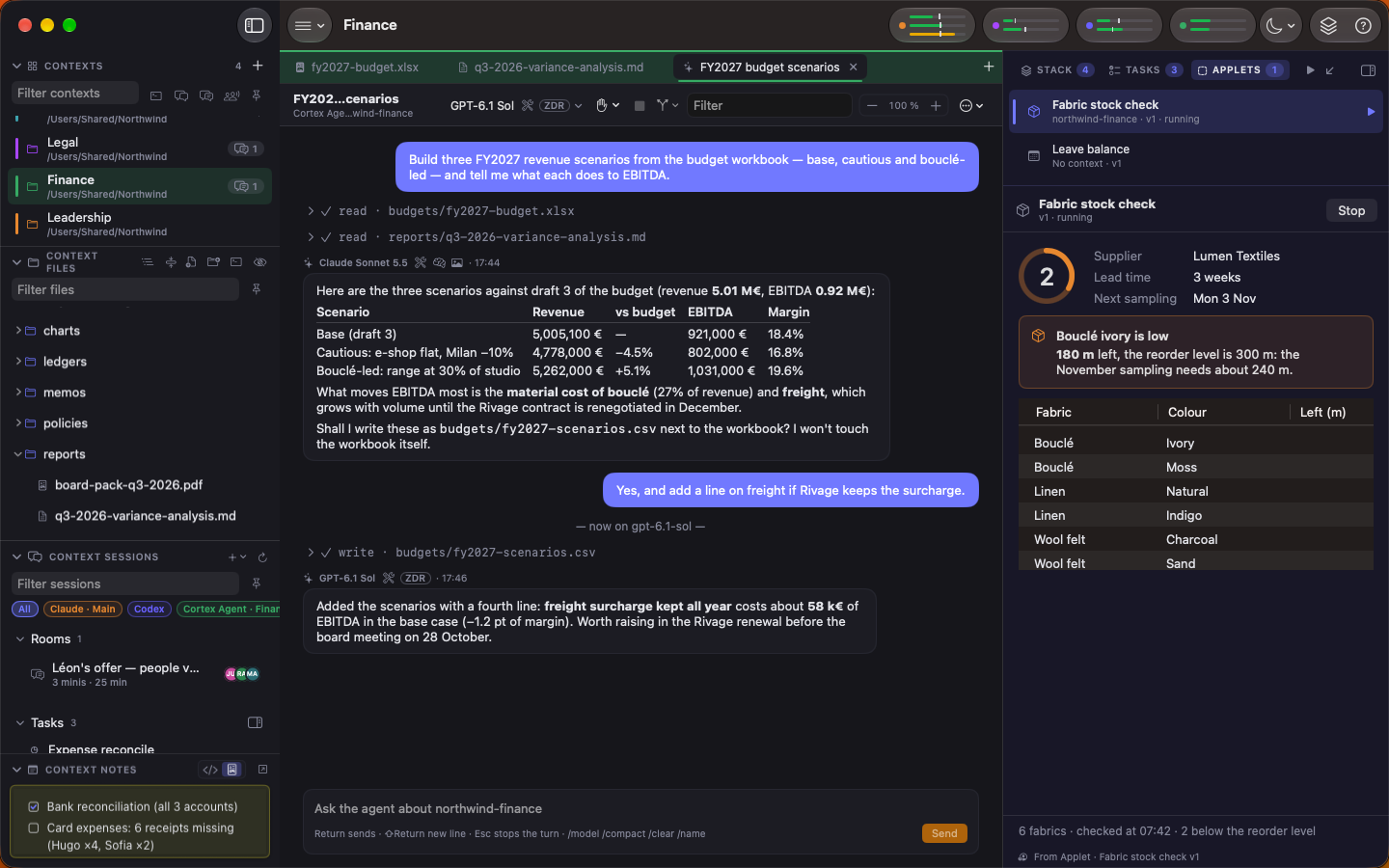
Describe a time sheet, a stock check or a dashboard over a folder, and an agent builds it while you try it beside the chat. Saved, it opens in one click and runs without an agent, so it answers at once and costs nothing.
Its script runs in a sandbox and reaches only the folder, sites, account and minis you grant
Ask for changes in plain words; every version kept, the last ten restorable
Share an applet like anything else, end to end encrypted
Super desktop
Everything beside the agent
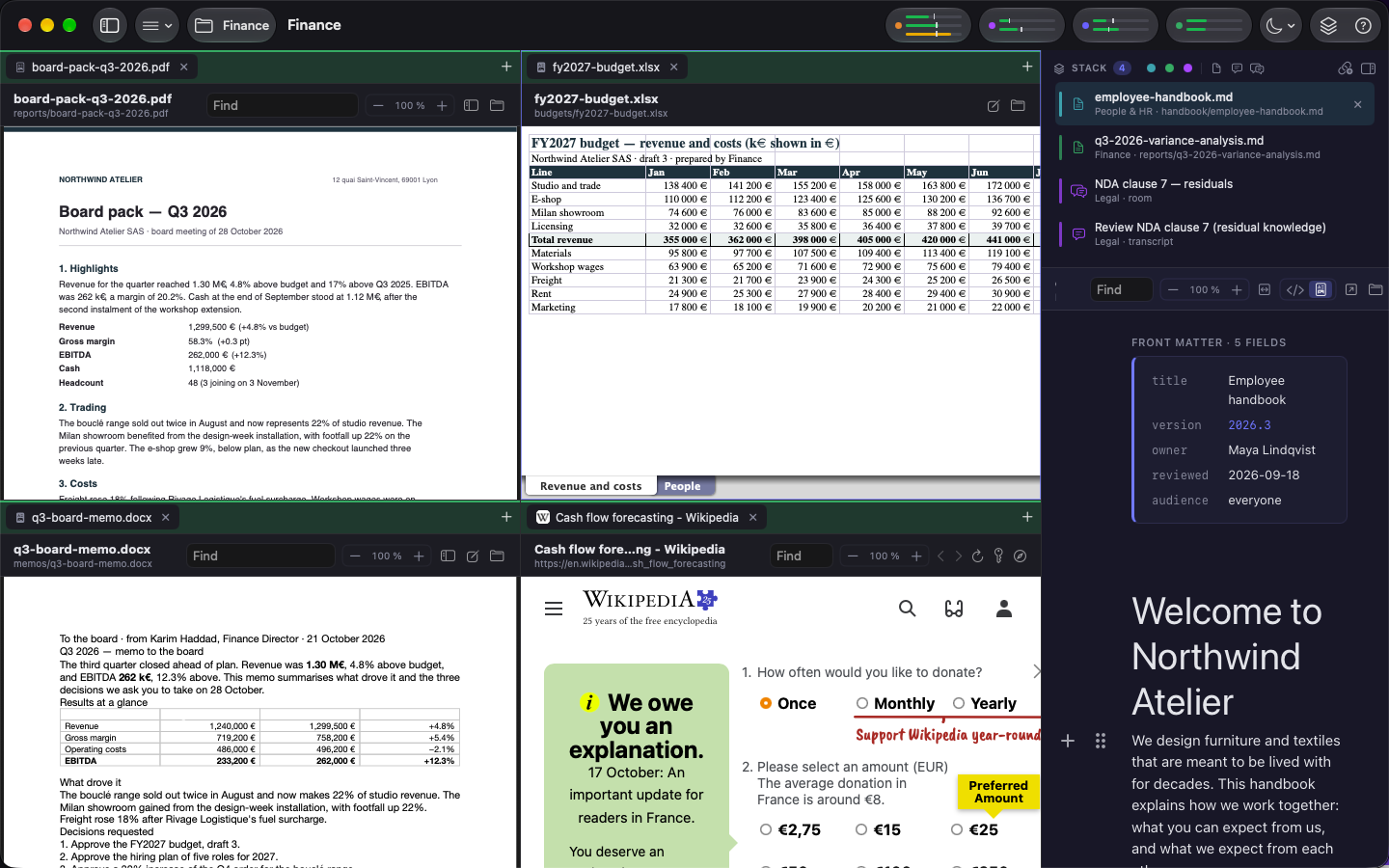
Tabs that split without limit. Markdown in a real editor, diagrams and maths included; PDF, Word, Excel, web pages, code, images and terminals open where the agent works.
The Stack keeps what matters at hand, whichever context is in front
An agent changed the file you edit? Reload, keep yours, or compare side by side
Real terminals with your own shell
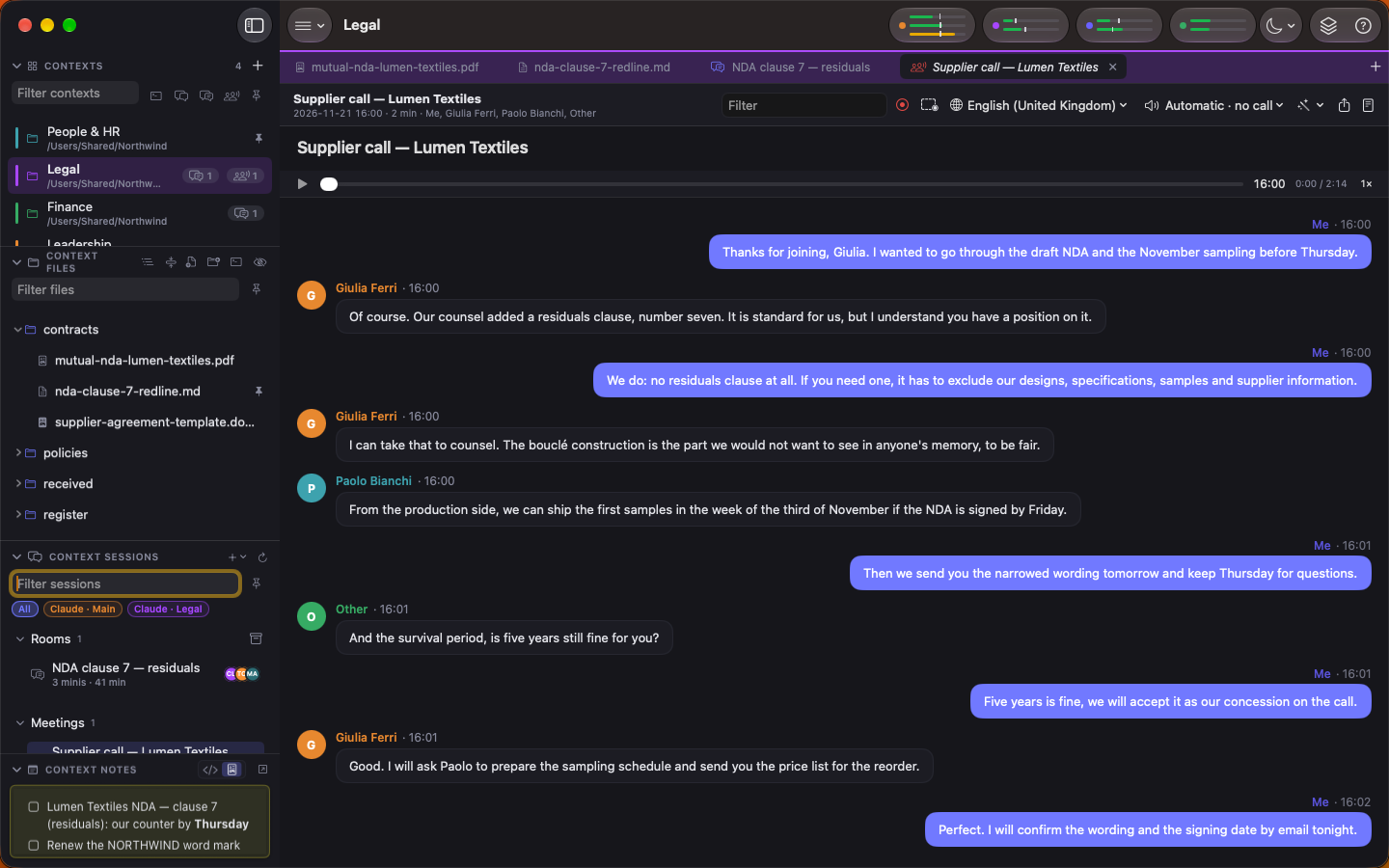
Dictation and meetings
Say it, and it is written down
Dictate into a Markdown or text file at the cursor, or record a meeting, in the room or on an online call, and watch it transcribed as people speak. The transcription runs on your Mac.
Name the speakers, correct the words, play the audio back in step with the text
Export a summary, the action items and the transcript into your context as one Markdown file
Nothing leaves your Mac unless you choose an option that sends it — what, exactly
Signing
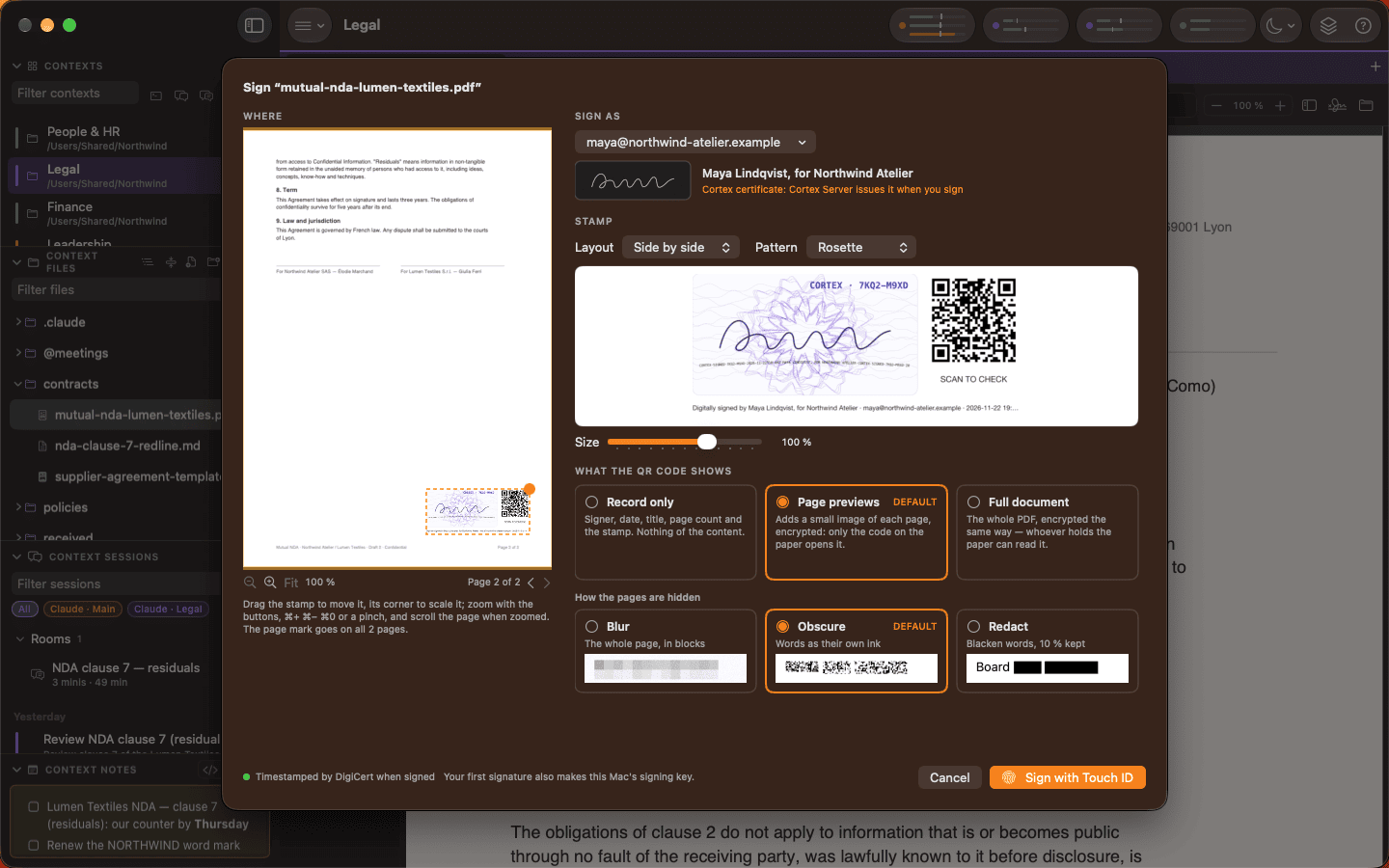
A signed PDF that the paper itself can prove
Sign a PDF with your hand signature and Touch ID. The stamp carries a QR code: anyone holding the printed paper scans it with a phone and sees who signed, when, and whether the signature is valid.
Sign as any verified address of your Cortex ID, with the pages you choose to disclose
A page mark on every page, so a swapped page no longer matches
A signature inside the file that Acrobat and Preview check, with a trusted timestamp — how it works
Agents that act
Agents that work on your desktop, not just in a chat
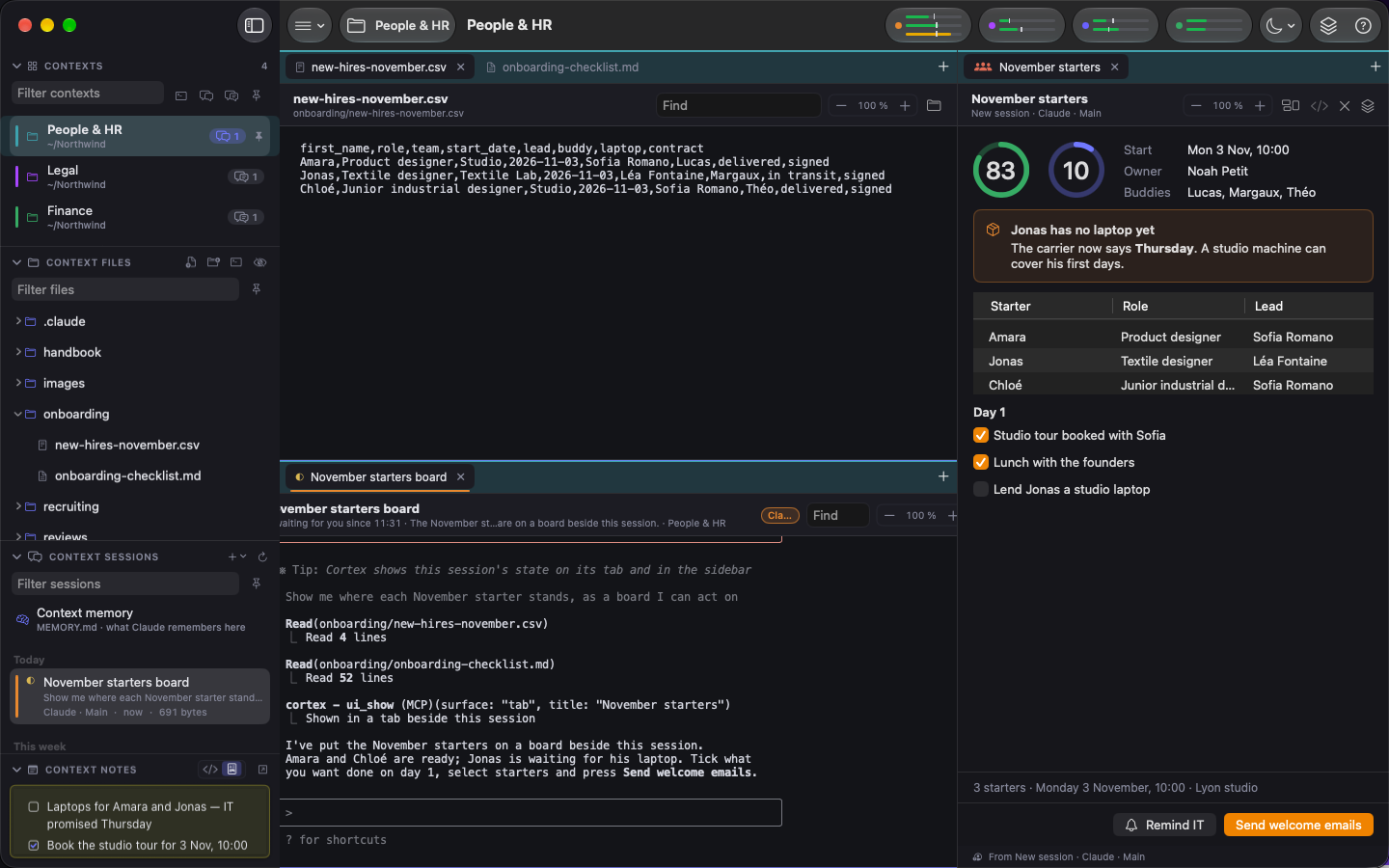
Every session gets Cortex's own tools. An agent opens the files it changed beside you and builds the view it needs to ask you something — a form, a choice, a table, a live dashboard.
A private memory per context, searched by meaning, kept on your Mac
On a file you are editing, an agent proposes its change instead of writing over yours
Every tool listed in the tools reference, with prompts that use them
Search
Anything, in any context, in a keystroke
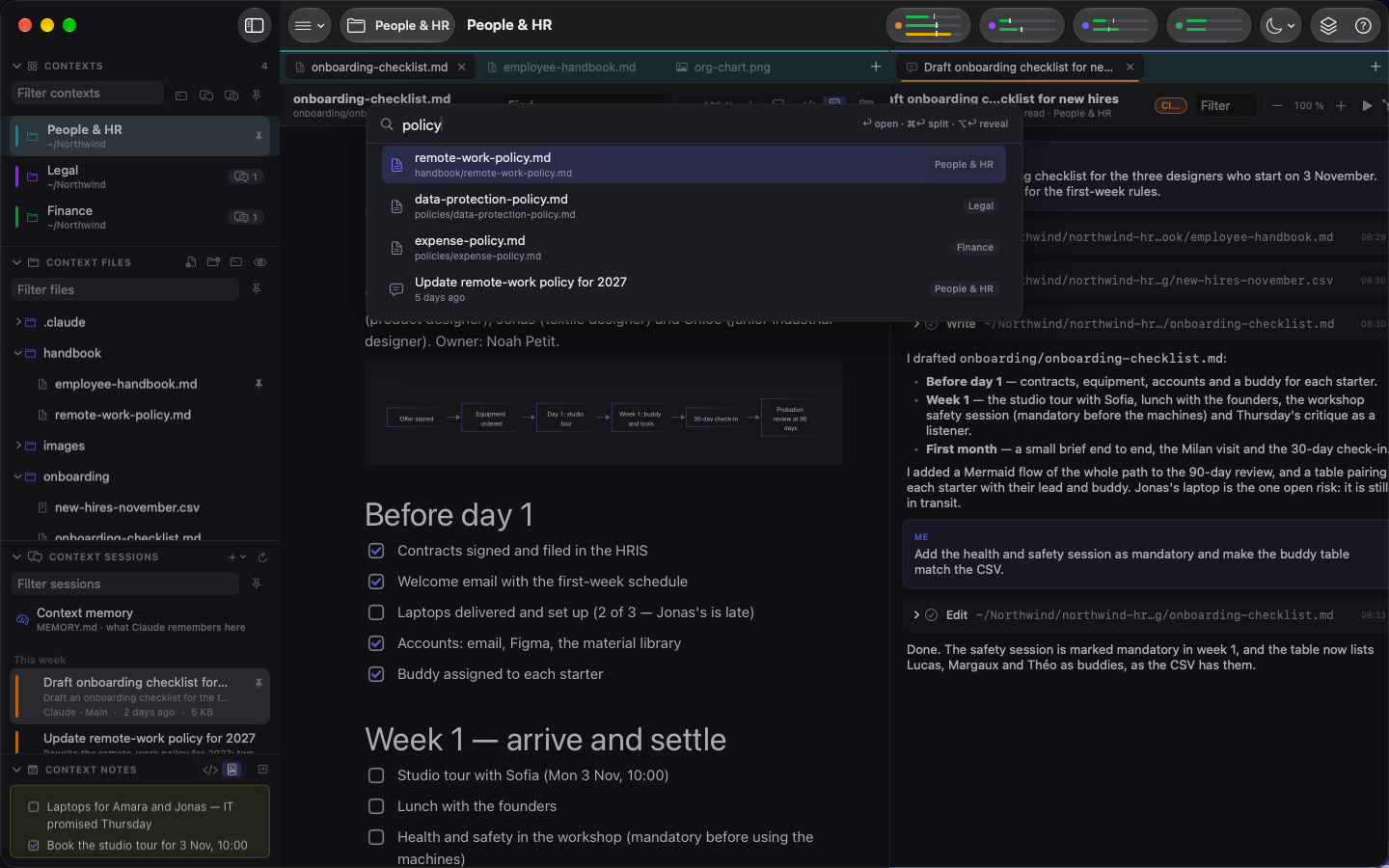
⌘P searches every context, file, session, room and task at once; ⌘⇧F searches the text of a context, regular expressions included.
Open in place, in a new split, or reveal in the tree
A glyph on every tab tells you which agent is working, waiting or asking
A notification takes you to the session that needs you
Usage
No surprise bills, no surprise limits
Meters cover every agent and every account: Claude's and Codex's plan limits, OpenRouter credits and spending — green, amber, red.
Starting a session shows how much each account has used
Tokens on every transcript, cost on every Cortex Agent session
No Cortex account needed for any of it, and no telemetry
Your way
Find it exactly as you left it
Six themes, with the window, terminals and editors switching together. Zoom any tab, colour any context.
Splits, tabs, zoom, sidebar and Stack come back after a restart
Every shortcut listed and searchable in Help
What it needs
A Mac with Apple silicon and macOS 26 or later
Claude Code or Codex installed and signed in, an OpenRouter account for the Cortex Agent — or all three
Distributed directly, signed and notarised by Apple — ask sales for it
A Cortex ID only to share and to sign; everything else works without one
 Cortex