 Cortex
Sign-as profiles
On this page
One profile per verified email of your Cortex ID: the name, the hand signature and the certificate it signs with.
You sign as one of your Cortex ID's verified email addresses. Each of them has one sign-as profile, made for it automatically, which holds what that email signs with:
- Name — what the certificate and the stamp's caption say, free text: Maya Lindqvist, for Northwind Atelier.
- Hand signature — one from your library of hand signatures.
- Certificate — what signs the embedded PDF signature: the Cortex certificate, or a signing certificate of your Keychain or a USB token whose email is this one. An Adobe-trusted certificate turns Acrobat's check green. The record behind the QR code is always signed with this Mac's key.
To sign as another email, verify it first in Settings → Cortex ID; its profile appears.
Edit them
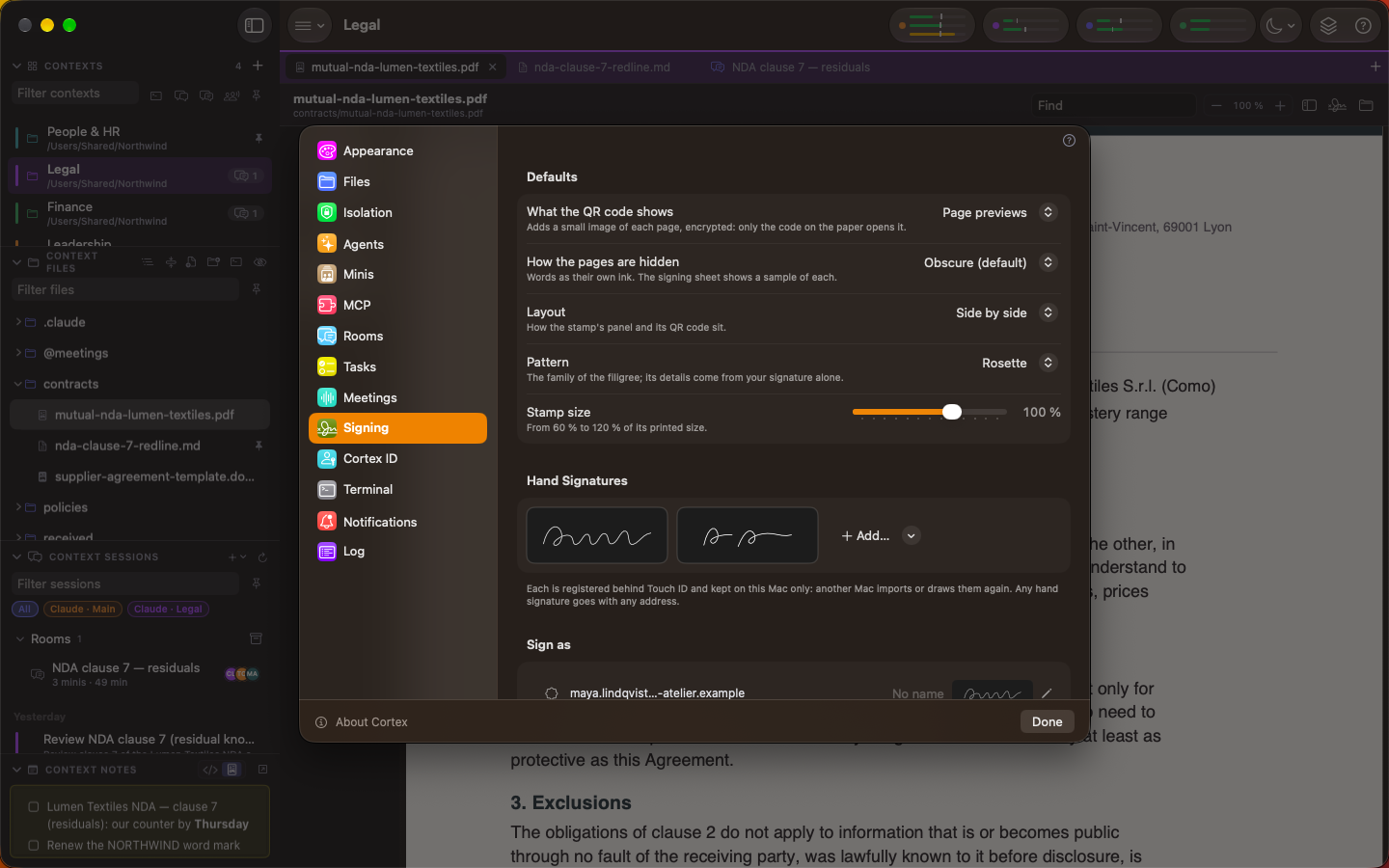
Settings → Signing lists every profile under Sign as, one line each: the certificate's mark first — a green seal while this Mac holds a valid Cortex certificate for that name and email, a key card for a Keychain or token certificate —, then the email, the name and the hand signature. Click ✎ on a row, or double-click it, to open the editor. In the signing sheet, Manage… opens the same editor.
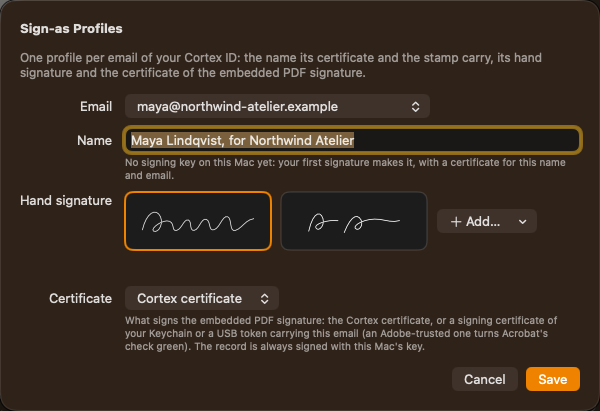
The Email pop-up switches to any other email's profile. Edits to several are kept — an edited email is marked in the pop-up — until Save writes them all; Cancel writes none.
Certificates
Each name and email has its own Cortex certificate, valid one year. Cortex asks Cortex Server for one the first time you sign with that pair — so changing a profile's name means a new certificate at the next signature — and renews it in its last 30 days when it is next online. An ended certificate is renewed by the next signature. Signatures made before stay valid: their timestamp proves when they were made. This Mac's Key in the same pane lists the certificates, with Renew Now and Remove Key….
Something wrong or missing? Tell us