 Cortex
Chat with the Cortex Agent
On this page
Start a chat, the composer, slash commands, dropped files and images, switching model mid-conversation.
A Cortex Agent session is a chat tab. It looks like a room with one speaker: your messages on the right, the agent's on the left, with Markdown drawn as blocks. This article covers starting a chat, what you can type and drop into it, and switching model.
Start a chat
- Click + in Context sessions, in the sidebar.
- Choose a Cortex Agent account. A click starts on the account's default model.
- To start on another model, use the chevron on the account's row. It lists the account's models with their badges.
- Type your first message and press Return.
Press Return to send, ⇧Return for a new line, and Esc while a turn runs to stop it. ⌘N starts a session on the context's default account, so it starts a chat only when that account is a Cortex Agent one.
What the chat shows
The header has the session's title, the account badge, a model pop-up, the cost so far, a context gauge, the permission mode, a filter, zoom, Stop and Fork. Each answer carries a small line with the model that wrote it and the time. A change of model shows as a centred line, "— now on" followed by the model's name.
Tool calls appear as compact rows between messages, such as "read · Sources/App.swift:1–200" or "bash · swift test", with ✓ or ✕. Click a row to unfold its input and result. A model that streams its reasoning shows a folded "Thought" row. While a turn runs you see the model's name followed by "is thinking…" and a timer, and the tab's glyph is ●. When the agent needs your permission, a card appears; see What the Cortex Agent may do.
The header's cost and gauge are explained in Cost, caps and the context gauge.
Attach files and images
- A file. Drop it on the composer, or hold ⌘ and drag it from the file tree. It is attached as a reference such as
@src/App.swift, which the agent reads with itsreadtool. - An image. Drop it on the composer. It is sent with your message, up to 5 MB, when the model reads images (the 🖼 badge). Otherwise Cortex refuses it and says why.
Slash commands
| Type | What it does |
|---|---|
/model <name> |
Switches the model, as the pop-up does. |
/compact |
Compacts the conversation now, between turns. |
/clear |
Starts a new session on the same account in the same tab. |
/name <title> or /rename <title> |
Names the session. Without a title, Rename… opens on the current one. |
Switch model in the middle of a chat
Open the model pop-up in the header, or use /model. You can switch between turns or during one. During a turn, the switch applies from the next model call and never cuts one in progress.
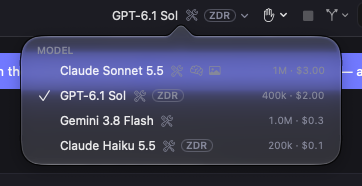
The whole conversation goes to the new model as it is, even between makers, and the new model reads the tool calls and results of the one before. Two things differ. Another model's reasoning is not sent on. Images go only to a model that reads them; to another, each message names its images in words instead.
The session menu
The session's menu holds Rename…, Copy Transcript as Markdown, Show in Finder, Compact Now and Delete Session…. A title is made for you after the first answer, by the account's cheapest model that is not free, and a name you give always wins. Delete Session… moves the transcript to the Trash.
Stop, resume, fork and stack
Stop ends the turn at once: the call under way is cancelled, a running command is ended and waiting permission cards are denied. What was already streamed stays, marked as stopped.
A stored session opens as its chat, ready for your next message. Fork on the same account copies the conversation up to the last complete turn into a new session titled "… · fork". Forking onto another account or agent is a hand-off; see Resume or fork a session. You can also move a chat to the Stack with ⌘⌥S; it stays fully active there. See The Stack.
Something wrong or missing? Tell us