 Cortex
Name speakers, play back and refine
Me and Other, renaming, editing, the player, and the refine pass with its three engines.
Live, a meeting knows two speakers: Me on the microphone and Other on the call. After you stop, you can tell the real voices apart, put right the words and names, and play the audio back in step with the text.
Name the speakers
- Click a speaker's name chip, type the name and press Return. Every utterance of that speaker changes.
- If the speakers were told apart wrongly for one message, ⌥-click its chip, or choose Rename for This Message Only… in the row's menu, and name who said it. The row's menu also has Speaker ▸ with the other speakers of the meeting.
Speakers with the same name are merged. If a meeting split one voice into two and you name both "Filip", they become one Filip. Everyone you name "me" is Me, the microphone's own.
Edit the text
- Click a row's text to edit it. The times stay.
- Hover over a bubble for its actions: play, rename, edit, copy and delete. Delete… in its menu removes the utterance from the conversation and from every later export, after asking. ⌥-click deletes without asking. Its audio stays in the recording.
- The filter in the header keeps only the messages whose text or speaker match.
You cannot edit or delete utterances while a refine pass or an export is running.
Play it back
Once the meeting has audio, a player appears under the header: play and pause, a scrubber, the time of day and the elapsed time, and a speed of 1×, 1.25×, 1.5× or 2×. Click a bubble's time to play from there. The row being heard is marked and kept in view. If you recorded the screen, it shows under the bar and plays in step with the audio.
Refine a meeting
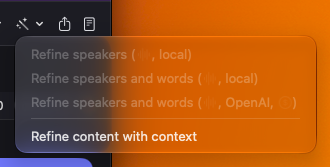
The refine pass works on the meeting's audio once it has stopped. It tells the speakers apart, and some engines also hear the words again. Open Refine's menu, the wand button in the header, and choose one:
| Choice | What it does |
|---|---|
| Refine speakers (local) | FluidAudio tells the speakers apart on your Mac and keeps the words heard live. This is the default. |
| Refine speakers and words (local) | WhisperKit and SpeakerKit tell speakers apart and hear each turn again, in its own language, on your Mac. |
| Refine speakers and words (OpenAI) | OpenAI separates the speakers and hears the words again, in the languages spoken. It needs your OpenAI key and your voice clip, and OpenAI bills your key. |
| Refine content with context | Cleans up the text with the context's help. See below. |
Nothing runs by itself unless you turn on Refine after a meeting in Settings → Meetings. A local engine needs its models, downloaded once. Cortex asks first, for example "Refining speakers needs FluidAudio's models (21 MB), downloaded once. Download and refine?". For OpenAI, it tells you what is missing and offers Open Settings.
After the pass, the speakers are Me, then Room 1, 2… on the microphone, Other or Other 1, 2… on the call, or Speaker 1, 2… with no call. A name you gave a speaker stays with the voice that holds most of its words.
Refine content with context
This step, from Refine's menu, tidies a meeting in three parts:
- Speakers unified. Speakers with the same name become one.
- Fillers removed. Sounds such as "um", "uh", "euh" and "äh" go, depending on the language of the utterance. Words that are real words in a language, such as "like" or "so", are never removed.
- An agent puts right misheard words and names. It is told the context's terms and the start of its notes, and your speakers' names. It fixes things such as "Fidoo" to FIDO, or "Stephen" to Steven when Steven is a speaker, and titles an untitled meeting.
Each corrected word is listed in Refine's menu, and a click undoes it. Undoing one reverts only the words it changed. You can run it after every refine pass automatically with Refine content with context after a meeting, which is off by default.
A banner under the header shows each step's progress. If a step fails, what was done before it is kept and the status line says why.
Something wrong or missing? Tell us