 Cortex
Export a meeting
On this page
Summary, actions and transcript written into the context as Markdown with links to the audio.
A meeting lives in Cortex's own data until you export it. Export writes it into the context as a Markdown file with a summary, the action items and the transcript. From then on it is an ordinary file of the context that you can edit, move or commit.
Export a meeting
- Open the meeting. It must be idle and have something said in it.
- Press Export in the header. There is no sheet. It exports at once.
Cortex shows its progress in a banner under the header, then opens the file in a tab.
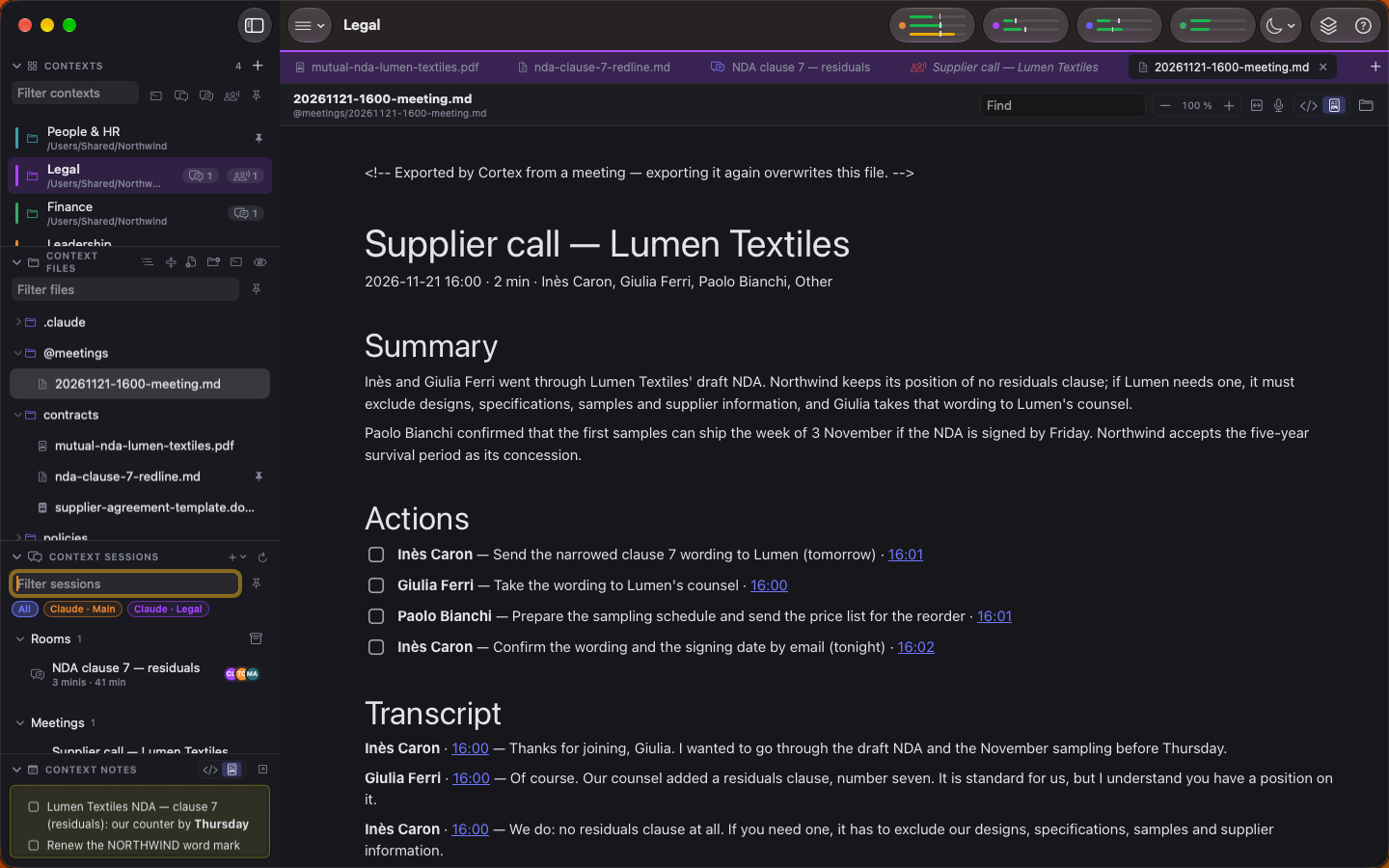
What the file holds
The file starts with a note that it was exported by Cortex and that exporting again overwrites it, then the title, the date, the length and the participants. Then come:
- Summary. A short executive summary.
- Actions. Who does what, by when, as Markdown task boxes. Each links to the moment it was said.
- Transcript. Every utterance with its speaker and its time.
## Summary

We agreed to ship the FIDO keys this quarter. …

## Actions

- [ ] **Sreedevi** — Review the FIDO rollout (Friday) · [09:07](cortex-audio:…)
An agent writes the summary and the actions, again at every export, so they follow the meeting as you edited and refined it. It is told to answer in the language spoken most, and not to invent actions. If the context's notes or the transcript say who Me is, the export uses that name for the speaker still called Me. If you renamed Me yourself, your name is kept.
Pauses and stops appear as lines of their own in the transcript, such as "Stopped at 09:20 · recording again at 09:38, 18 min later".
Where the file goes
The first export creates @meetings/YYYYMMDD-HHMM-meeting.md in the context, named after the meeting's start so the files sort by date. A number is added if the name is taken. You can change the folder with Exports' folder in Settings → Meetings. The meeting remembers the file, and later exports write that same file again. Once it exists, a button in the header opens it, and the Meetings row menu has Open Export.
Time links to the audio
Each paragraph of the transcript links its time to its moment in the recording, with a cortex-audio: link. In Cortex, a click on one opens the meeting and plays from there. Outside Cortex, it does nothing, so the readable text stays. The export never links or embeds the screen recording. Opening the meeting shows the screen at that moment.
Keep in mind
- A session sees an export, not the meeting. An agent working in the context sees a meeting only after you export it, and then only its Markdown, never the audio or the screen.
- Git. A context in git will commit the export unless you ignore the folder.
- The summary is written by an agent. The account and model are in Settings. The text of the meeting goes to that model. See What stays on your Mac when you transcribe.
- When it fails, nothing is written and the status line says why in red.
To change the agent that writes the summary, see Meetings settings and permissions.
Share it
You can send a meeting, with its transcript, summary and actions, to other people as a read-only package, with secrets and paths outside its context redacted first. Right-click the meeting in the sidebar or its tab and choose Share…. You need a Cortex ID. Send it to email addresses, whether or not the people have Cortex, or as a public link anyone can open. See Share a session, room, meeting or task and Sharing, in short. The recording travels only if you switch on Include the recording.
Something wrong or missing? Tell us