 Cortex
Record a meeting
On this page
A meeting tab, the audio source, Record and Pause, screen recording, and quitting during a recording.
A meeting is a conversation Cortex records and transcribes into a tab of a context: your microphone and, for an online call, the audio of the call. You see the words appear as people speak, with you as Me and everyone else as Other. Nothing is written into your context until you export it.
Start a meeting
- Choose the context the meeting belongs to.
- Click the + in a tab group's header and choose New Meeting.
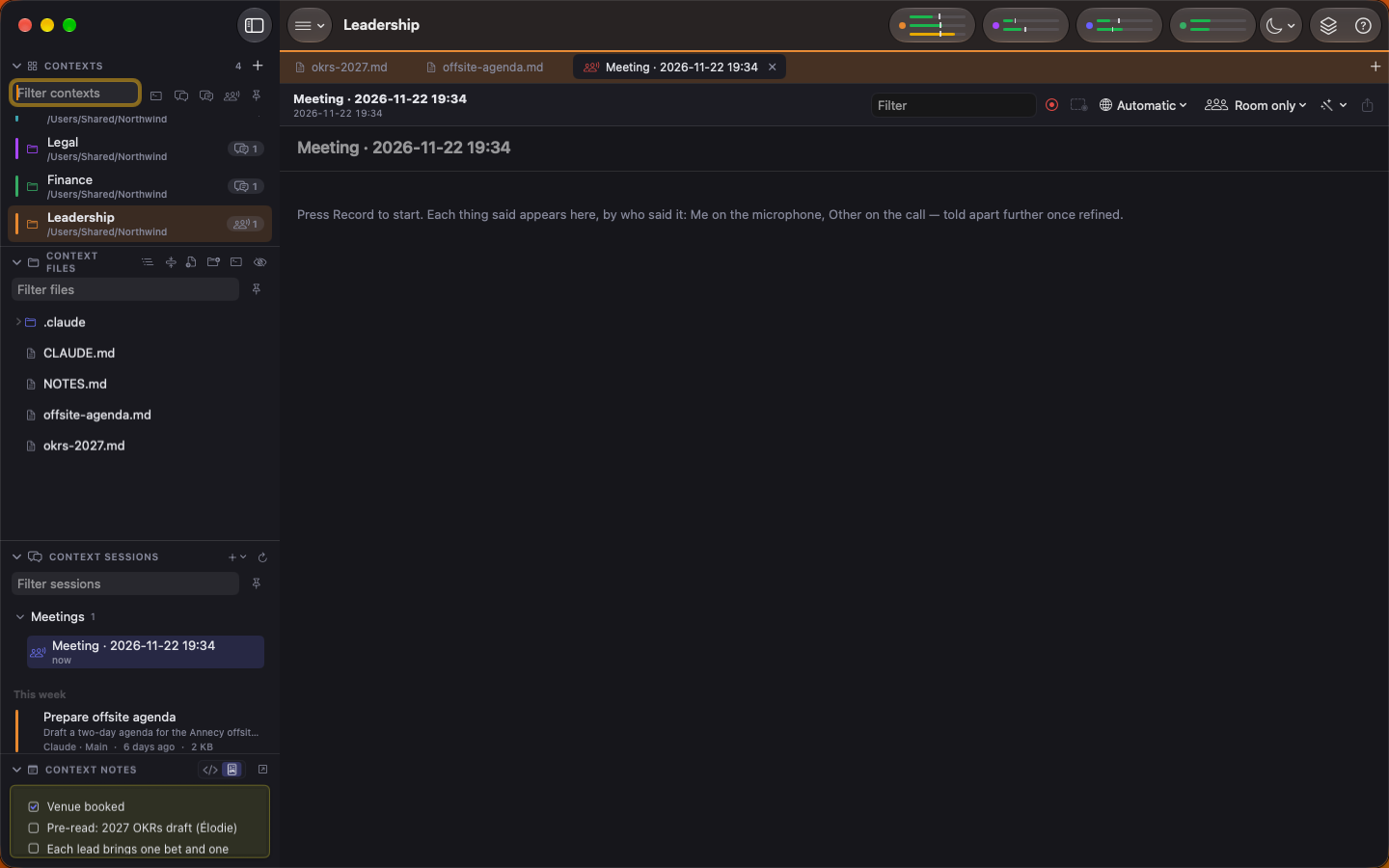
A meeting tab opens, titled "Meeting" with the date and time until you name it. Click the title to rename it.
Choose the audio source
The audio source menu says what the meeting listens to besides your microphone:
| Source | What it records |
|---|---|
| Automatic | The app on a call when you press Record. The menu shows which, such as "Automatic · Google Chrome", or "Automatic · no call". |
| Only one app | Any app using audio now, chosen by name: Chrome, Teams, Zoom and so on. |
| Everything the Mac plays | All the sound the Mac outputs. |
| This room only | The microphone alone, for a meeting in the room. |
The call's audio is taken digitally before it reaches your speakers, so it works with headphones on.
Record
Press Record. The words appear as bubbles in the order they were said. Me is on the right in your accent colour, and the others are on the left. A dimmed bubble shows the words still being heard.
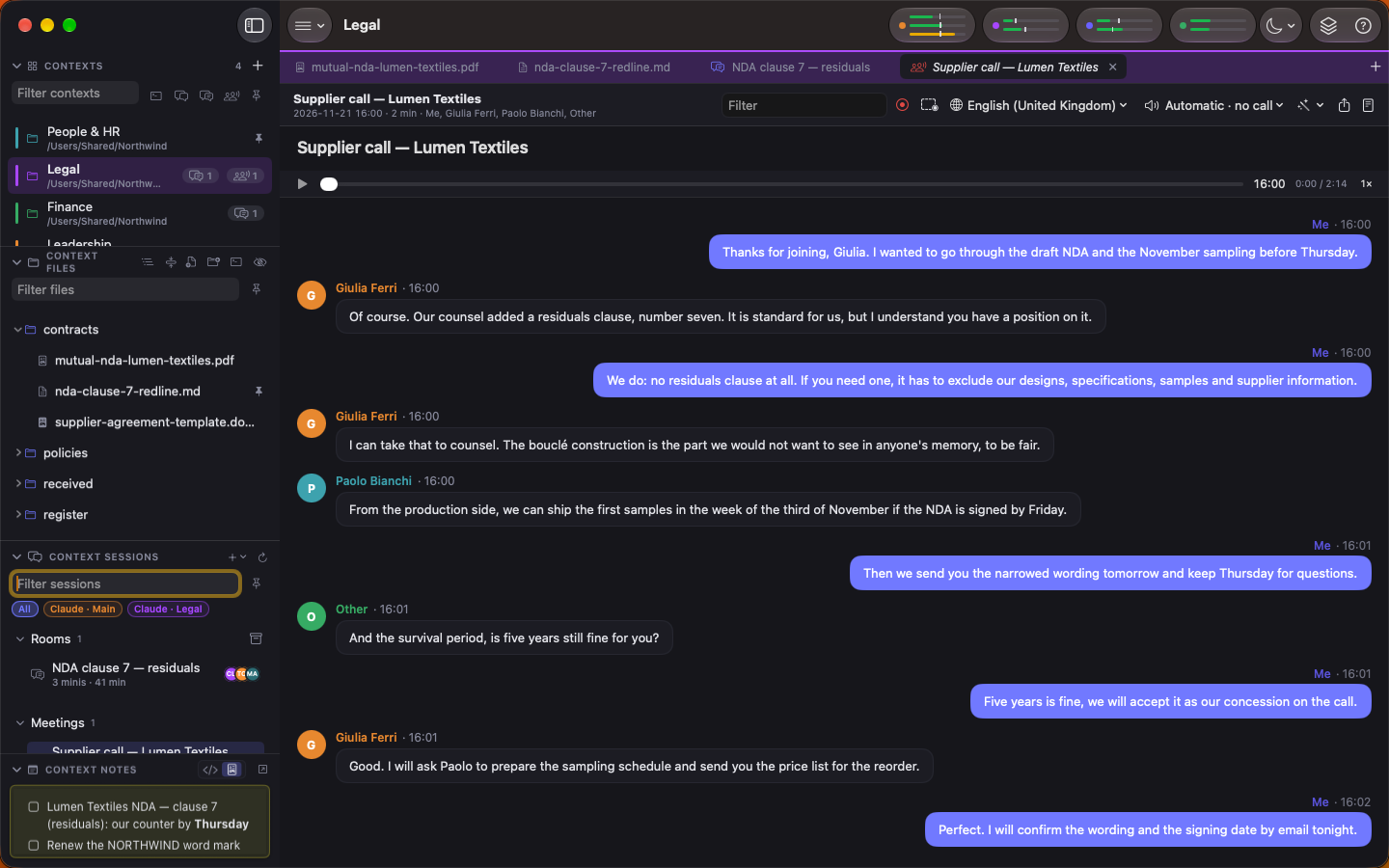
- Pause stops capturing. Record again resumes in the same meeting.
- Stop ends the recording and saves the audio. Record after a Stop adds a new part after the last. Each pause and stop leaves a line such as "Stopped at 10:42 · recording again at 11:00, 18 min later".
- Each phrase is saved as it is finalised, so a crash loses at most the words still being heard.
- While a meeting records, the toolbar shows "● Meeting" with its title and time.
The language, set in the meeting's language menu or in Settings → Meetings, is one per recording. Automatic picks it from the first phrase.
When the call ends
When the app on the call stops using the microphone, the toolbar and the meeting's status line say "Call ended · stopping in 20 s" with Stop now and Keep recording. If you do nothing, the recording stops by itself. If the app takes the microphone again, the countdown is cancelled. Turn this off with Stop a meeting when its call ends in Settings.
Record the screen too
Turn on Record screen before you press Record to film the call's window, cropped to it, with the audio. With Everything the Mac plays it records the main display instead. It is off by default, set for new meetings in Settings. With This room only it is dimmed, because a meeting in the room has no screen.
macOS asks for Screen and System Audio Recording permission the first time. If you refuse, or if capture fails later, only the video stops and the audio goes on. By default, Cortex pauses the video while the call's tab is not the one shown in a browser window, so your other tabs never end up in the recording.
Find and manage meetings
A Meetings row in the context's session list shows the meetings, newest first, with title, date, length and who spoke. A meeting that is recording shows ●, and a meeting that was exported has a mark. Click to open, or use its menu: Open, Open Export once there is one, Rename… and Delete….
Quitting during a recording
If you quit while a meeting records, Cortex asks. Stop and Quit stops and saves it, without the refine pass, which you can run later. Cancel keeps Cortex open.
Share it
You can send a meeting, with its transcript, summary and actions, to other people as a read-only package, with secrets and paths outside its context redacted first. Right-click the meeting in the sidebar or its tab and choose Share…. You need a Cortex ID. Send it to email addresses, whether or not the people have Cortex, or as a public link anyone can open. See Share a session, room, meeting or task and Sharing, in short. The recording travels only if you switch on Include the recording.
Next, see Name speakers, play back and refine.
Something wrong or missing? Tell us