 Cortex
Meetings settings and permissions
Language, models, microphone, exports folder, and the macOS prompts for microphone, system audio and screen.
Everything about dictation and meetings is in one place, the Meetings pane of Settings: Settings → Meetings. Open it from the Settings sheet, or follow that link. (Before version 0.29 the pane was called Transcription.)
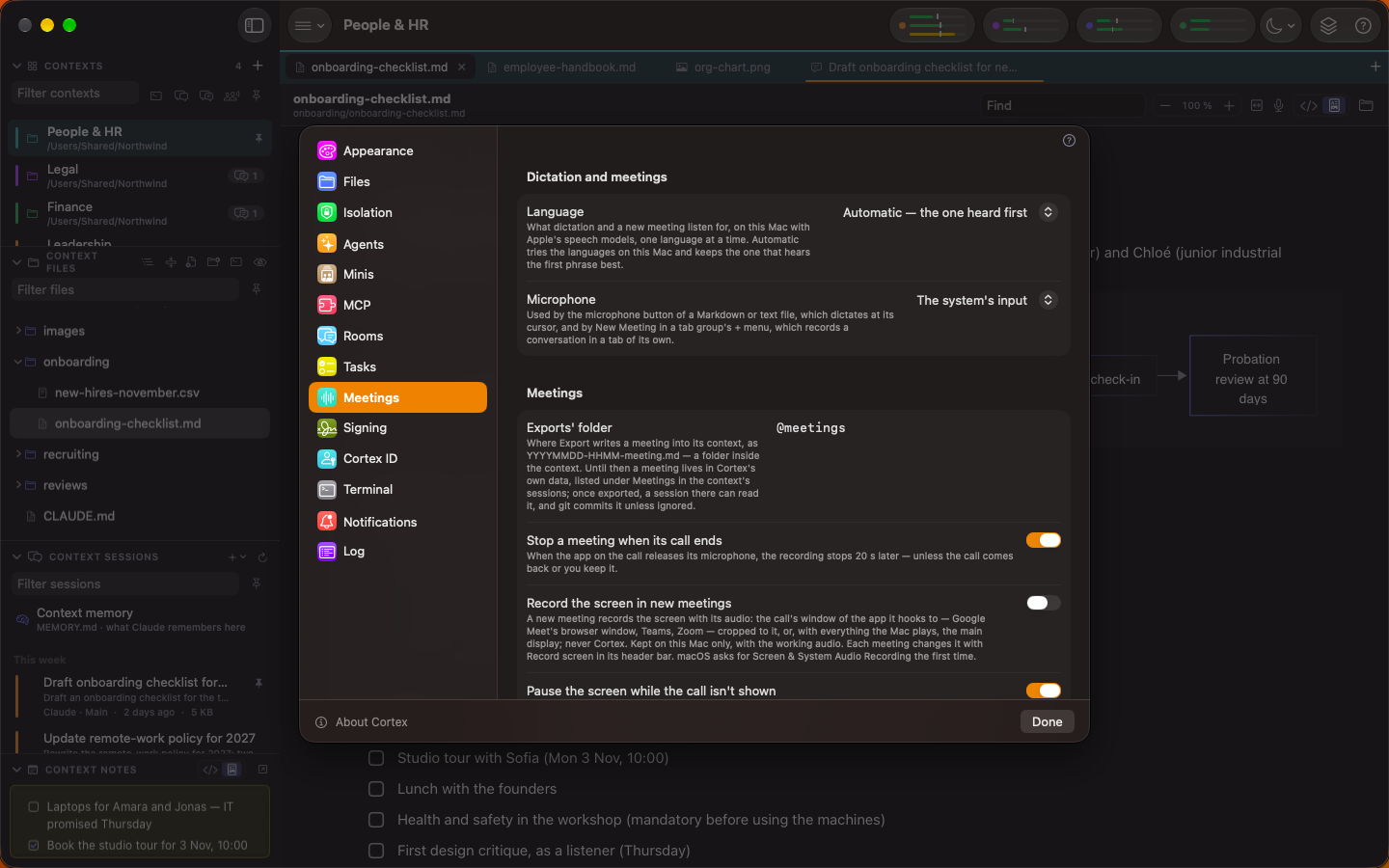
The settings
| Setting | Default | What it does |
|---|---|---|
| Language | Automatic | What dictation and new meetings listen for, one language at a time. Automatic tries the languages on your Mac and keeps the one that fits the first phrase best. |
| Microphone | The system's input | Which input device dictation and meetings use. |
| Exports' folder | @meetings |
A folder inside each context where Export writes a meeting. |
| Stop a meeting when its call ends | On | The recording stops 20 seconds after the app on the call releases the microphone, unless you keep recording. |
| Record the screen in new meetings | Off | A new meeting films the call's window, or the main display with everything the Mac plays. |
| Pause the screen while the call isn't shown | On | Films the call's window only while its title names the call, so another browser tab never ends up in the video. |
| Refine after a meeting | On | Runs the refine pass when a recording stops. |
| Refine with, after a meeting | FluidAudio | FluidAudio, WhisperKit + SpeakerKit or OpenAI. |
| Refine content with context after a meeting | Off | Also runs the context step, with an account and model you choose. |
| The agent writing an export's summary | The default account | The account and model that write the summary and the actions. |
| Keep the working audio | 30 days | Until you delete it, 30 days or 7 days. |
Keep the working audio covers the two channels, kept apart so a meeting can be refined again, and the screen recording. After that time they are deleted, and a meeting can no longer be refined for speakers. Its mixed audio, which the player uses, is never deleted by this.
Models
- Languages. A language's speech model belongs to macOS, which keeps it for every app. A language that is not on your Mac shows "Not on this Mac yet — macOS downloads it once" with a Download button, in the dictation popover and in a meeting's language menu.
- Speaker models. FluidAudio's models are 21 MB. WhisperKit and SpeakerKit's are about 660 MB. Each has Download and Delete in the pane, with its licence beside the button. Nothing is downloaded until you ask.
OpenAI and your voice
To refine with OpenAI, you need two things:
- An API key. It is stored in your Keychain, never shown again in full, and shown as "sk-…" with its last four characters once set.
- My voice. Press Record to record a short clip of your voice (8 seconds), so OpenAI can name you as Me. Play and Delete sit beside it, and Record Again replaces it.
A ? beside Refine with, the API key and My voice opens a short guide: which engine to choose, how to get a key, and how to record the clip well.
macOS permissions
macOS asks for these the first time you need them, never at launch:
| Permission | Needed for |
|---|---|
| Microphone | Every dictation and every meeting. |
| System Audio Recording | A meeting that records an app's audio or everything the Mac plays. |
| Screen & System Audio Recording | A meeting that records its screen. |
Apple's speech recognition needs no Speech Recognition permission. If you refused a permission, allow it in macOS System Settings under Privacy & Security. If a meeting's system audio cannot start, the meeting falls back to the room and says so. If the screen cannot be recorded, only the video stops and the audio goes on.
If the microphone changes mid-recording, such as AirPods in or out, Cortex switches to the new device without stopping. The gap is silence in the microphone channel, up to 10 seconds.
Something wrong or missing? Tell us