 Cortex
Run and manage applets
On this page
The Applets view, running, the log, versions, export and import.
Your applets live in the Applets view of the side panel, next to Tasks and the Stack.
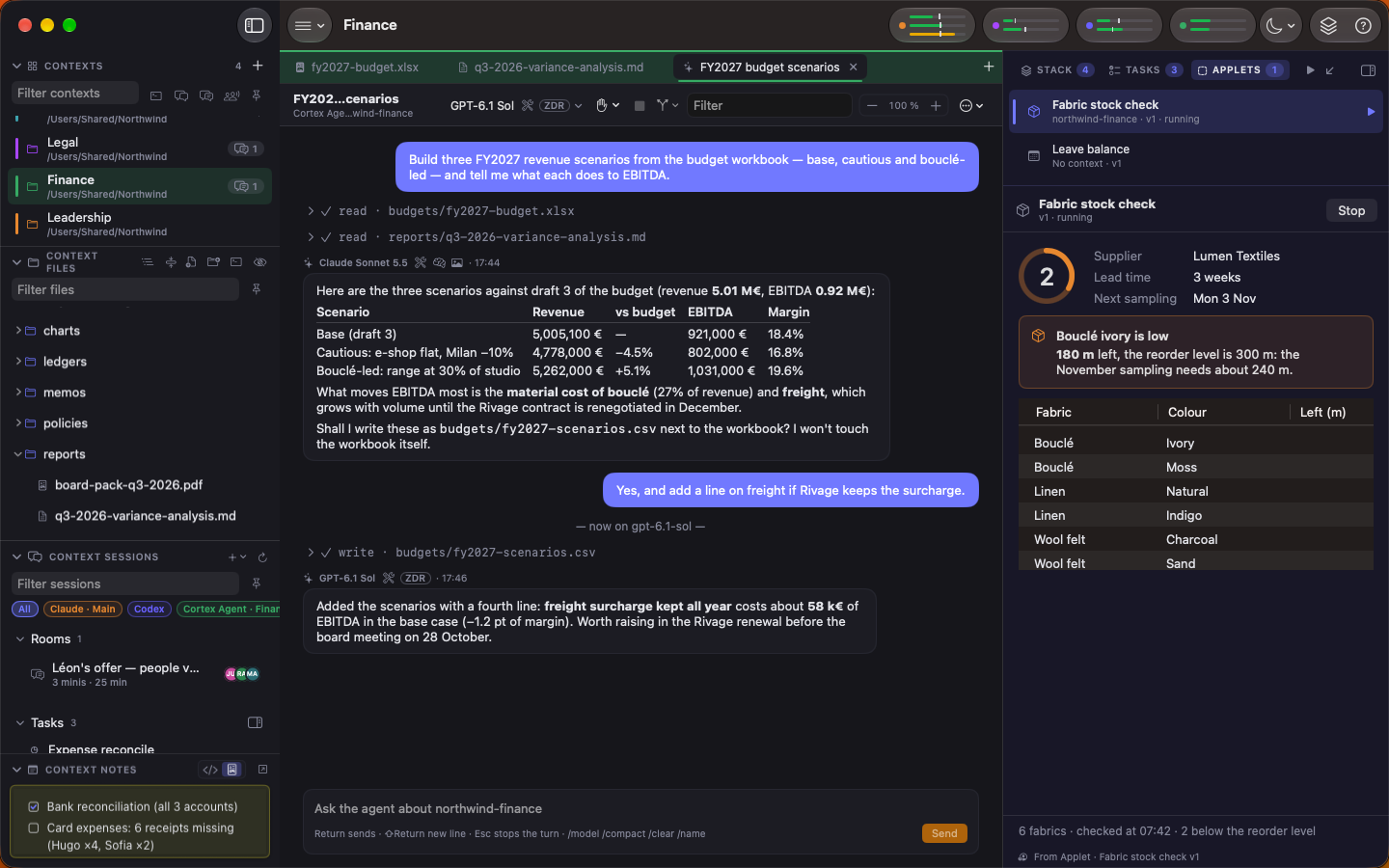
The Applets view
Show the side panel and choose Applets in its switch. The header has the number of applets running, the quick filters, New Applet… and Import…. Each row shows the applet's icon, name, the context from its configuration, whether it is running, and a mark when a received applet waits for you to look at a new version or a wider need. Drag rows to reorder them. A new, duplicated or imported applet comes first.
Select an applet to see it below the list. A running applet shows its screen there. One that is not running shows its description, its configuration in one line per field, its version and Run.
Run and stop
Press Run. An applet that has never been configured opens its configuration first (see Decide what an applet may reach). Only one run per applet goes at a time, and at most five applets run at once. Stop ends a run.
A run ends when its script closes its last screen and has no timer left, when you press Stop, when it reaches a limit, when it fails, or when Cortex quits. Its screens then become read-only. What it saved is kept for the next run. Nothing else is restored after a relaunch.
The menu
Right-click an applet for its menu:
| Item | What it does |
|---|---|
| Run, Stop | Starts or ends a run. |
| Open as Tab, Add to Stack | Moves the running applet's screen into a tab of its configuration's context, or onto the Stack, still live, as a session's view is. They act on the run's front screen and are off for an applet that is not running, whose screen is closed or that has no context in its configuration. The panel then reads "Its screen is in a tab of its context" or "on the Stack", with Show. On the Stack, Open in Context brings the screen back to a tab, since an applet has no session to go back to. Closing the tab or removing the screen from the Stack closes the screen. |
| Configure… | Opens its configuration, when no run is going. |
| Edit… | Reopens its builder. See Make an applet. |
| Versions… | Lists the last 10 versions and restores one as a new version. |
| View Source | Opens a sheet with the files of its current version, read only: the manifest (applet.json), the script (main.js), the screens, then the assets, in a list on the left and the selected file's text on the right. An asset that is not text, or is over 256 KB, is listed with its size only. To change the applet by hand, use Export…, then Import…. |
| Show Log | Shows the last five runs, newest first. |
| Clear Data… | Removes what it saved between runs and its secrets, after asking. Shown only while it holds any. |
| Duplicate | Makes a separate copy. |
| Export…, Share… | See below. |
| Delete Applet… | Asks first. Its versions, configuration, saved data, secrets and logs go. Files it wrote in its folder stay. |
The log records when a run started and which version, each call by what it reached (a site, a file, a mini, a tool, a command) with its time, every refused call with its reason, what the script printed, errors, and how the run ended. It never records the values on a screen or what a call carried.
For what a script may call, see Applet script calls and builder tools.
Share it
You can send an applet to other people with a Cortex ID of your own. Share… sends the current package to email addresses, or as a public link, through the same sheet every share uses. It never sends your configuration, its saved data, its log or its secrets. See Share a session, room, meeting or task and Sharing, in short for how shares work.
Export… writes the applet as one .cortexapplet file. Import… installs one. It arrives with an empty configuration, with "a file" as its sender.
In a browser, a shared applet shows as a card of what it does and what it asks for. It is never run there.
When you receive a .cortexapplet, it opens as a card with an Install button, showing its description, the needs and commands it declares and its screens' names. It installs with an empty configuration, marked with its sender and version. When the sender shares a new version of the same applet, a mark appears in the list. Update to v… offers it with what changed, needs first, and installing it grants nothing new. Detach makes the applet yours, with no more versions from the sender.
Something wrong or missing? Tell us