 Cortex
Make an applet
Describe what you want and an agent builds screens and a script; versions and changes.
An applet is a small application inside Cortex: a time sheet, a reading list, a release checklist, a dashboard over a folder's files, a form that turns into a document. You never write code. You say what you want, an agent builds it, you try it, and you ask for changes in plain words.
An applet keeps views for good, with a small program behind them, so something you need again and again is one click away in the side panel instead of a conversation you start each time. It runs without an agent, so a click is answered at once and costs nothing. It only calls an agent or a mini where its script needs one.
Build one
- Show the side panel on Applets and press New Applet… (the + in its header).
- Describe in your own words what the applet should do.
- At the top, Written by names the agent that builds it: Claude Code, Codex or the Cortex Agent, on any of your accounts and models. That agent only writes and tries the applet. It plays no part when the applet runs.
The builder opens in a window of its own, not a sheet, so the rest of Cortex stays usable while it works. There is one builder per applet. It is a chat on one side and a live try of the applet on the other. Closing the window is Cancel.
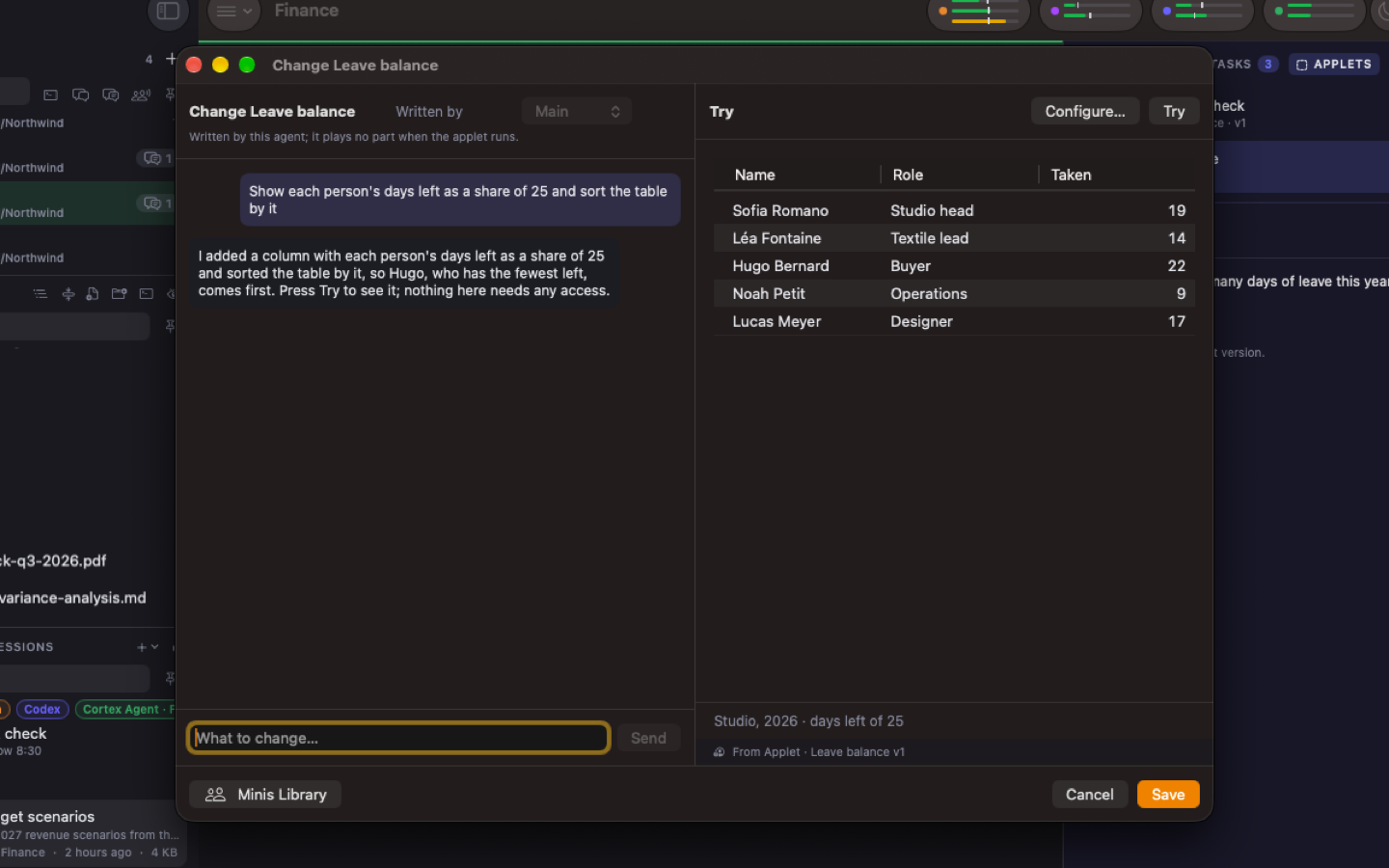
Try it as you go
Press Try to run the draft beside the chat. The builder can also run it itself and read the result. The draft runs under limits that you set with Configure… next to Try, the same sheet an installed applet has (see Decide what an applet may reach). A new applet starts with nothing allowed. The builder is told to ask you to allow what a try is refused. When it hits a refused call or an error, it reads it and fixes the draft.
Minis Library, at the bottom left of the builder, opens the library over the builder so you can look up, make or change the minis the applet will ask. See What minis are.
Save
Press Save to keep the applet as a new version in your library. Nothing runs from the builder outside your tries.
Change it later
Choose Edit… on an applet to reopen its builder with the current version. What you ask for becomes the next version. Every change, whether a save, an import, a received update or a restore, is the next version, numbered from 1, and the last 10 are kept. Versions… in the applet's menu restores an older one as a new version.
To edit by hand, use Export… and then Import…. An applet keeps its configuration, its saved data and its secrets across versions.
What an applet is made of
An applet is one package: a manifest saying what it needs (files, network domains, an agent, minis, tools, commands), its screens, a script and any assets. The screens are native Cortex views in your theme, not web pages. The script runs in a process of its own with no file, network or process rights, and everything it does goes through Cortex, which checks it against what you allowed. See Decide what an applet may reach.
An applet that needs a password or key for a service keeps it in your Keychain. You type it into a password field of the applet's own screen. It is never shown to an agent, a log or a share.
What the script can call, and the five tools the builder uses, are in Applet script calls and builder tools.
Share it
A saved applet can be sent to other people as a .cortexapplet package, to email addresses or as a public link, without your configuration, saved data, log or secrets. Use Share… in its menu. A running applet's screen can also open as a tab or go on the Stack, and View Source shows its files (see Run and manage applets). You need a Cortex ID. See Run and manage applets, Share a session, room, meeting or task and Sharing, in short.
Something wrong or missing? Tell us