 Cortex
Web pages as tabs
Open a page or a file path with ⌘L, add it to the Stack, passwords and links.
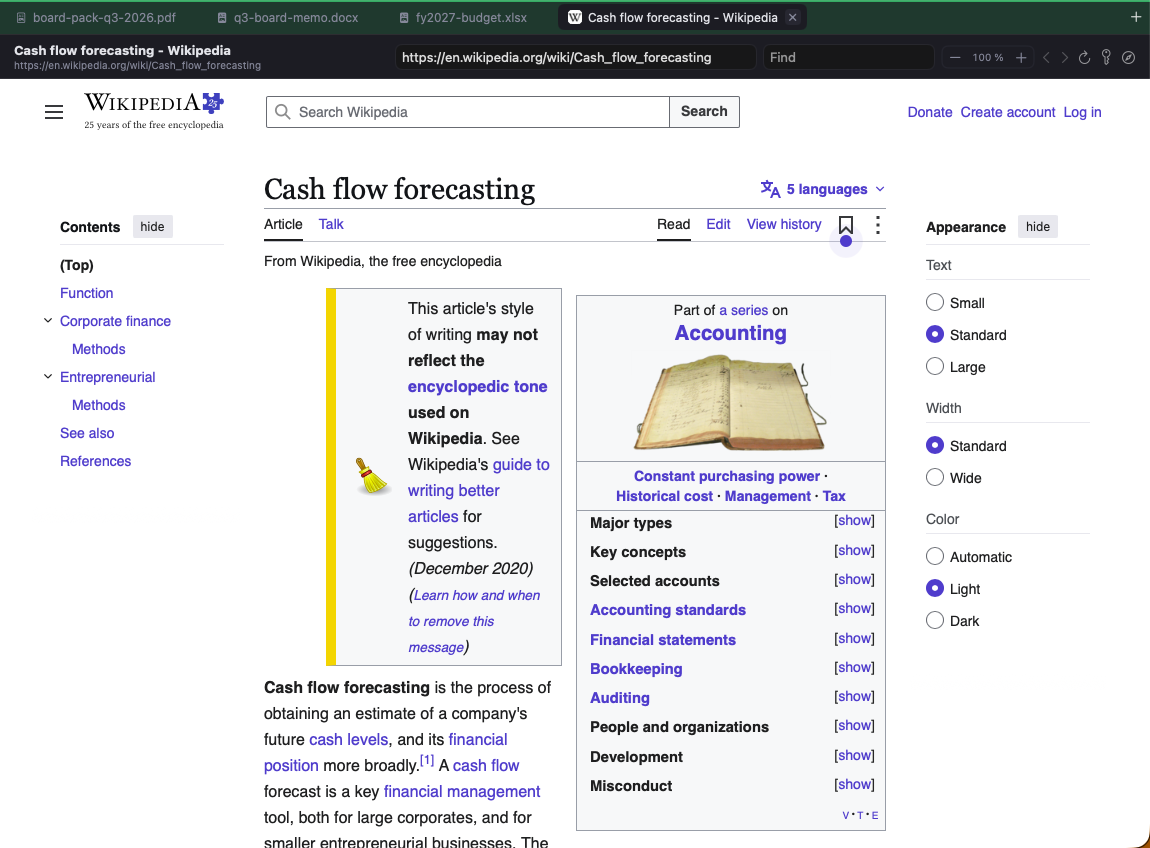
A web tab shows a page beside your work: documentation, a ticket, a dashboard, a local development server. It is a real web view, not a screenshot, and it can sit in a group or on the Stack.
Open a page
- Press ⌘L. The Open URL sheet appears, filled with a link if you copied one.
- Type or paste the address. Cortex assumes
https://. For a host without a dot, such ashttp://wikiorhttp://nas:5000, type the scheme yourself. - Choose Open to open a tab in the focused group, or Add to Stack to put it on the Stack.
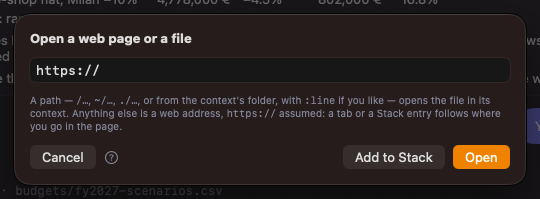
You can also use Open URL… in a group's + menu, drag a link from a browser onto a tab bar, or press ⌘⌥L to add a page straight to the Stack. From outside Cortex, see Open a folder, file or page from outside Cortex.
The same field takes a file path: /…, ~/…, ./… or file://…, optionally ending in :12 to open at that line. Cortex opens the file as a normal tab in the context that holds it. A missing file, a folder, or a file outside every context is refused, with the reason.
The header
The tab's title is the page title, and its subtitle is the current address. The header has an address field (Return goes there, Esc puts the current address back), a find field, zoom, back, forward and reload or stop, Open in the default browser, and a key button for passwords. The tab follows the page: when you navigate inside it, the tab keeps the new address, and a restart reopens it there. Zoom and find work as in any tab; see Quick open and Find.
What behaves like a browser
- Cookies, local storage and the cache are kept between launches. They are Cortex's own and separate from Safari's.
- The page sees Safari's user agent, so sites that check for a supported browser serve their full page.
- A page that opens a pop-up in answer to a click, such as a sign-in with another site, gets a pop-up window beside the main one. A pop-up a page opens by itself is not opened.
- Alerts, confirms and prompts show as sheets. A file field opens the system's open panel.
- A download you started is saved to your Downloads folder under a free name, and the log records it. A download a page starts by itself asks first: Download or Cancel.
- A link to another app, such as
mailto:, goes to the system only when you click it yourself in the page.
Passwords
macOS does not offer saved passwords and passkeys to a web view in an app that is not a browser. To get a password, click the key button in the tab's header. It opens the Passwords app, where you can copy one.
Links from your documents
A web link you click in a Markdown file, an HTML page, a note or a transcript opens in your default browser. To open those links as web tabs instead, set Web links in Markdown to Open as web tabs in Settings → Appearance. See Appearance and Terminal settings.
Something wrong or missing? Tell us