 Cortex
Quick open and Find
⌘P across every context, ⌘F in the tab in front and ⌘⇧F across a context.
Cortex has three searches, and each has its own key. ⌘P jumps to anything by name across every context. ⌘F finds text in the tab in front. ⌘⇧F finds text across a whole context.
Quick open: jump to anything
Quick open is one search field over everything you can open, in every context at once: files, sessions, rooms, tasks and contexts.
- Press ⌘P.
- Type a few letters. The match is fuzzy, so you do not need to type a whole name. Sessions match on their title and first prompt, files on their path relative to the context.
- Pick a result and press one of the keys below.
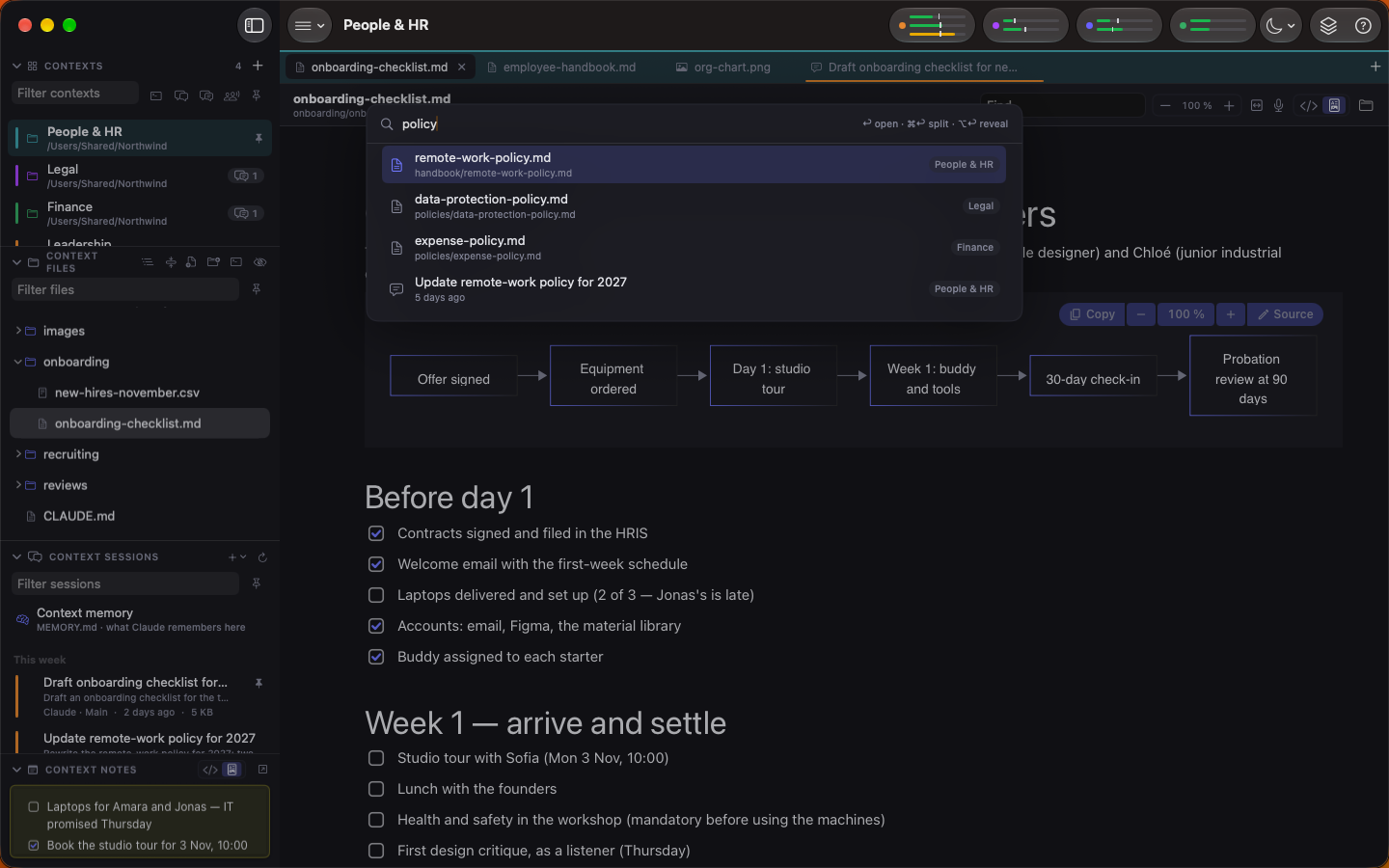
Results are grouped by kind (files, then sessions, rooms, tasks and contexts), and each kind has its own share of the list, so a hundred file matches never hide a session. The current context's result comes first only when two match equally well.
| Key | What it does |
|---|---|
| Return | Opens the result in the current group. A session opens its transcript, or jumps to its live tab if it is running. A context result switches context. A task shows in the Tasks view. A file or room in another context switches to that context first. |
| ⌘Return | Opens the result in a new split on the right. A running session, a task or a room already in a tab just comes forward where it is. |
| ⌥Return | Reveals the result in the sidebar: a file with its folders opened, a session with its section unfolded. |
| Esc | Closes Quick open. |
Quick open lists at most 20,000 files per root, and names a context that had more under the results. Build and dependency folders such as node_modules are left out. Quick open matches names only; to search inside files, use Find in context.
Find in the tab in front
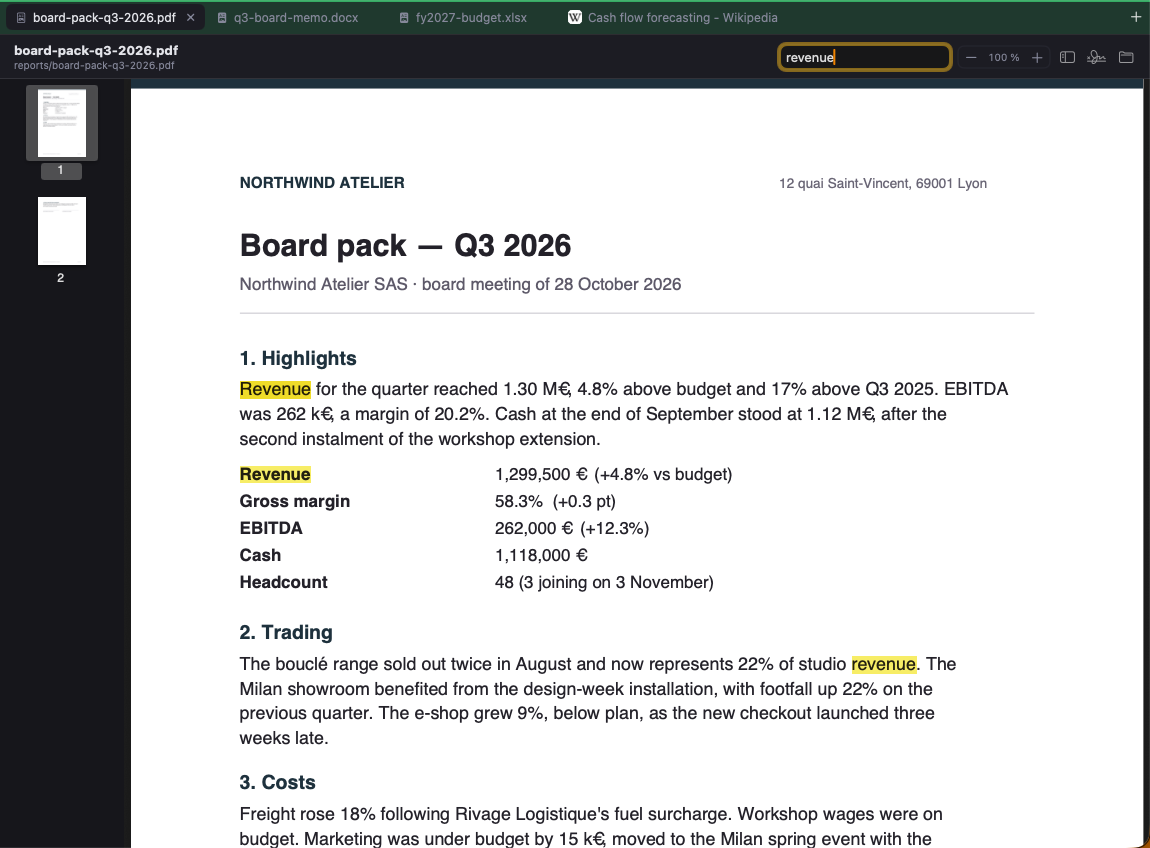
Press ⌘F to move the cursor to the filter field in the header of the focused group. Press Return to jump to the next match and Esc to clear the field. What the filter does depends on the tab:
| Tab | The filter |
|---|---|
| Markdown, HTML, JSON, plain text | Highlights every match and shows the first. |
| Highlights matches in the pages. | |
| Terminal or live session | Searches the terminal, with a counter such as 2/14. |
| Transcript, room, Cortex Agent chat, meeting | Filters the rows and messages. In a meeting it filters by text and by speaker. |
| Web page | Uses the page's own find. |
| Image | None. |
Find in context
Find in context is what turns a folder of notes into something you can search. Press ⌘⇧F. A panel opens in the sidebar.
- Type what you are looking for. The search is plain text; switch on the regular-expression, whole-word or case-sensitive options when you need them.
- Results stream in, grouped by file, each with its matching line.
- Click a result to open the file at that line. Markdown and HTML files open in Source mode.
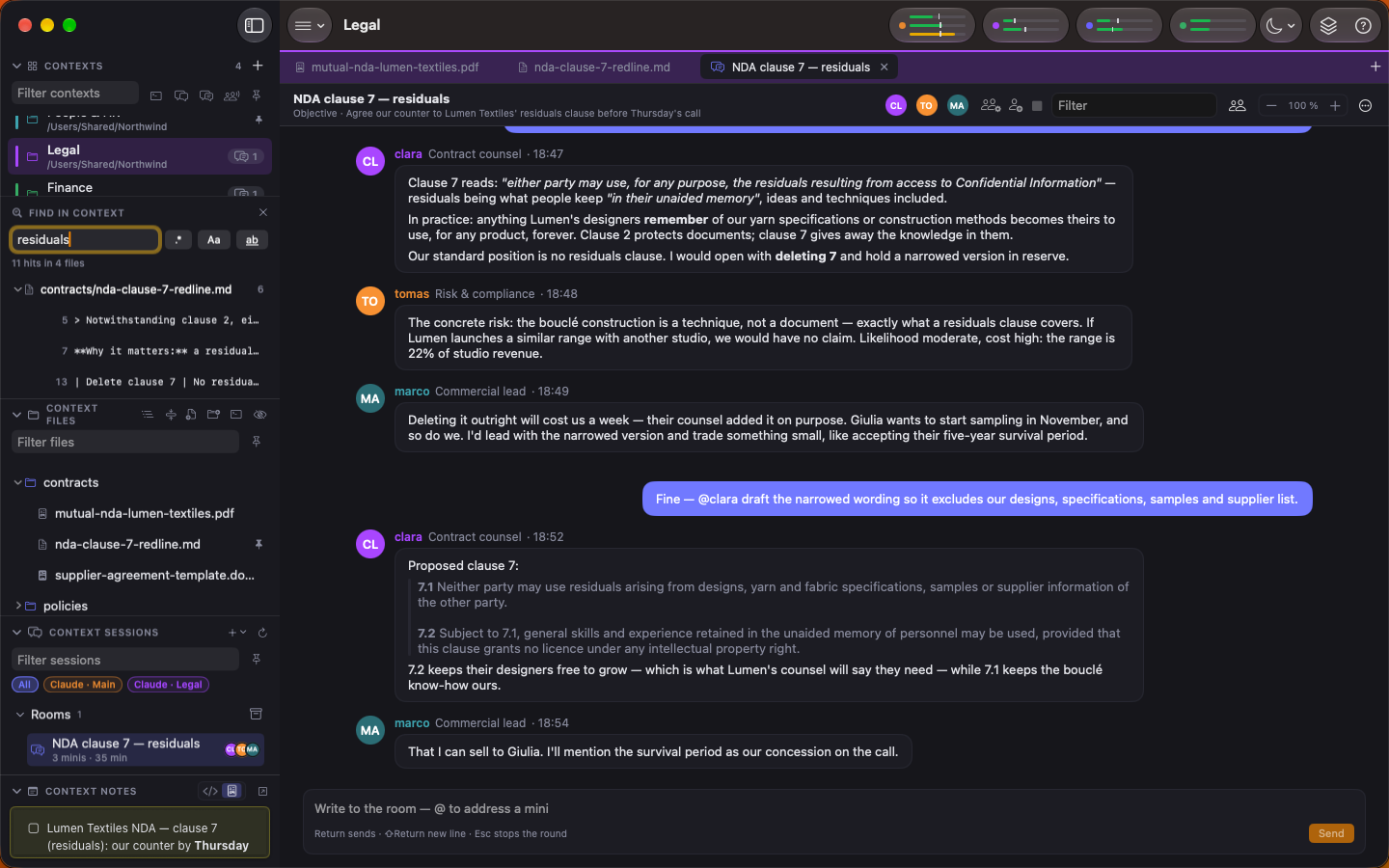
The search covers the text files of the current context and its extra roots, skipping the folders the file tree skips. It reads text files up to 2 MB each and stops at 2,000 hits, and the count then says "capped". Press ⌘⇧F again to close it. If the sidebar is hidden, ⌘⇧F shows it first.
Something wrong or missing? Tell us