 Cortex
Tabs and splits
On this page
Tab groups, preview tabs, splitting, dragging, naming and collapsing groups.
The middle of the Cortex window is a layout of tab groups. Each group is a row of tabs, and you can split any group to the right or down, as often as you like. Every kind of content is a tab: a live session, a stored transcript, a file, a terminal, a web page, a view an agent put in front of you, an applet's screen, a room, a Cortex Agent chat or a meeting.
An applet's screen opens as a tab when you choose Open as Tab for a running applet; see Run and manage applets. Each context has its own layout. Switching to another context loses nothing, and live sessions keep running in the background.
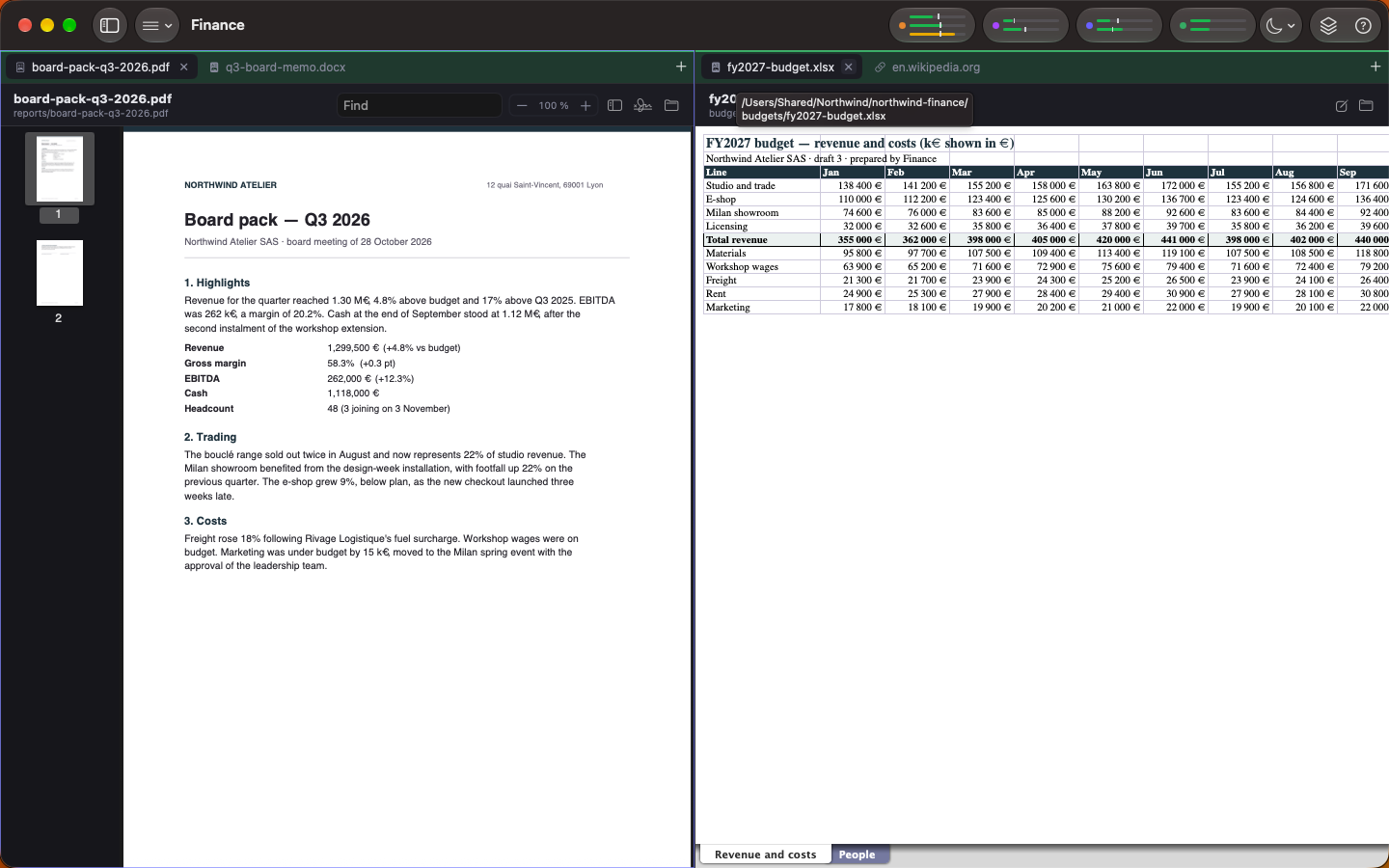
Split the window
- Click the group you want to split, so it is the focused group.
- Press ⌘\ to split it to the right, or ⌘⇧\ to split it down. The same two commands are in the group's + menu as Split Right and Split Down.
- Open something in the new, empty group, or drag a tab into it.
There is no fixed limit on splitting. The only limit is size: a group is never narrower than 320 points.
Exactly one group is focused. It is the one that keyboard shortcuts and the sidebar's "open" actions act on, and Cortex draws a thin accent border around it whenever there is more than one group. Press ⌘1…9 to focus group 1 to 9, or ⌘` for the next group. ⌃Tab and ⌃⇧Tab move to the next and previous tab in the focused group.
The + menu
Every group's tab bar ends in a + menu. In order, it holds: New Session, New File, New Terminal, New Room, New Meeting and Open URL…; then Split Right and Split Down; then Name Group…; then Collapse Group. A group that stands in a column or a row of groups also gets Name Column… (or Name Row…) and Collapse Column (or Collapse Row).
Move tabs and files
- Drag a tab onto another group to move it there, or onto an edge of a group to split that group and put the tab in the new half.
- Drop a tab on a tab bar and it lands between the tabs you dropped it between. A tab's own menu also has Move Left and Move Right.
- Drag a tab onto the band that appears at the right edge of the window to put it on the Stack. See The Stack.
- Drag a file from the file tree over a group and five drop zones appear: the centre opens it in that group, an edge splits the group and opens it in the new half, and a drop on a tab bar opens it there. If the group's selected tab is a running terminal or live session, the centre instead types the file's path at its cursor.
Closing the last tab of a group removes the group, and its neighbours take its space.
Preview tabs
A single click in the sidebar, a click on a link in a document, or a pick in Quick open opens a preview tab. Its title is in italics, and each group has at most one. The next preview you open in that group replaces it instead of adding another tab, so browsing does not pile up tabs.

A preview becomes a normal, kept tab as soon as you act on it:
- double-click the tab, or the row it came from;
- move it by dragging it along its bar, into another group or onto an edge;
- work in it: edit a file, send a message in a room or a chat, press Record in a meeting.
Anything you create opens as a kept tab (a new file, session, room, meeting or chat), and so does anything you open on purpose with a double-click, a drop or an address you typed with ⌘L. A preview that is busy, such as a room whose round is running or a meeting that is recording, is never replaced: the next preview opens beside it instead. Live sessions, terminals and views from a session are never previews.
Name a group
Choose Name Group… in the + menu, or double-click a name that is already there. The name shows as a capsule at the left of the tab bar. Press Return to keep it, Esc to cancel, or leave it empty to clear it.
A named group has a handle. Drag the capsule onto an edge of another group to move the whole group there, tabs and order intact, with no terminal restarting and no page reloading. Drop it on the centre or on a tab bar and its tabs join that group. An unnamed group is moved tab by tab, or named first.
Collapse a group
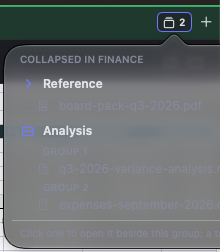
If a group is in the way but you do not want to close it, collapse it. Choose Collapse Group in the + menu, or press ⌥⌘\. The group leaves the screen, its neighbours take its space, and it joins the context's collapsed list. Its sessions and terminals keep running, and still notify you as tabs that are not in front do. The last group on screen cannot collapse.
While anything is collapsed, every tab bar shows a Collapsed button just before +, with the number of collapsed groups, columns and rows. A dot on it shows the most pressing session state inside. Click it to open the list. Click an entry and it opens again beside the group whose button you used. Click one of its tabs and that tab comes forward. Press Esc to close the list.
To collapse a whole column or row of groups into one entry, choose Collapse Column or Collapse Row, or press ⌥⇧⌘\. It comes back whole.
What to expect
Moving a tab never restarts its terminal or reloads its page. What comes back after you quit Cortex is described in Themes, zoom and what comes back. Closing a live session tab asks first; see Close, keep running and quit.
Something wrong or missing? Tell us