 Cortex
Themes, zoom and what comes back
On this page
The six themes, per-tab zoom, and everything restored after a restart.
Cortex has its own themes and its own zoom, and it remembers almost everything you adjust. This article owns all three: what the themes are, how zoom works, and exactly what comes back after you quit and reopen Cortex.
Themes
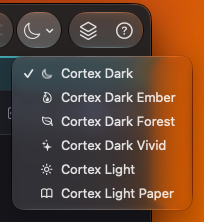
There are six themes. Each name says whether it is dark or light.
| Theme | Character |
|---|---|
| Cortex Dark | The default. |
| Cortex Light | The light counterpart. |
| Cortex Dark Vivid | Deep indigo, a hot-pink accent, cyan for running sessions and saturated syntax colours. |
| Cortex Dark Ember | Warm and dark: brown-black, an orange accent, amber headings. |
| Cortex Dark Forest | Dark green with a mint accent. |
| Cortex Light Paper | Warm cream paper, ink-blue accents, rust headings. |
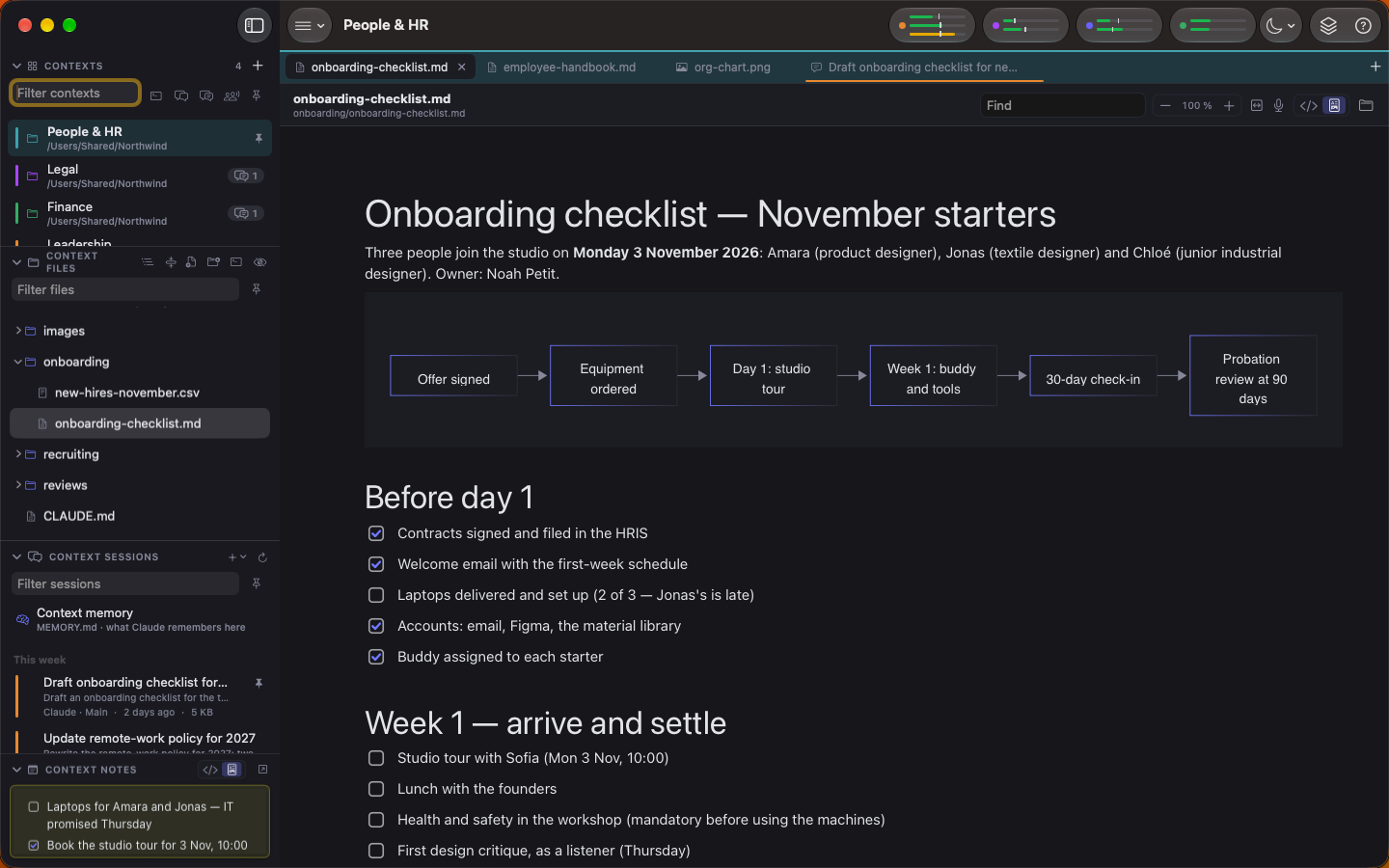
To change theme, open the theme menu in the toolbar, or choose a theme in Settings → Appearance. The whole app changes at once: the window, the terminals of live sessions, and the editors. The theme menu lists the six themes.
Zoom
Every tab zooms on its own.
- Press ⌘+ to zoom in and ⌘− to zoom out, in 10 percent steps.
- Press ⌘0 to go back to actual size.
- Or use the − 100 % + control in the tab's header. Clicking the percentage resets it.
The level runs from 50 to 300 percent. What it scales depends on the tab: the whole page for Markdown and JSON, the pages for a PDF and Word, the image's fitted size, the font for plain text, the terminal font for a terminal or live session, and the rows' fonts in a transcript. A Mermaid diagram also has its own zoom control, which appears when you point at it.
For an app-wide size, change the font sizes in Appearance and Terminal settings instead.
What comes back after a restart
Cortex saves your adjustments as you make them, so the window comes back as you left it. Per context, it restores:
- the whole layout: splits, their sizes, the tabs in each group, the selected tab, group names, collapsed groups, and the focused group;
- each tab's zoom, and its Source or rendered mode;
- the folders you had open in the file tree, and the last context you used.
For the whole app, it restores the Stack (its entries, order, the shown one, and whether the panel is open and how wide), the sidebar's width, its folded sections and section heights, the theme, and whether the Help panel was open, its page, width and zoom. macOS restores the window's size and position.
Not every kind of tab comes back the same way:
| Tab | After a restart |
|---|---|
| File | Reopens. A file that no longer exists is dropped. |
| Live session | Comes back as a read-only transcript. Cortex never resumes a session by itself. |
| Terminal | Starts a fresh shell in the folder it was last in, with the name you gave it. A terminal behind another tab or in a collapsed group starts only when it is first shown. |
| Web page | Reopens at its last address. |
| Room, meeting, chat | Reopens. One you deleted meanwhile is dropped. |
| View from a session, or an applet's screen opened as a tab | Not saved. |
A session that is still running when you quit does not survive: Cortex asks before quitting, and a crash ends the processes. Its transcript is never lost. See Close, keep running and quit.
Something wrong or missing? Tell us