 Cortex
Switch between contexts
On this page
Filter, arrow keys, ⌘⇧P, the busy toggles, the order and the row menu.
The Contexts section at the top of the sidebar lists your contexts. Its + button adds one: see Add your contexts. Folders dragged from Finder onto the section are added too. This article shows how to jump to one, how to narrow the list, and what the row's badges and menu offer.
Jump to a context
- Press ⌘⇧P from anywhere. It focuses the filter box and selects its text, so typing replaces it. If the sidebar is hidden, it is shown first.
- Type a few letters of the context's name. The list narrows as you type. Matches in the name come first, then looser matches, then matches in the path.
- Press ↑ and ↓ to move through the list, which wraps, and ↩ to open the highlighted context. When only one context is left, ↩ opens it.
- Or just click a row.
- Press Esc to clear the box and show the whole list. The text stays when you switch contexts, until you clear it.
For a search across every context at once, including files and sessions, use Quick open with ⌘P.
What opening a context does
The two sections below swap to that context's file tree and session list, and its saved tabs and splits come back. The previous context's tabs are not closed. They wait in their own layout and return when you select that context again. Live sessions keep running while you are elsewhere.
Read a row
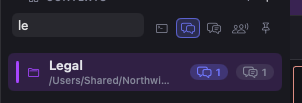
Each row shows the context's name, its folder's parent, "folder missing" or "opened once" when that is so, and up to five badges, each shown only when its count is above zero:
- the plain terminals that are open,
- the running sessions,
- the tasks that are running,
- the rooms that are not archived,
- the meetings.
The context in front has an accent bar and a bold name, and the list scrolls to it, so it is never unclear which one you are in. A pinned context shows a pin at its end.
Show only the busy ones
Beside the filter box are toggles for terminals, sessions, rooms and meetings, then a pin. Each keeps only the contexts that match, and with several on, a context needs all of them. They narrow the filtered list. The first four are off by default and do not survive a restart. The pin toggle does. See Pins and colours.
Put the contexts in your order
Drag a row to move it. The other rows make way, and the order you leave is saved. Pinned contexts stay first. A context you have not placed follows by name. Dragging is off while the list is filtered or any toggle is on.
The row menu
Right-click a row. The context's name in the window's title, above the tabs, opens the same menu with a click.
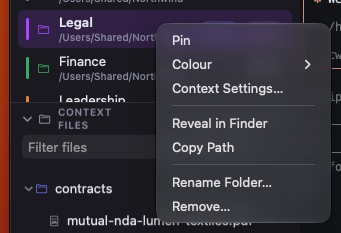
- Pin or Unpin. See Pins and colours.
- Colour ▸: one of eight colours, or none.
- Context Settings…. See Context Settings.
- Reveal in Finder and Copy Path.
- Rename Folder… and Remove…. See Add, remove and organise contexts.
- Locate…, only for a context whose folder is missing, and Add to Contexts, only for one opened once.
Something wrong or missing? Tell us