 Cortex
Add, remove and organise contexts
On this page
The Manage Contexts sheet, Remove with keep or Trash, Rename Folder, Locate, and Add to Contexts.
Your contexts are a list that you manage. Add your contexts shows how a folder gets on it. This article covers the rest: seeing the whole list, taking a context off it, renaming its folder, and pointing it at a folder that moved.
Manage Contexts
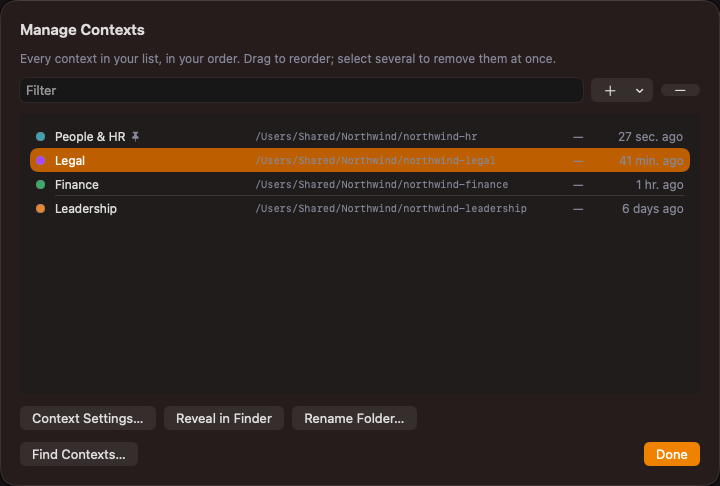
Choose Manage Contexts… from the + menu in the Contexts section, or from the ≡ workspace menu. A sheet lists every context in your order. Each row shows its colour, its name (with a pin when it is pinned), its folder, its state, and when you last used it.
The state is one of:
- "N running", when sessions or terminals run in it,
- "folder missing", with Locate…,
- "no agent set up", when the folder holds no
.claude/or.codex/, - "opened once", when it is open but not kept.
Type in the filter field to narrow the list. Press + for the same menu as the sidebar's, or − to remove the selected contexts. Drag rows to reorder them, pinned and unpinned ones each on their own side. For the selected row you also have Context Settings…, Reveal in Finder and Rename Folder…. Find Contexts… is at the foot, and Done closes the sheet. Double-click a row to open that context.
A context you add goes first after the pinned ones, so you see it. Several added at once keep their own order.
Remove a context
Right-click a row and choose Remove…, or select rows in Manage Contexts and press −. A sheet names the context and its folder. Several at once read "Remove 3 contexts?".
- Keep the folder is the default. It takes the context off the list and touches nothing on disk.
- Move the folder to the Trash puts the folder in the Trash, where you can get it back. The sheet counts the files and their size first, and names the agent folders in it. Cortex refuses when the folder is a link, is your home folder, or holds another context on your list, and says which. If the Trash fails, the context stays on the list and the sheet says why.
- Also delete what Cortex keeps for it is off by default, so that adding the folder again brings everything back. When it is on, the sheet lists what goes with counts and sizes: the context's settings and layout, its rooms and their logs, its meetings and their recordings, its tasks and their runs, and its vector store. A task run that is going on, or a recording or refinement in progress, keeps its data, and the sheet says so. The agents' own session transcripts are never touched.
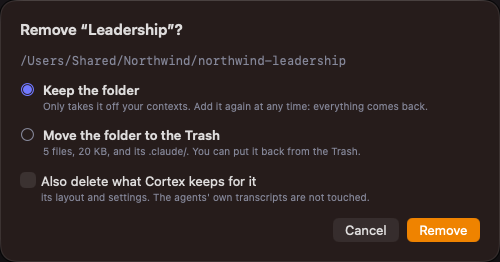
Sessions and terminals that run in the context are named in the sheet. They keep running in the background until they end, and their tabs close. If a file in it holds unsaved text, Cortex asks first with Cancel or Remove and Discard. When you remove the context in front, the next one in the list is selected.
Rename a folder
Choose Rename Folder… in a row's menu or in Manage Contexts, and type the new name. Cortex renames the folder on disk and keeps the context pointed at it: its tabs, settings, order, rooms, meetings, tasks, memory and pins follow. Open documents are saved first.
Cortex refuses an empty name, a name with /, a name that exists already, and a context that has sessions or terminals running, because a running process lives in the old path. End them and try again.
The agents file their transcripts under the folder's path, so a renamed folder starts with no sessions in the agent's eyes. The switch Move the agent's transcripts too is off by default, because these are the agent's files, not Cortex's. Turn it on and, for Claude Code, each account's transcripts of the old path move to the new one, so the sessions follow the folder. Codex files its sessions by date, so nothing moves and its sessions stay with the old name. If the move cannot be made, the rename still goes through and the sheet says why.
Locate a folder that moved
When a context's folder is gone, its row says "folder missing" and offers Locate… in its menu, in the banner over its tabs and in Manage Contexts. Choose the folder it is now. Everything Cortex keeps for the context goes across: its settings, layout, place in your order, rooms, meetings, tasks, memory, pins and sessions. A folder that is listed already is refused, "already in Contexts". If a file of the context holds unsaved text, which cannot be saved while the folder is away, Locate… refuses and says so.
Remove… on a missing folder offers no Trash, since there is no folder. A context's folder is gone goes through the whole case.
Keep a context opened once
A folder opened from Finder or Terminal, or the context of a file or page outside your list, is listed as "opened once". It is not saved and goes when you quit. Its row's menu, and a banner over its tabs, offer Add to Contexts, which keeps it, placed first after the pinned ones. You can dismiss the banner for the session. See Open a folder, file or page from outside Cortex.
After an update
The first time you launch a version that has this list, the roots of the old Settings → Contexts become the list's first content. A line at the foot of the section says how many were found and that they are all there. Press Got It to dismiss it.
Something wrong or missing? Tell us