 Cortex
The file tree
On this page
The context's files and extra roots, Recent, Filter files, hidden entries, change dots, drag and drop, creating, renaming and trashing.
The Context files section of the sidebar shows the selected context's folders and files. It follows the disk: when you or an agent changes a file, the tree updates.

Two views
The first button in the section header switches between the tree and Recent.
- The tree shows folders and files. If the context has extra roots, the tree starts with the context's own folder as a row marked "root", followed by each extra root marked "extra root". See Extra roots.
- Recent is a flat list of the context's files, most recently modified first, so a file just made or changed by you or an agent is at the top without finding its folder. Each row shows the file's name and, quieter, its folder. It lists at most the 500 most recent files and says so.
A click opens the file as a preview tab, a double-click keeps it, and a drag puts it in the layout. Your choice of view holds for every context and is remembered.
Find a file
Type in Filter files, the field under the header. The tree narrows as you type but keeps the folder hierarchy: folders on the way to a match stay open, and everything else is hidden. It covers the whole context without opening folders, includes the extra roots, and shows at most 500 matches. Press ↓ and ↑ to move through the matches, ↩ to open one, and Esc to clear the field.
For a search across all contexts, see Quick open and Find.
Hidden entries
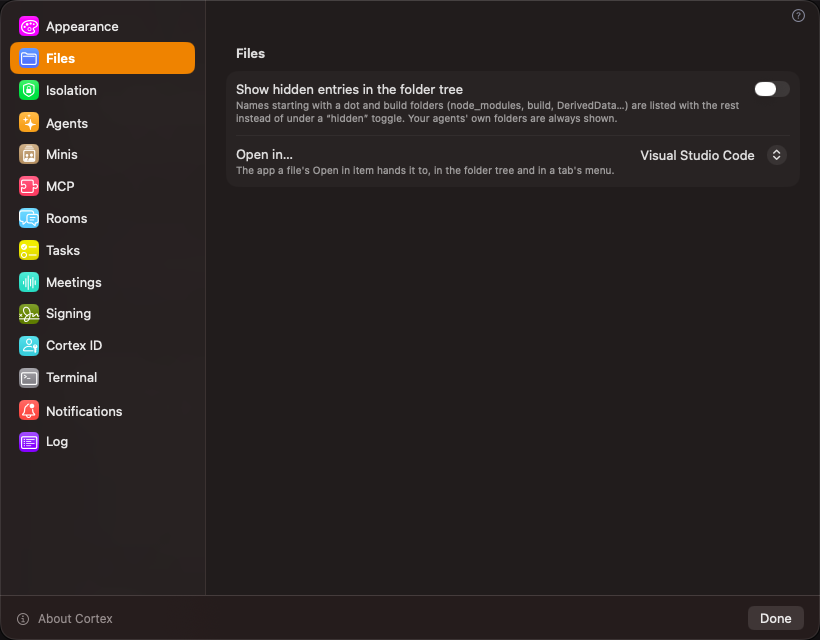
Names that start with a dot, such as .git, and folders such as node_modules, Library, DerivedData, build, dist and Pods are folded under a hidden toggle. They are not removed. An agent's marker folders, .claude/ and .codex/, and @outputs/ are always shown, because they hold knowledge. To show hidden entries with the rest, turn the option on in Settings → Files.
See what changed
A file changed in the last ten minutes carries a dot. When one of Claude Code's own file tools just changed it, the dot's tooltip names the session: "Changed by Claude" and the session's title. A file open in an editor follows the change, as When an agent changes a file you are editing explains.
Create, rename, move and trash
New items are named in place, as in Finder. No dialog appears.
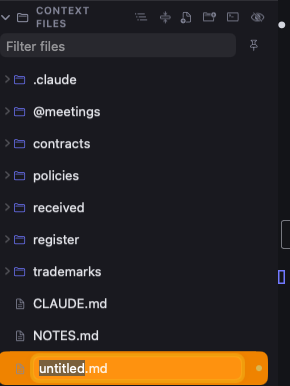
- To make a file, press the new-file button in the section header, use a folder's hover button, or right-click and choose New file. Header buttons create at the top level whatever is selected. ⌘T makes
untitled.mdin the selected folder, or at the context's root, and opens it at once. - The new item is named
untitled.mdoruntitled folder, with its name selected. Type a name and press ↩, or click elsewhere. Press Esc to take it back, as long as it is still the empty file or folder you just made. - To rename, select a row and press ↩, or choose Rename. A name that already exists is refused. A name that contains
/or:is refused too. - To move, drag a row onto a folder, or onto the section header to move it to the context's root. Open documents and their tabs follow the move.
- To trash, use the hover button or Move to Trash in the menu. Cortex never deletes for good. A folder with anything in it asks first and says how many items it holds.
Drag in from Finder
Drag files or folders from Finder onto a folder row or the section header. They are copied, or moved when you hold ⇧ at the drop. The pointer shows which: a green plus for a copy. Each item is refused on its own if its name already exists there, and nothing is overwritten.
The row menu
Right-click a row for New file, New folder, Open Terminal Here (folders), Open and Open with Default App (files), Sign… (PDFs, see Sign a PDF), Rename, Duplicate, Move to Trash, Reveal in Finder, Open in your default editor, Copy path, Copy relative path and Pin or Unpin. Collapse All in the header closes every folder.
Share it
You can send a file or a whole folder to anyone with an email address, or as a public link: right-click it and choose Share…. You need a Cortex ID. People without Cortex read it in a browser. See Share a file or folder, Share by public link and Sharing, in short.
Something wrong or missing? Tell us