 Cortex
Share a file or folder
Right-click Share…, add people, title, message and expiry, and what the recipient gets.
You can send a file, several files or a whole folder to anyone with an email address, straight from the sidebar. This article covers the steps. What the recipient goes through is in Share with someone who doesn't have Cortex.
Before you start
You need a Cortex ID, and this Mac needs to hold its key. If either is missing, choosing Share… shows an alert that says which, with a button that opens Settings → Cortex ID.
Send it
- In the sidebar, right-click a file or a folder in the file tree and choose Share…. It is also in the menu of the filtered tree, of the recent files and of a file's tab.
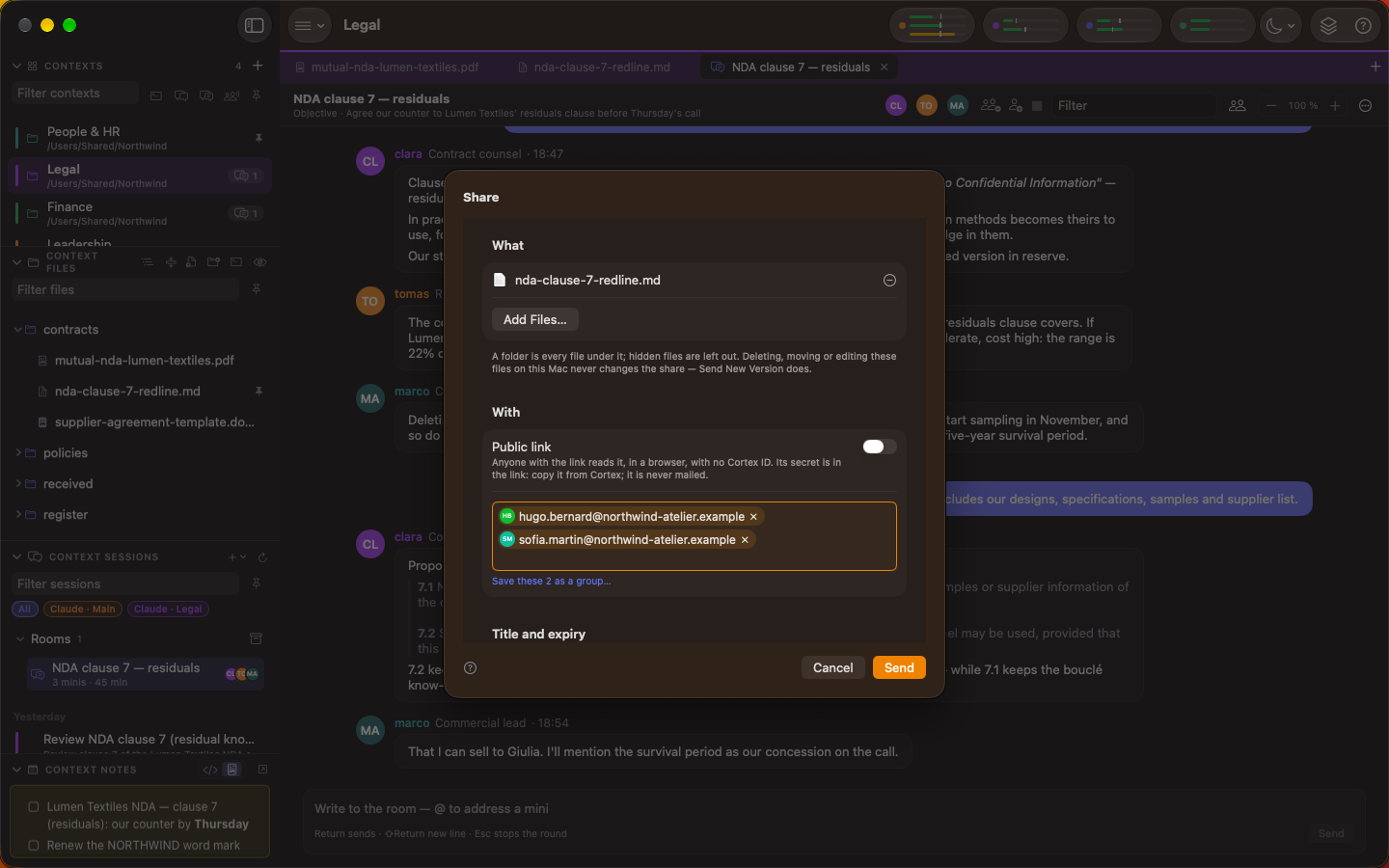
- In What, check the list. A folder means every file under it. Hidden files and folders are left out and symbolic links are not followed. Use Add Files… to add more, or the minus button to leave one out.
- In With, type the people's email addresses. Cortex suggests people you have exchanged with as you type, with the state of their key. Or switch on Public link to share with anyone who holds the link instead, see Share by public link.
- Add a Title and, if you like, a Message. Both are encrypted along with the files.
- Under Expires, leave the date a month from now, pick another, or switch it off for a share that never expires.
- Click Send.
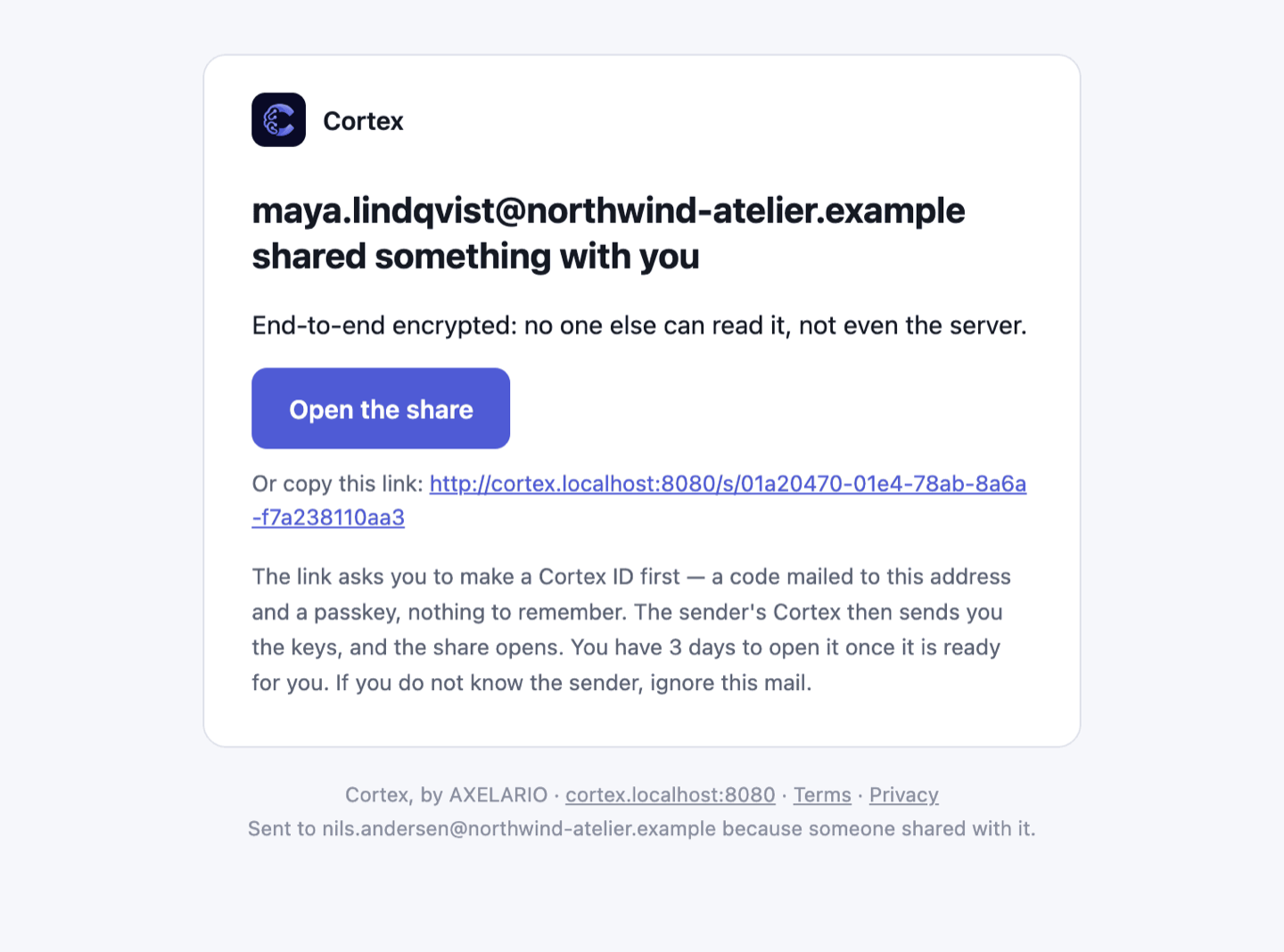
Cortex encrypts each file in your Mac, uploads the encrypted data and sends version 1. The server then emails each recipient an invitation with a link. An address that already has a Cortex ID also gets the share in its Cortex, in the Shares view.
The people field
The field turns each address into a token. Press ↑ or ↓ to move through suggestions and Return to add one. You can paste a list of addresses or Name <address> entries and each becomes a token. A token in red is not a valid address and keeps Send off until you fix it. With two or more tokens, a line under the field offers Save these N as a group…. More in Contacts and groups.

What the recipient gets
An email that names you as the sender and carries a link to the share. It says nothing about what the share holds, and the link never contains a key. The recipient opens it in Cortex or in a browser. They have 3 days to open it, counted from the moment their keys are in place.
What to expect
- The share is listed in the Shares view of the right-hand panel, marked ↗. See Send new versions and manage a share.
- The share is not your files. Deleting, moving or editing them on your Mac changes nothing. Send a new version to update it.
- If the share would not fit in your storage, Cortex refuses before uploading and says how much is over. The numbers are in Share limits.
- If a send fails before the first version is sent, the share is deleted again. If one recipient's key cannot be sent right away, Cortex keeps it as a job and finishes it when it next can.
Something wrong or missing? Tell us