 Cortex
Send new versions and manage a share
On this page
New versions, rename, expiry, add or revoke people, receipts, delete for everyone.
Everything you have shared is in the Shares view of the right-hand panel. Shares you sent are marked ↗ and shares sent to you are marked ↙. Select one of yours to manage it.
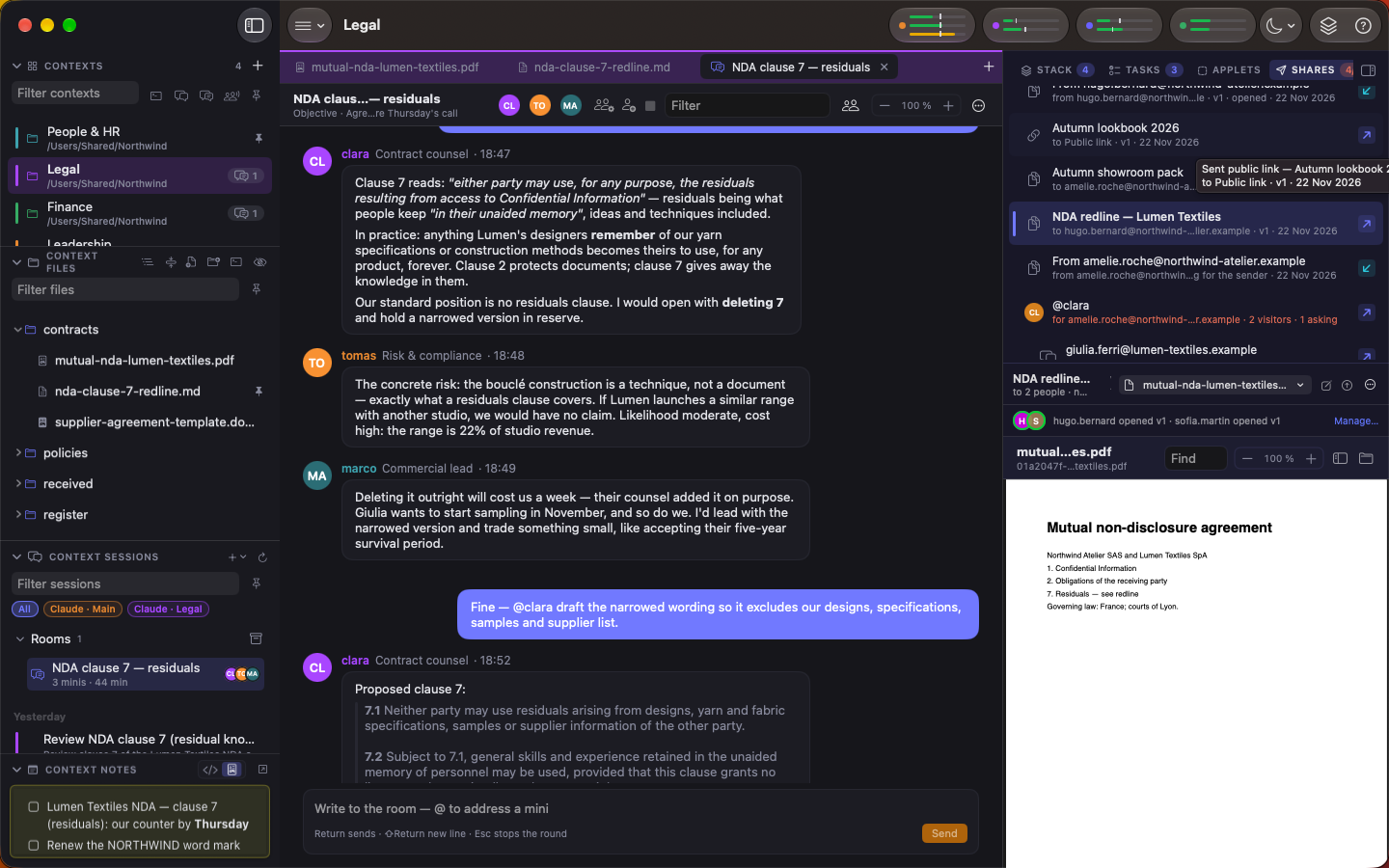
What a share header offers
The header of a selected share has its title, who it reaches and its expiry, a pop-up of its versions, a pop-up of its files, Open Original, Send New Version, and a ··· menu with Copy Link (public shares), Rename…, Change Expiry… and Delete Share…. Under it is a strip of the people it reaches.
Send a new version
- Edit the files on your Mac as usual.
- Select the share and click Send New Version.
- In the sheet, confirm or change the title (one line, at most 120 characters). The sheet sends the files as they are now, from where Cortex took them.
- Click Send.
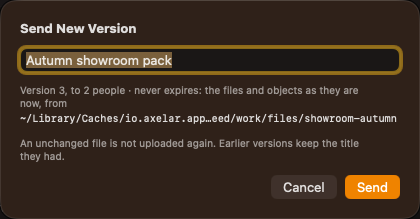
The link stays the same and always shows the latest version. Earlier versions can still be browsed and keep the title they had. Ten versions are kept: when an eleventh is added, the oldest goes. A file that did not change is not uploaded again.
If this Mac no longer knows where the share's files came from, the sheet says so and Send stays off.
Rename
Rename… sends a new version that lists the files exactly as they were, under a new title. Nothing is read from your Mac or uploaded again, so it works even when the original files are gone.
Change when it expires
Change Expiry… sets another date or never. A share stops being served at its expiry and is deleted 30 days after it. Until then, a later expiry serves it again.
See who opened it
The strip under the header shows each person as a face: ringed green when they opened the latest version, amber when they are behind, faded when they have not signed up or their invitation lapsed. A sentence says it in words. Manage… opens the full list with each person's state, receipts (who opened which version, and when) and fingerprint. A receipt records the first time each person opened each version, and is kept for 90 days.
Add people, invite again
Manage… is also where you add people. A new person gets an invitation and can read every version still kept. If someone's invitation lapsed, they may ask you again, and you see it. Choose Invite Again to give them a new 3 days. Inviting again does not count against your daily limit.
Revoke
In Manage…, choose Revoke for one person or Revoke All. The server stops serving the share to them at once, and your next version starts a new key they never receive.
Delete for everyone
Choose Delete Share… in the ··· menu. The share is removed from the server at once and nobody can open it again.
Your own files are never touched by any of this. The share is a separate copy on the server.
Something wrong or missing? Tell us