 Cortex
Pins and colours
Colour a context so its tabs carry it, pin contexts, files and sessions and filter to them.
Colours tell your contexts apart at a glance. Pins keep what you come back to one click away. Both are saved per context.
Colour a context
A context can carry one of eight colours: red, orange, yellow, green, teal, blue, purple or pink.
- Right-click the context in the sidebar and choose Colour ▸, then pick one. Or open Context Settings… and use its colour pop-up. Both offer the same choices, and None removes it.
The colour shows in several places, so the context in front is clear even with the sidebar hidden:
- on the context's row bar and folder icon,
- as a tint on the open context's row,
- as a tint and a thin stripe along the top of the context's tab bars,
- on the context's entries on the Stack.
Accounts use the same eight colours. See Use several accounts of one agent.
Pin things
You can pin a context, a file or folder in the file tree, and a session in the session list.
- Right-click the row and choose Pin or Unpin.
- In the file tree, hover a row and press its pin button, which sits last on the row.
A pinned row carries a small pin at its end. Pinning a file or a session does not move it. A pinned context stays first in the context list. A file or folder you rename or move in Cortex keeps its pin. A pinned file that is trashed, or deleted or renamed outside Cortex, loses its pin, and so does a pinned session that no longer exists.
Show only what is pinned
Each of the three sections has a pin toggle after its filter field. With it on, only pinned rows show: a pinned file with the folders above it, a pinned folder with everything under it. Text in the filter field narrows it further. If nothing is pinned, the section says "Nothing pinned — right-click a row to pin it".
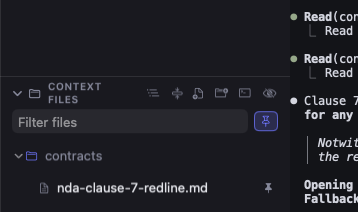
Each section's toggle is remembered between launches. Quick open and Find in context ignore pins.
Something wrong or missing? Tell us