 Cortex
Use several accounts of one agent
On this page
Add a work and a personal account, each with its own folder, sign-in and limits; colours, order, removing.
You may have more than one subscription of the same agent, for example a personal Claude plan and a work one. Cortex keeps each in an account, so one never leaks into the other.
What an account is
An account is one agent with a folder of its own. The folder holds the account's own sign-in, settings, sessions, history, memory and plan limits. Cortex never holds a Claude or Codex credential itself. It starts the agent pointed at a different folder.
- The built-in account, named "Main", uses the agent's usual folder,
~/.claudefor Claude Code and~/.codexfor Codex. Cortex shares that folder with your terminal, so the same sessions, memory, skills and login appear in both. The built-in account cannot be removed. - An added account has a folder of its own, by default
~/.claude-workor~/.codex-work, named after the account.
The Cortex Agent has no built-in account. Its accounts are explained in Add an OpenRouter account and Use your own models.
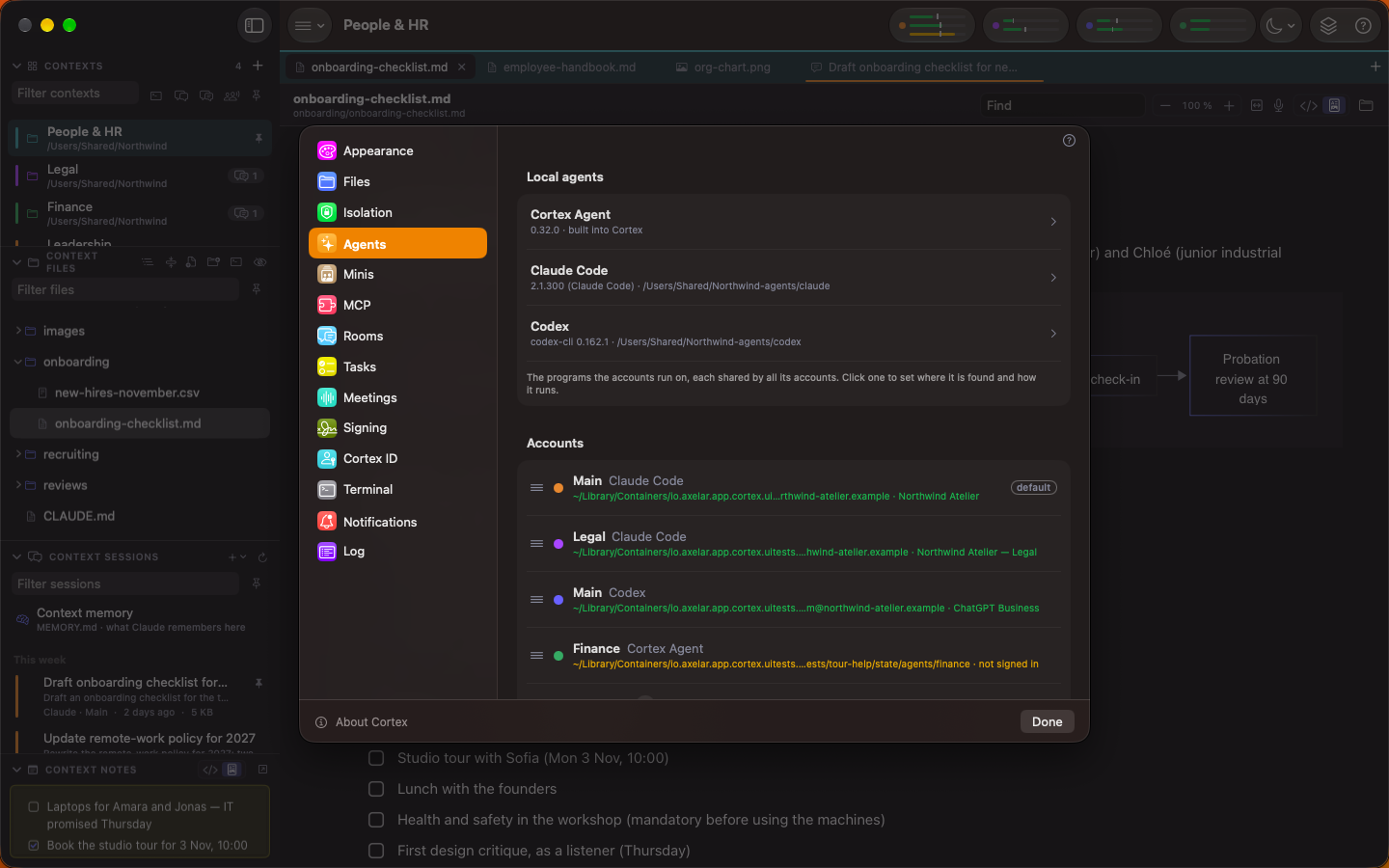
Add an account
- Open Settings → Agents.
- Under Accounts, choose Add Account… and pick the agent.
- Give the account a Name, such as "Work", and pick a colour. The folder is filled in for you, and Choose… lets you pick another.
- Optionally, set Bring over from to an existing account of the same agent, and tick the parts to copy. For Claude Code these are
CLAUDE.mdwith its agents, commands and skills,settings.json, and the user-scope MCP servers. For Codex they areAGENTS.md, prompts and skills, andconfig.toml. Cortex copies them once and never over something already there. Sessions, history and the sign-in are never copied. - Press Add and Sign In.
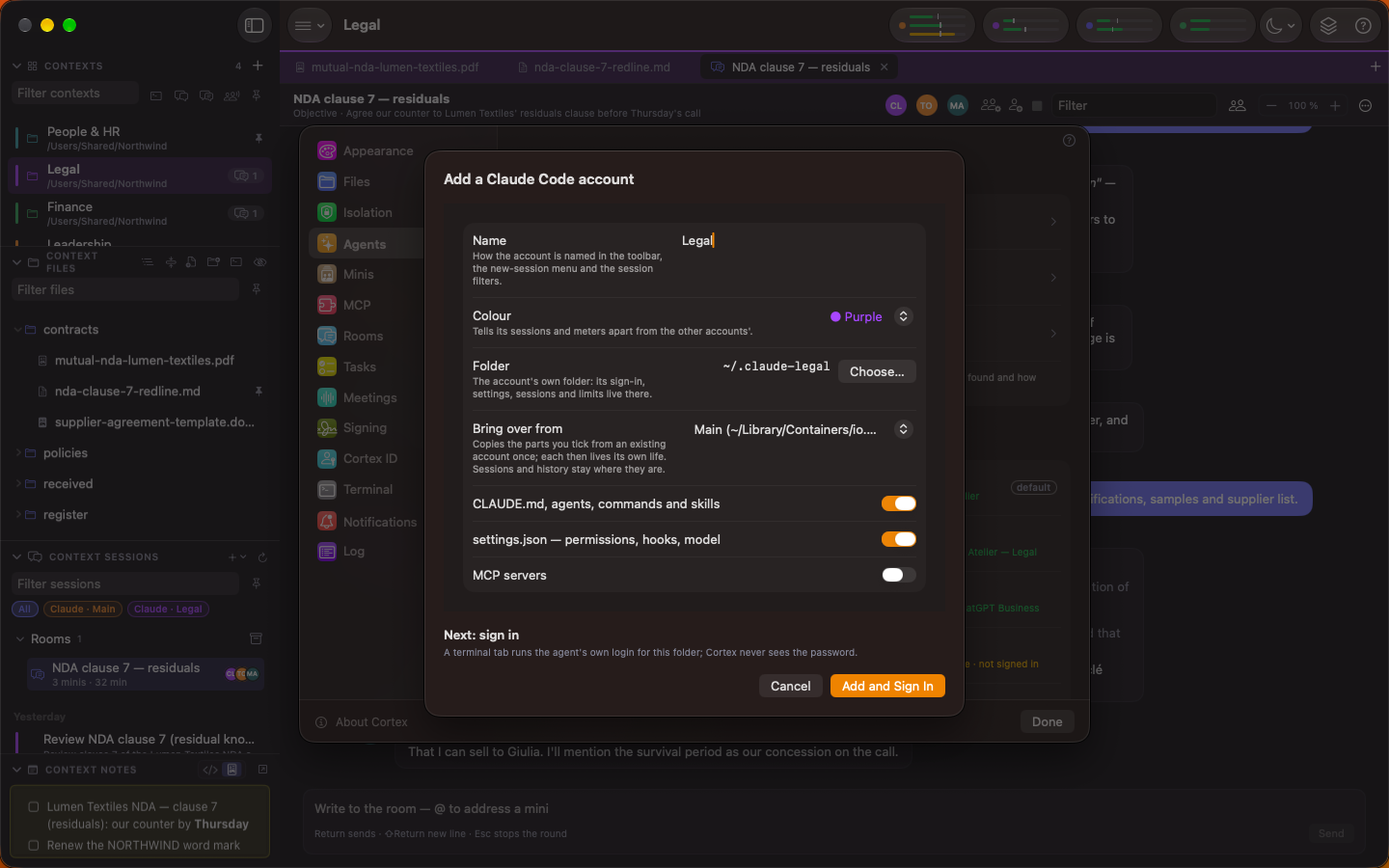
Cortex creates the account, closes the sheet and starts the agent's own login in a terminal tab. Sign in in your browser. Cortex notices when the sign-in lands. The new account's dialog then opens.
A folder that another account already uses, including the built-in one, is refused with the reason, and the sheet stays open. If copying a part fails, the account is still added and Cortex says what was not brought over.
How accounts show
With a single account, nothing marks it. With more than one:
- Each account has a dot in its colour, before its meters in the toolbar and in the + picker.
- Each session row has a bar in the account's colour, and its details line begins with the account's name.
- A session's header shows a badge such as "Claude · Work", and a thin line in its colour sits under the tab.
- A row of chips under the session filter, All and then each account, shows one account's sessions only.
An account has one of eight colours: red, orange, yellow, green, teal, blue, purple or pink.
Change an account
Click an account's row to open its dialog. It holds the name, the colour, the folder, who it is signed in as, and the agent's own settings. It also lets you choose whether Commands in new tasks are asked for or run automatically, shows which contexts use it by default, and has one switch per usage meter. The buttons are Sign In… (Sign In Again… once signed in), Open Folder, Make Default and Remove….
The name is saved when you press ↩, leave the field or close the dialog.
Put the accounts in order
Drag a row by the grip (≡) at its start. The order you leave is saved, and it is the order of every list of accounts: the toolbar's usage buttons, the + picker, Context Settings… and the account chips in the session list.
Remove an account
Press Remove… in the account's dialog. Cortex forgets the account, but its folder stays on disk, with its sign-in, settings and sessions. Nothing is deleted. If it was the default, the default falls back to that agent's built-in account.
Something wrong or missing? Tell us