 Cortex
Add an OpenRouter account
On this page
Sign in in the browser or paste a key; the key lives in the Keychain; several accounts.
To use the Cortex Agent with OpenRouter you need an account on openrouter.ai. Cortex can sign you in through your browser, or you can paste a key you made yourself. Cortex never sees your OpenRouter password. You can add as many accounts as you like, for example one for work and one for personal use.
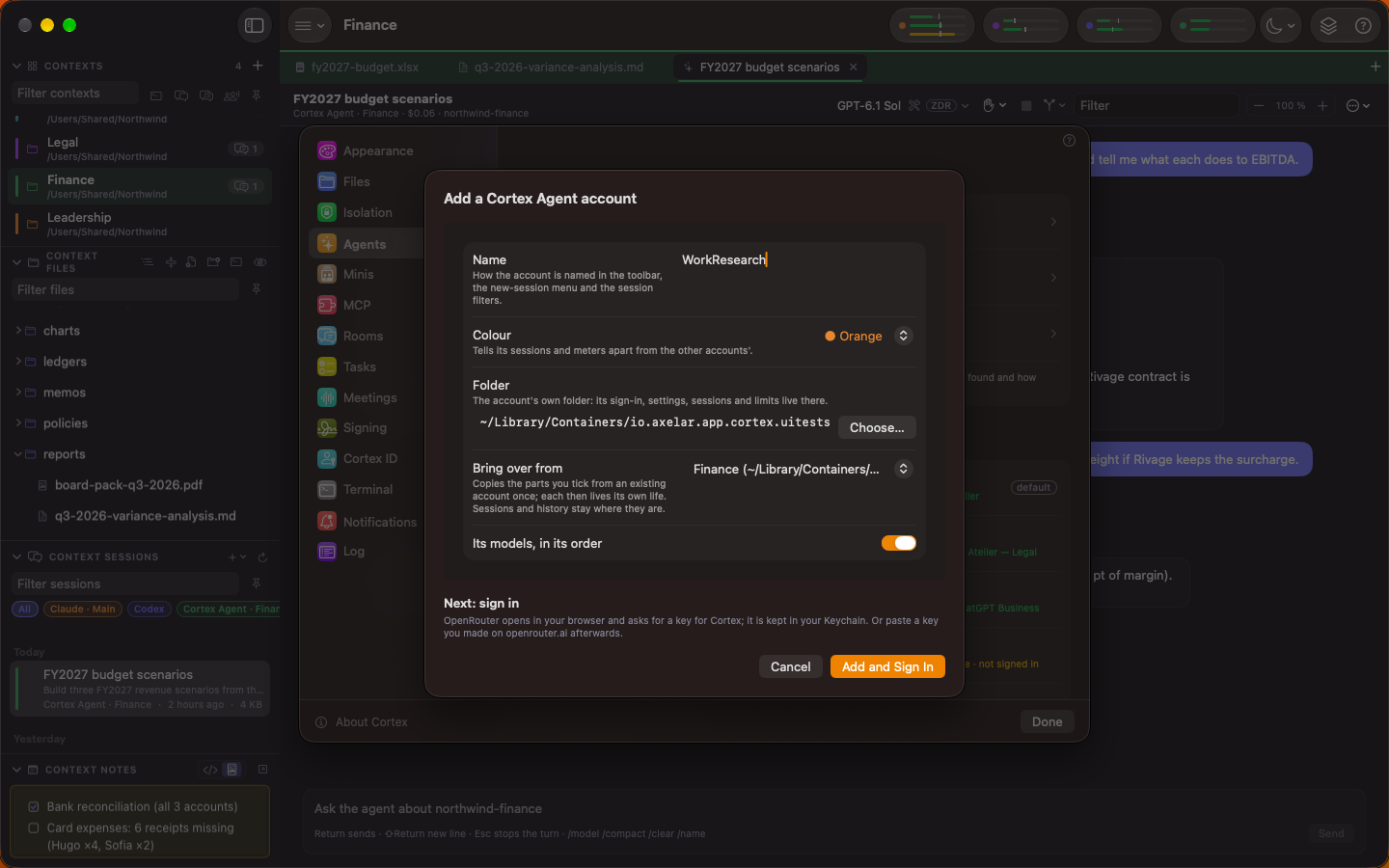
Sign in with your browser
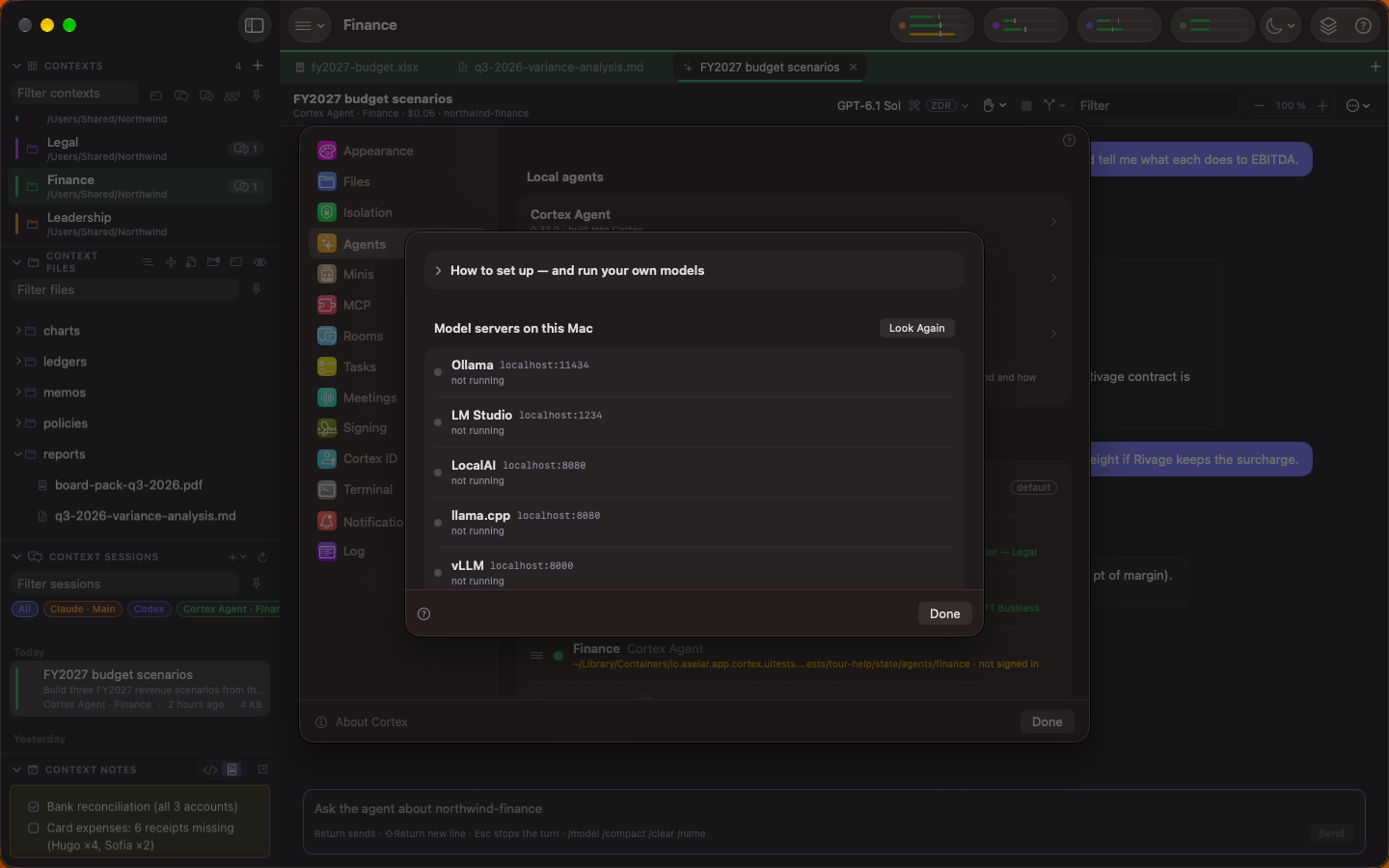
- Open Settings → Agents and choose Add Account…, then Cortex Agent (OpenRouter).
- Give the account a name, a colour and a folder. The folder is filled in for you, under
~/Library/Application Support/Cortex/agents/. Use Bring over from to copy the models of another Cortex Agent account. - Choose Add and Sign In. Your browser opens openrouter.ai.
- Sign in there and allow the request. Your browser shows "Signed in — you can go back to Cortex."
- Back in Cortex, the account's dialog opens, showing who it is signed in as.
While it waits, the dialog says "Waiting for OpenRouter in your browser…", then "Getting the key…", with a Cancel button. If you do nothing for ten minutes, the sign-in times out and says so.
Paste a key instead
If you already made an API key on openrouter.ai, open the account's dialog and choose Paste a Key…. Cortex checks the key with OpenRouter before it saves it.
What the account shows
Under "Signed in as" you see the key masked, such as sk-or-v1-060...8e3, then "OpenRouter", then "free tier" when the key is on the free tier and "expires" with a date when it has one. If OpenRouter refuses the key, the line reads "key refused — sign in again" in amber, the account counts as not signed in, and its sessions say so instead of starting a turn. Choose Sign In Again with OpenRouter… or paste a new key. See An agent or a meter says 'Not signed in'.
Where the key lives
The key is stored in the macOS Keychain, readable by Cortex alone. It is never in accounts.json, the log, your context, or an environment variable. Cortex passes it to the agent's process on a private channel only.
Models
A new account has no models until you choose some, and it asks for at least one before its first session. Add Account… offers a short starting set: the newest model from Anthropic, OpenAI and Google that takes tools and is not free. You can clear it. See Choose and order models.
Remove an account
Choose Remove… in the account's dialog. Cortex deletes the account's Keychain item after asking you. The account's folder, with its sessions, stays on your Mac.
To watch what the account spends, see Cost, caps and the context gauge.
Something wrong or missing? Tell us