 Cortex
Use your own models
On this page
Point the Cortex Agent at LM Studio, Ollama, LocalAI, llama.cpp or vLLM, with the install steps, the context length and tools badge.
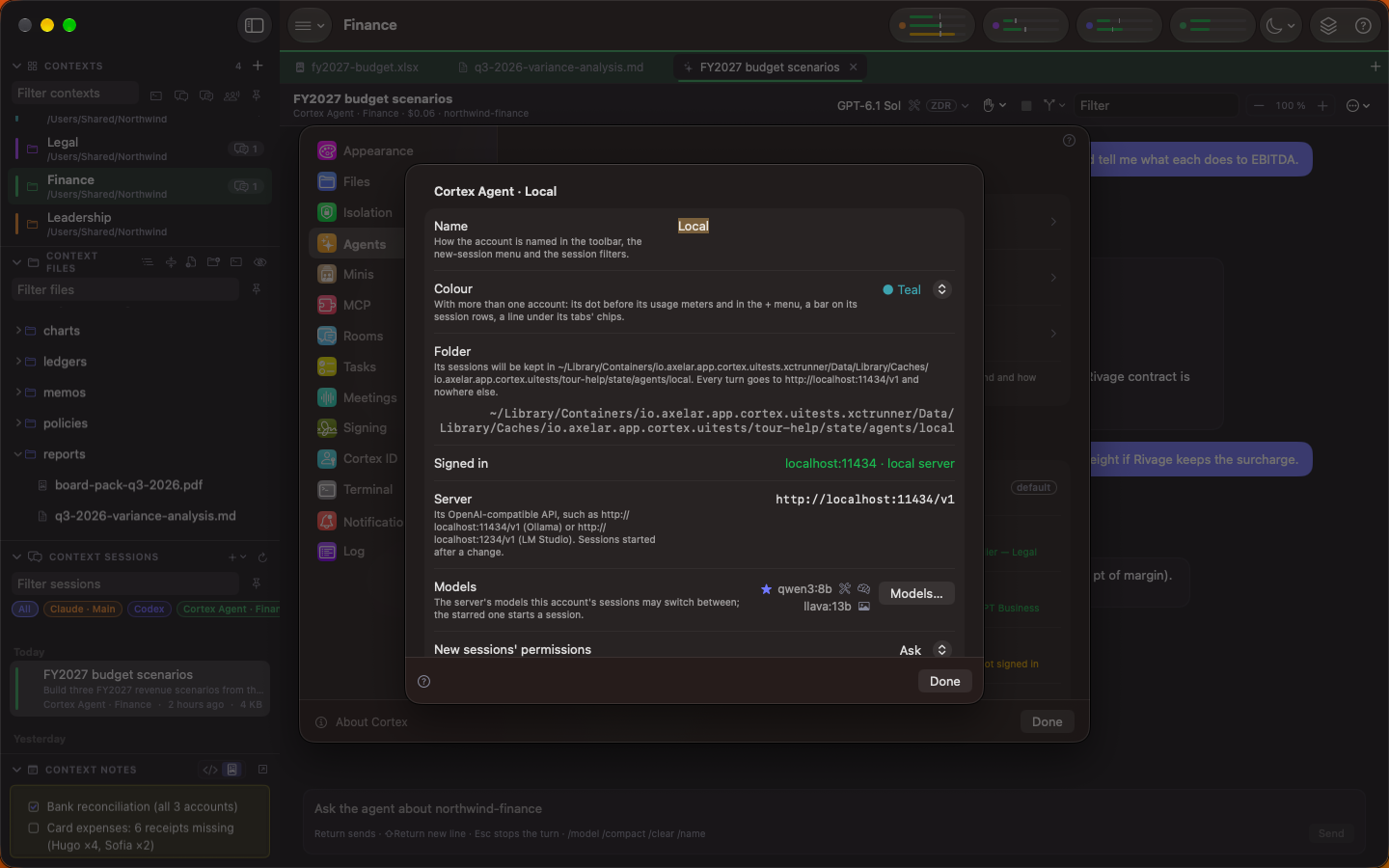
You can run the Cortex Agent on a model server of your own instead of OpenRouter. Cortex supports any server that speaks OpenAI's chat format: LM Studio, Ollama, LocalAI, llama.cpp's server and vLLM. The server can run on this Mac or on another machine you can reach. This kind of account is called a server account. Nothing is billed, and your conversation goes only to the address you give.
Find out how to set a server up
Cortex carries the steps. Open Settings → Agents → Cortex Agent (under Local agents) and unfold How to set up — and run your own models. For each of the five servers it shows what it is, its usual address, the commands that install it, fetch a model and start it (each with a copy button), and a link to its documentation.
Add a server you have running
- Start your server and load or pull a model.
- In the Cortex Agent's dialog, look under Model servers on this Mac. Cortex asks each server at its usual address, for two seconds at most, when the dialog opens and when you click Look Again. A server that answers shows its name, address and models.
- Click Add Account next to it. Cortex creates a server account named after it, with its folder prepared and its first model chosen. There is no sheet to fill in.
To add one by hand, or for a server on another computer, choose Add Account… in Settings → Agents, then Cortex Agent (local server):
- Give it a name, a colour and a folder. The folder is filled in.
- Enter the server's address, ending in
/v1. Cortex fills in Ollama's,http://localhost:11434/v1. LM Studio's ishttp://localhost:1234/v1. Without a scheme,http://is assumed. - If the server asks for a key, enter it. Otherwise leave the key empty.
- Choose Add. Cortex reads the server's models and starts the account on the first one that takes tools.
A server that does not answer leaves the account with no models; Cortex says so once the sheet closes. If a chat fails with "Cannot reach" followed by the address and "is the server running?", start the server and try again.
Models, context and tools
The Models sheet lists what the server lists, with the badges the server reports: 🔧 takes tools, 🧠 reasons, 🖼 reads images. It shows no prices, makers, zero data retention or free tags. See Choose and order models.
- Tools. A model without the tools badge answers without reading or changing anything.
- Context length. Cortex reads each model's context length from the server where it can. A model Cortex cannot learn about is assumed to take tools and to have a 32,000-token context. You can edit a model's Context in its row.
- What the server really serves. A runtime often serves less than the model's maximum. After each turn, on a server that tells Cortex (Ollama does), Cortex checks, and if the server serves less it counts from then on with the smaller number and says so in the chat. To serve more, raise it in the runtime, for example with Ollama's
OLLAMA_CONTEXT_LENGTHor in LM Studio's per-model settings.
What a server account does not have
No usage meters, no cost, no zero data retention switch, and no cap on a turn's cost. The server bills nothing and keeps what you let it keep. The rest works as for any Cortex Agent account: chats, switching models, permission modes and resuming. See Chat with the Cortex Agent and What the Cortex Agent may do.
Something wrong or missing? Tell us