 Cortex
Install and sign in to Claude Code
On this page
The three install options, signing in once, and how Cortex finds the command.
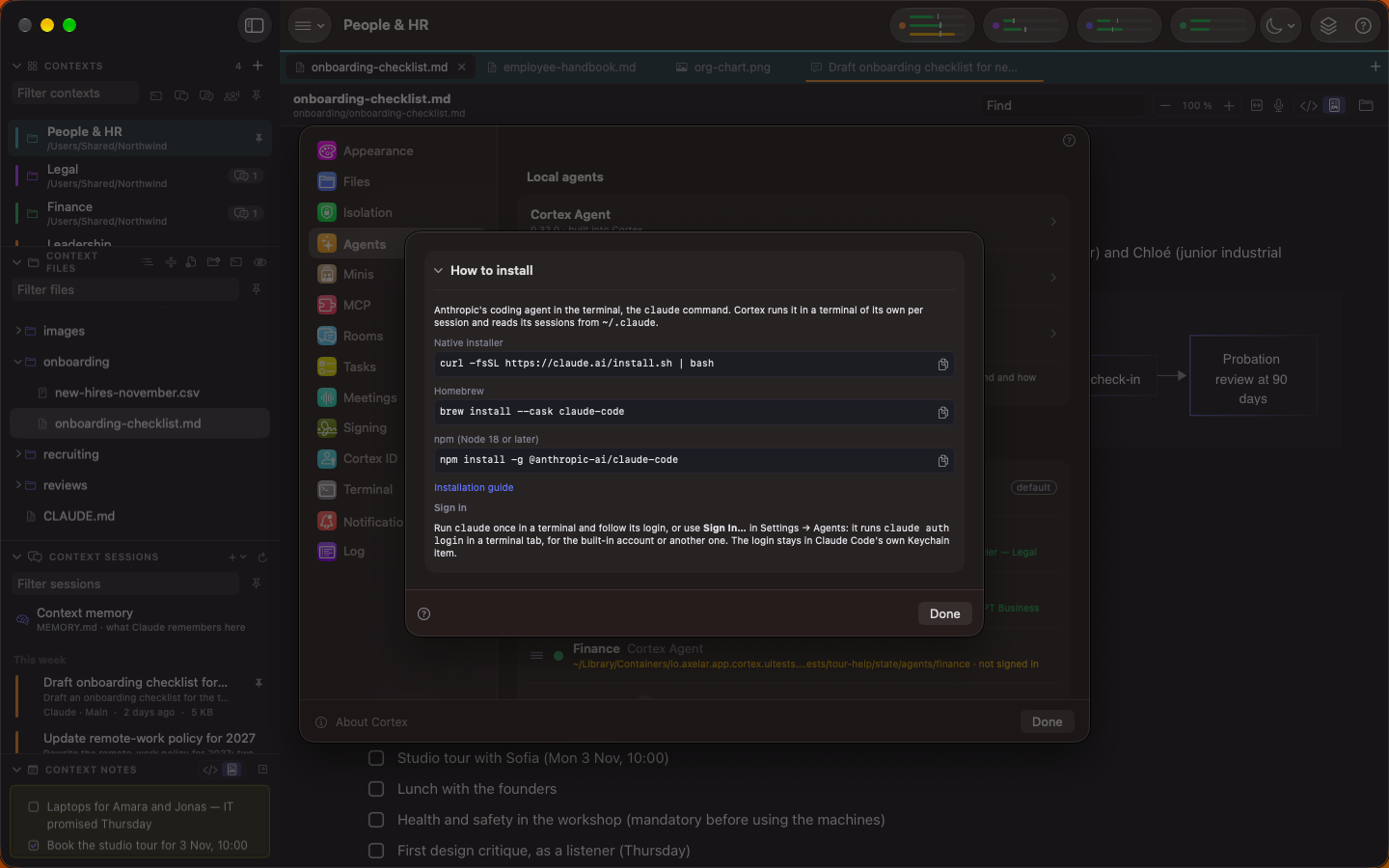
Claude Code is Anthropic's coding agent, the claude command. Cortex runs it in a terminal of its own for each session and reads its sessions from ~/.claude. You install it once and sign in once. This article is the one that Settings → Agents sends you to.
Install Claude Code
Open a terminal, either Terminal.app or a terminal tab in Cortex (New Terminal in a tab group's + menu), and run one of these commands.
| Way | Command |
|---|---|
| Native installer | curl -fsSL https://claude.ai/install.sh | bash |
| Homebrew | brew install --cask claude-code |
| npm (Node 18 or later) | npm install -g @anthropic-ai/claude-code |
Anthropic's own installation guide has the details and any changes.
Then let Cortex look again:
- Open Settings → Agents.
- Click the Claude Code row in Local agents.
- Press Detect again.
The row should now show a version and a path instead of "not found". In the first-launch tour, press Check Again instead.
Sign in
Sign in once for each account. You can do it in either of two ways:
- In a terminal, run
claudeonce and follow its login. - From Cortex. In Settings → Agents, under Accounts, click the account, then press Sign In…. Cortex types
claude auth logininto a terminal tab of the selected context. Sign in once in the browser, and the command exits.
Cortex then watches the account until it reads as signed in. This can take up to ten minutes, and it refreshes Settings, the usage meters and the session list when it is done. The account's row shows who it is signed in as, in green, or "not signed in" in amber. Once signed in, the button reads Sign In Again….
Cortex never sees your Claude password or token, and Your keys and sign-ins says where they live.
If you use more than one plan, add a second account with its own folder. See Use several accounts of one agent.
How Cortex finds the command
A Mac app launched from Finder does not get your shell's search path, so Cortex looks for claude in this order and uses the first hit:
- The path you typed in Path override in the Claude Code dialog.
~/.local/bin/claude/opt/homebrew/bin/claude- What
command -v claudefinds in a login shell.
The dialog shows Version, Detected (the path in use) and Path override. Type a path into the override only if Cortex picks the wrong copy, or none. It is checked when you press ↩, press Detect again or close the dialog. Leave it empty to let Cortex find the program itself. Every Claude Code account on your Mac shares this one program.
The hooks switch
The dialog also has Hooks — session state, change attribution, notifications. With it on, which is the default, Claude Code tells Cortex when a session starts, waits or asks for permission, and which files it changed. That is what drives the glyphs on tabs and the notifications. With it off, a session shows as running while the process runs and as ended after. A change applies to sessions you start afterwards.
Versions
Cortex is tested against a range of Claude Code versions. Outside it, a warning appears under the version and beside the row. A warning beside an agent's version explains what it means.
If something does not work
- Not found. See Cortex can't find an agent.
- Not signed in. See An agent or a meter says 'Not signed in'.
When both are fine, start your first session.
Something wrong or missing? Tell us