 Cortex
Start your first session
On this page
Pick a context and press ⌘N, then read it, resume it or fork it.
A session is a conversation with an agent, in a context. This article starts one, then shows what to do with it next. It assumes you have added your contexts (Add your contexts) and installed and signed in to at least one agent (Which agents Cortex works with).
Start a session
- In the sidebar, under Contexts, click the context you want. Press ⌘⇧P to jump to the filter box, type a few letters, and press ↩.
- Press ⌘N. You can also press the + button in the Context sessions header.
A new tab opens in the group that has focus. It is the agent's own terminal, running in your context's folder. The tab's title reads "New session" until the agent has named it. Type your first prompt there, as you would in any terminal.
The session runs on the context's default account. If you have not set one, that is the app's default account, which is Claude Code's built-in account until you choose another. To pick a different agent or account for one session, press the small arrow beside + instead. Start a session covers the picker and the other ways to start.
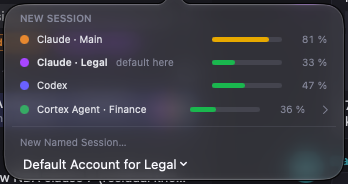
See what the session is doing
The tab and the session's row in the sidebar show a small glyph: a circle while it starts, a filled one while it works, and a different one when it is waiting for you or needs your permission. Which session needs you explains each glyph. While you work in another tab or another context, a macOS notification tells you when a session needs you.
Come back to it later
Every session is kept by its agent, so it is still in the Context sessions list when you return, newest first. Click a row to read it. The transcript opens at once, read-only. From there:
- Press Resume to continue it in a live session.
- Press Fork to copy it into a new session and try another path.
Read a past session and Resume or fork a session explain both.
A session you start in Terminal.app shows up in the same list, and a session you start in Cortex shows up in Terminal.app, because Cortex reads the agent's own records.
If the session does not start
If Cortex cannot find the agent's program, the session does not start and Cortex says where to set its path: "claude was not found. Set its path in Settings → Agents → Claude Code." Open Settings → Agents and follow Install and sign in to Claude Code, or see Cortex can't find an agent.
Something wrong or missing? Tell us