 Cortex
What Cortex is
On this page
The desktop you work in with AI: isolated contexts, every agent side by side, tasks, applets and secure sharing, alone or with others.
Cortex is a Mac app that becomes the desktop you work in with AI. Every agent you use, every context you work in and every conversation you have had are in one window, kept apart from each other, and kept on your Mac. The agents bring the intelligence; Cortex is the place you work with them, alone or with other people. Within a week it is the only desktop you open for work.
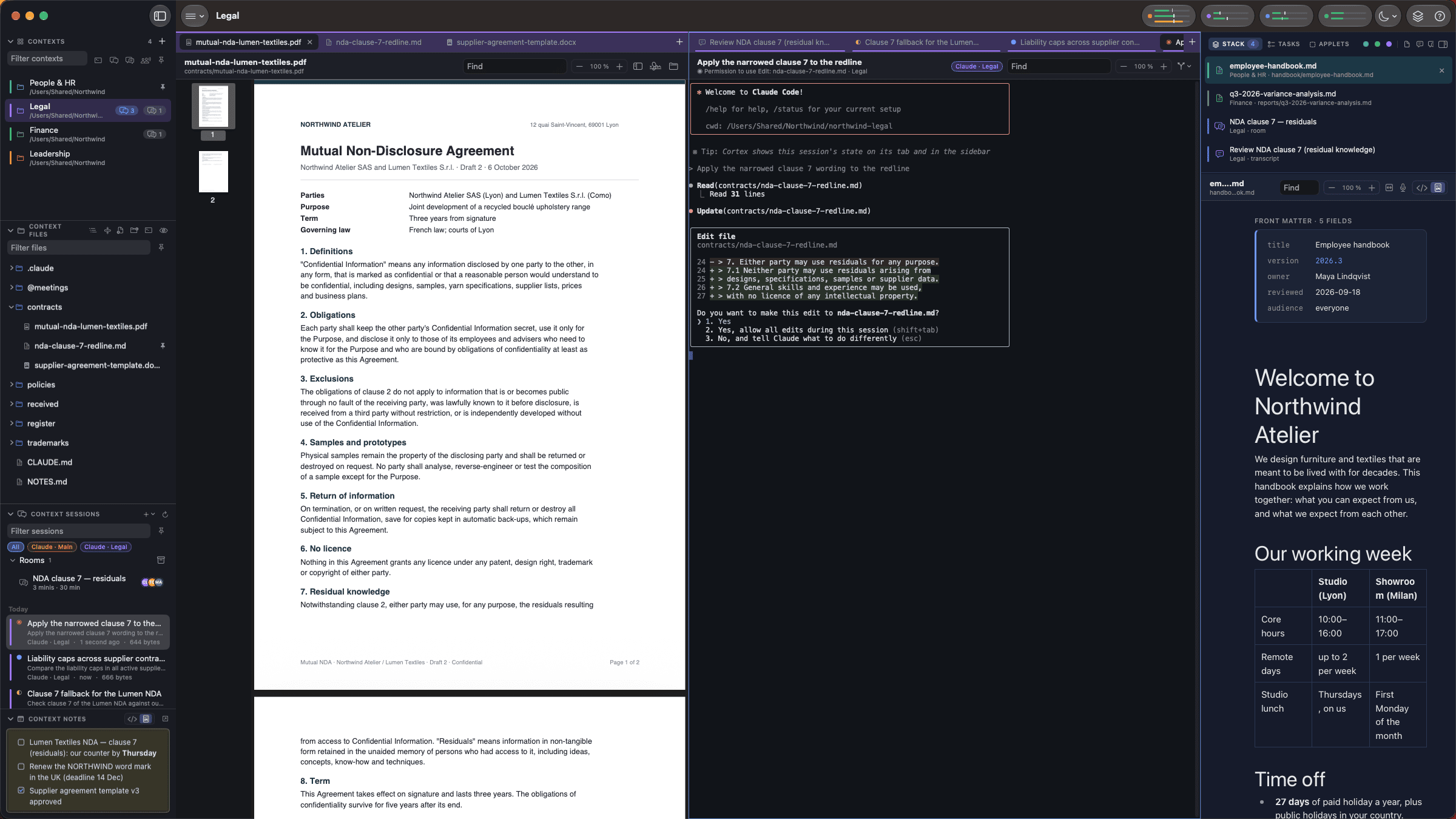
What you get
- Contexts, each kept apart. A context is a folder you work in with your agents, and Cortex lists every one of them in the sidebar. Switch between them with ⌘⇧P; inside a context, reach any file or past session with ⌘P. A session starts in its context's folder and is kept to it. How sessions are kept to their context says how, and what that does not stop.
- A desktop made for working with several AIs. Three layers, each built on the one below: local agents (Claude Code, Codex, and the Cortex Agent, which reaches any model on OpenRouter or on a server of your own), the accounts you sign in to on each, and minis, an account made specific with a name, a role and what it knows. Which agents Cortex works with shows how they fit.
- Sessions you never lose. Each conversation with an agent is a session. Cortex reads each agent's own records, so a session started in a terminal appears in Cortex and the other way round. Read an old one, resume it, fork it, and see at a glance which session is waiting for you.
- Tabs, splits and files side by side. Sessions, chats, rooms and files open in the same tabs, and you split the window as often as you like. Markdown, PDF, images, Word, Excel, code and web pages open next to the sessions working on them. Each context keeps its own layout.
- Tasks. Hand work to your minis once and let it run now, at a set time or on a schedule. A task asks you through small forms when it needs you and ends with a report. See What tasks are.
- Applets. Describe a small application and an agent builds it: its screens, and a script that runs in a sandbox and reaches only what you allow. See Make an applet.
- Signed PDFs. Sign a PDF with your hand signature: a stamp with a QR code that anyone holding the printed paper can check with a phone, and a signature inside the file that Acrobat and Preview can check. See Signing, in short.
- Secure sharing of anything. Send files, folders, sessions, rooms, meetings, tasks, minis and applets to anyone with an email address, encrypted on your Mac so that the server in the middle cannot read them. See Sharing, in short.
There is more on top of the same idea: rooms where your minis answer you and each other, dictation and meeting transcription, and tools that let an agent show you forms and propose edits for you to review.
Alone or with others
Cortex works fully on its own: no sign-up, no server, nothing leaves your Mac except what an agent sends to its model. When you work with other people, a Cortex ID lets you send them your work, receive theirs, and let the people you name talk to your minis, all encrypted end to end.
What stays on your Mac
Cortex has no cloud of its own and sends no telemetry. Your contexts, transcripts, notes and settings stay on your Mac. Only two things leave it. One is what an agent sends to its model provider, which depends on the account you run it on. The other is what you choose to share. What stays on your Mac lists both.
What Cortex does not do
- It is not a code editor. Markdown and plain text get a proper editor. For other file types Cortex shows the file, and a file it does not edit opens in VS Code, Xcode or its own app.
- It does not add a chat box to Claude Code or Codex sessions. You type into the agent's own terminal, exactly as you would outside Cortex. Rooms and Cortex Agent chats are the exceptions: those are chats by design.
- It does not keep its own data in your context folders. Settings, layouts, caches and the records of tasks, rooms and meetings stay in Cortex's own storage on your Mac. Everything in a context is your content: the files you and your agents create, images you drop into a document, your context note, meetings you export and task outputs. The note, the exports and a task's output folder go where you set them. You can open, move, version or delete any of it. Where Cortex keeps its files says what is where.
Where to go next
- Check what your Mac needs in Install Cortex and check your Mac.
- Go through the welcome tour to set up your agents, contexts and theme in a minute.
- Start your first session.
Something wrong or missing? Tell us