 Cortex
A tour of the window
The toolbar, the sidebar's sections, the tab groups, the Stack and the Help button.
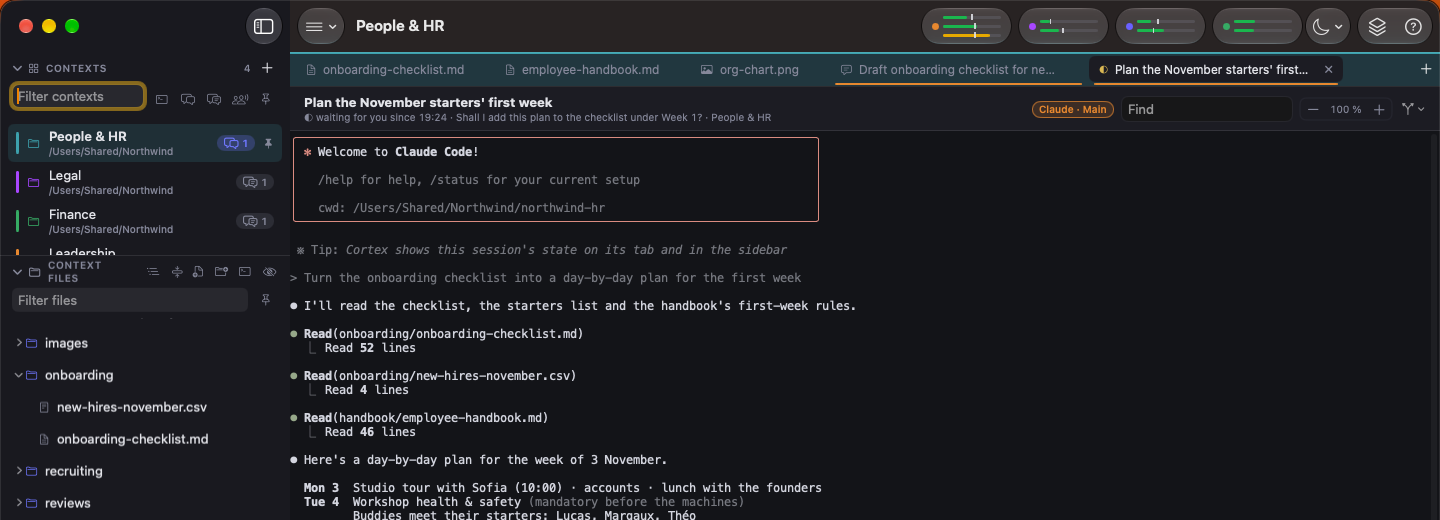
Cortex is one window, normally full screen. This article names its parts so that the other articles make sense. Each part has its own article, which this one links to.
The toolbar
Along the top, from the left:
- ≡ workspace menu. Manage Contexts… and Find Contexts…, the five most recently opened contexts, the Minis Library, Contacts…, Signatures… (every PDF signature you made, see Your signatures) and Settings….
- The current context's name. Click it for the context's menu, the same as right-clicking its row in the sidebar: Pin, Colour, Context Settings…, Reveal in Finder, Copy Path, Rename Folder… and Remove…. To switch to another context, use the sidebar or ⌘⇧P.
- Waiting. In the middle, and only while something waits for your answer, for example "3 waiting". Click it to open the sheet that answers them. See Notifications and the Waiting sheet.
- Usage meters. At the right, one button per account, with bars showing how much of the plan is used. See Read the usage meters.
- Theme menu. A moon, sun or other symbol for the theme in use. See Themes, zoom and what comes back.
- Stack button and Help ? The Stack button shows and hides the right-hand panel. The ? button shows and hides the Help panel, which has a bookmarks menu in its header for the most-used pages.
The sidebar
The sidebar on the left picks a context and shows what it holds. Hide or show it with ⌘B. It has four sections, and each folds to its header with the chevron before its title.
- Contexts. Your contexts, with a filter box and a + menu to add them. See Switch between contexts and Add your contexts.
- Context files. The selected context's file tree. See The file tree.
- Context sessions. Its sessions, newest first, with a + to start one. See Start a session.
- Context notes. A sticky note for the context. See Context notes and memory.
Everything below the first section belongs to the context in front. Switching contexts swaps the file tree, the sessions and the note, and brings back that context's tabs.
The main area
The large area in the middle is made of tab groups. A tab can be a live session, a past session, a file, a terminal, a web page, a room, a chat or a meeting. Each group ends in a + menu to start a new session, file, terminal, room or meeting, to open a web address, and to split the group. Tabs and splits explains how to arrange them.
The right-hand panel
On the right, the Stack keeps files, sessions, pages and more in view whichever context is in front. The same panel can switch to Tasks, Applets and Shares. See The Stack and The side panel. Show and hide it with ⌘⌥B.
The Help panel
Beyond the Stack, at the far right, the ? button opens the help center in a panel that stays open while you work. ⌘/ opens it on the keyboard shortcuts. A bookmark icon in the panel's header lists the most-used pages, such as the shortcuts, What's New, the tools reference and troubleshooting, and Help → What's New shows the release notes in the same panel.
Settings
Open Settings with ⌘,. It is a sheet over the window, with a list of panes on the left. Settings at a glance names each pane.
Something wrong or missing? Tell us