 Cortex
Start a session
On this page
⌘N, the + picker, which agent and account, background and quick starts.
A new session starts an agent in the selected context's folder. You can start as many as you like, in the same context or different ones, and they all run at once.
Start one
- Select a context in the sidebar. See Switch between contexts.
- Press ⌘N, or press + in the Context sessions header, or choose New Session in a tab group's own + menu.
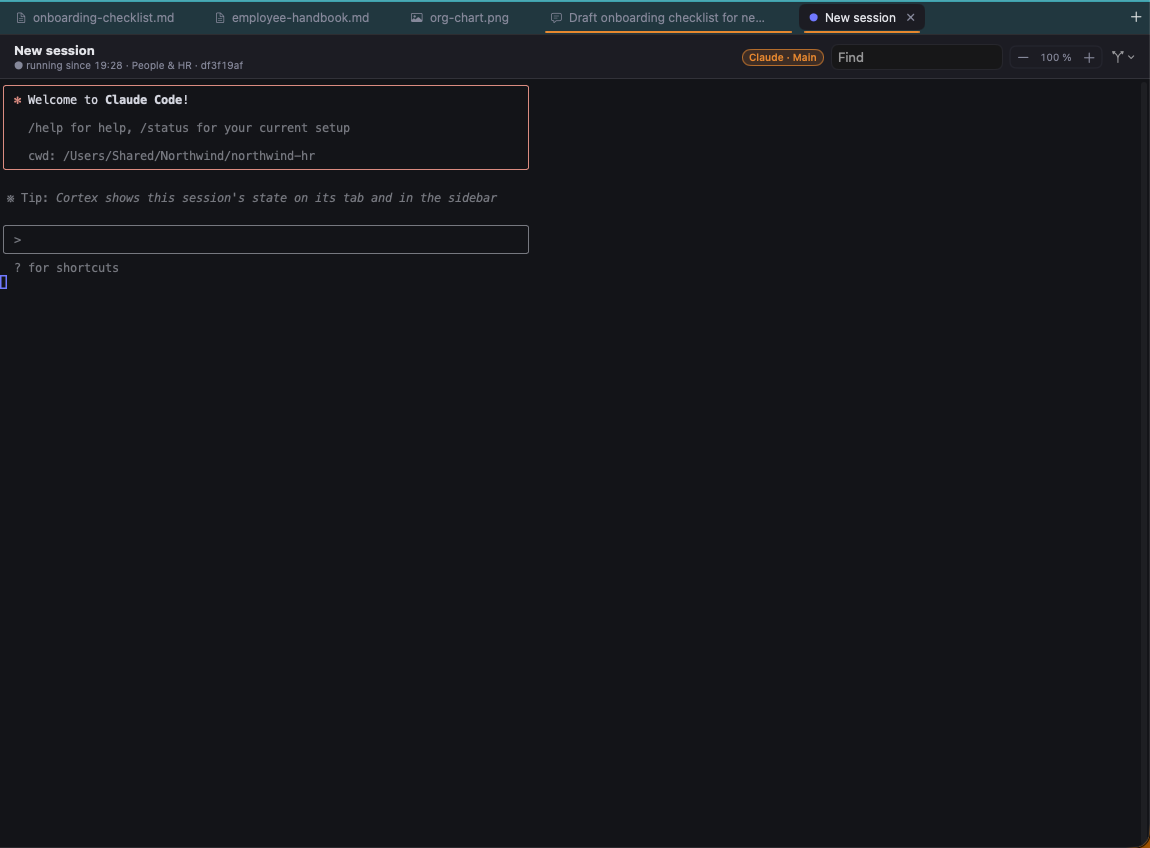
A live tab opens in the focused tab group, on the context's default account. For a Claude Code or Codex account, it is a terminal running the agent in the context's folder. For a Cortex Agent account, it is a chat tab. Chat with the Cortex Agent describes that.
The tab is titled "New session" until the agent has named it. Its glyph goes from ○ to ●. Which session needs you explains the glyphs.
Choose the agent and account
Press the small arrow beside + to open the account picker. It lists every account with its colour dot and how much of its plan is left, and a click starts a session on that account. Choose which account a session runs on covers the picker and how to set a default for a context.
Give it a name
In the same picker, choose New Named Session… and type a name. For Claude Code the name is passed to the agent. Codex has no way to name a new session, so use Rename… afterwards. See Resume or fork a session. If you leave the name empty, an unnamed session starts.
Run several at once
Nothing stops you from starting another session while one is running. Each has its own tab. Put them side by side with a split, and use the glyphs to see which needs you. If you have more than one account, run them on different accounts to spread your plans.
A session is live at most once in Cortex. If you resume a session that is already live, Cortex shows its tab instead of starting a second copy on the same transcript.
It appears in the list
A new session's row appears in Context sessions within a few seconds, titled "New session" until the agent has written its title. The list is built from the agent's own files, so a session you start in a terminal outside Cortex shows up too.
If it will not start
- If Cortex cannot find the agent's program, it says where to set its path. See Cortex can't find an agent.
- If the context's folder is gone, a new session refuses to start with an error. See A context's folder is gone.
Other ways to put an agent to work
A task runs an agent in the background, with a report at the end. Create a task or a quick task explains it, including the quick task that ⌘⌥T opens.
Share it
You can send a session to other people as a read-only package, with secrets and paths outside its context redacted first. Right-click the session in the sidebar or its tab and choose Share…. You need a Cortex ID. Send it to email addresses, whether or not the people have Cortex, or as a public link anyone can open. See Share a session, room, meeting or task and Sharing, in short.
Something wrong or missing? Tell us