 Cortex
Read a past session
On this page
Click a stored session to read it instantly, read-only, with tool calls folded and token counts.
Click any session in the Context sessions list and Cortex opens it as a transcript: a read-only view of the whole conversation. It opens at once and costs nothing, because no agent is started. You can browse fifty old sessions without starting fifty agents.
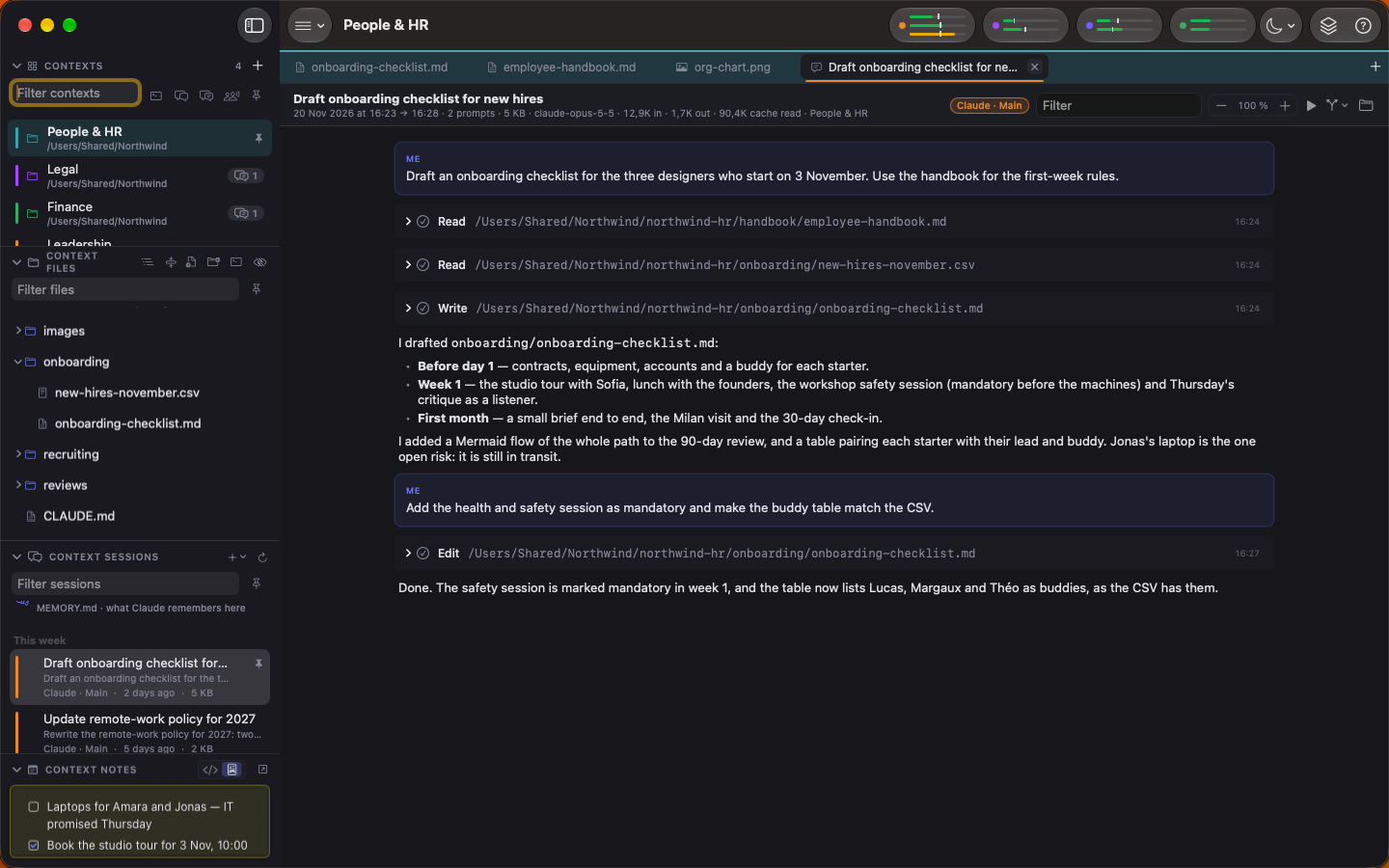
A transcript is not a chat. It has no input box. To continue the conversation, press Resume.
What you see
- Your prompts and the agent's answers, with the answers drawn as formatted text: headings, lists, code blocks, quotes and tables.
- Tool calls as one collapsed row each, such as "Edit
SPEC.md" or "Bashnpm test". Open a row to see its input and result. A ✓ or ✕ shows whether it worked. - Sub-agent work folded under one "Sub-agent · N steps" row.
- Slash commands, system reminders and what the agent adds to a turn itself as dimmed info lines. They are not counted as your prompts.
- Thinking blocks and internal records are hidden.
Codex sessions look the same.
The header
The header shows the session's title, and under it the date range, the number of prompts, the size, the branch, the model if known, and the context. Hover it for the transcript's path.
It also shows the session's tokens, counted in the agent's own categories. For Claude Code these are input, output, cache read and cache write. Zero categories are left out. They are token counts, not a share of your plan.
On the right, from left to right:
- A filter field. ⌘F focuses it, and it filters the rows.
- Zoom, with ⌘+, ⌘− and ⌘0.
- Resume ▶ (⌘↩) turns the tab into a live session. See Resume or fork a session.
- Fork ⑂, with an arrow to pick another account or agent. See Hand a session to another account or agent.
- Reveal in Finder.
A session that is live in Cortex shows Live ● instead, which jumps to its terminal.
Work with it
- A file path in a tool row is a link. A click opens the file in a tab, if it still exists.
- All text is selectable. Right-click a turn to copy it as Markdown: a prompt, an answer, or a tool call with its input and result.
- A long transcript opens in stages, so you can start reading at once.
- While the transcript is open, Cortex follows its file. If the session is still writing, the transcript grows.
You can also put a transcript on the Stack to keep it in view while you work in another context.
Share it
You can send a session to other people as a read-only package, with secrets and paths outside its context redacted first. Right-click it in the sidebar or its transcript tab and choose Share…. You need a Cortex ID. Send it to email addresses, whether or not the people have Cortex, or as a public link anyone can open. See Share a session, room, meeting or task and Sharing, in short.
Something wrong or missing? Tell us