 Cortex
Create a task or a quick task
The editor, access and commands, attachments, and ⌘⌥T for a quick task.
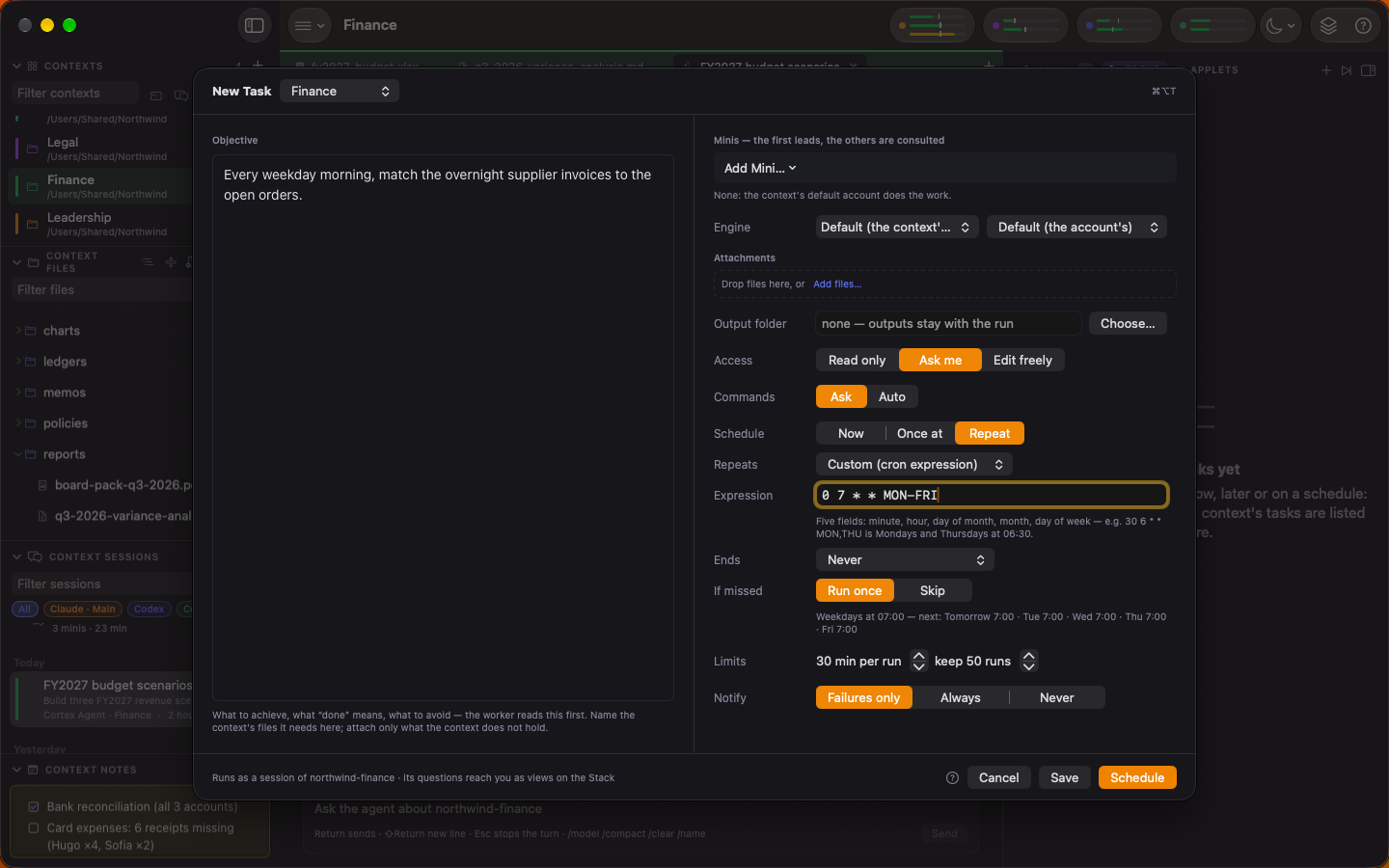
You create a task in an editor that has two halves: on the left, what the task is, and on the right, how it runs.
Open the editor
- Choose New Task… from the Tasks row menu in the sidebar, or press the + in the header of the Tasks view. The editor opens on the context in front, and a pop-up in its header lets you pick another context.
- For a quick job press ⌘⌥T. See below.
To change a task later, choose Edit… in its menu. A task never moves to another context.
Write the objective
The objective is the heart of the task. Say what you want, what "done" means and anything to avoid. It is Markdown, edited the way a note is. A new task has no title field: Cortex gives it a short title from the objective, which you can change with Edit….
Choose how it runs
On the right, from top to bottom:
- Minis. Add minis from the library with Add Mini…. The first is the lead and does the work. The others are experts it may consult. Drag the grip to reorder them. With no minis, the context's default account does the work and you can pick the account and model yourself.
- Attachments. Drop files or press Add files…. They are copied into the task's own folder and are read-only for every run. The limit is 50 files and 200 MB. A file of the context is not an attachment: name it in the objective instead.
- Output folder. Optional. A folder of the context where the task may also write what you asked for. Every run already has its own folder,
@outputs/<start>-<title>/, in the context. - Access. How the worker may change files in the context:
- Read only refuses every write.
- Ask me is the default. A write asks you first.
- Edit freely allows writes in the context and its extra roots without asking.
- Commands. Whether everything other than a file write asks you first: shell commands, web requests, MCP tools. Ask puts each to you. Auto runs them without asking.
- Schedule. See Schedule a task.
- Limits. A time limit per run (30 minutes by default) and, for a lead, how many consults it may make.
- Notify. When a run ends: failures only (the default), always or never. A question for you always notifies.
Save or run
The default button follows the schedule: Run Now for a task that runs now, and Schedule otherwise. Save keeps the task without running it, and a task saved with Now stays a draft until you run it. Nothing is written until you save.
Editing a task while a run is going changes nothing in that run. The next run uses the new version.
A quick task
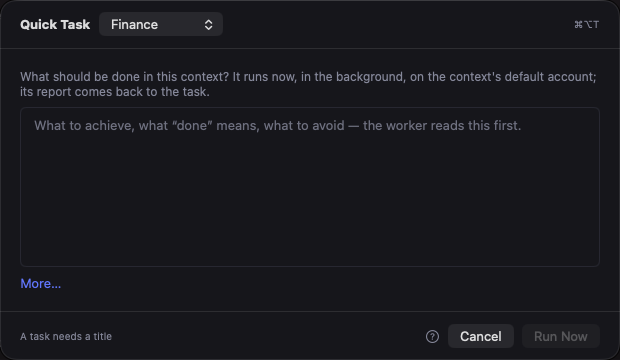
Press ⌘⌥T (New Task… in the File menu) for a quick task: an editor folded to its objective. Type what you want and press Run Now. It is a one-off task with no minis, run now on the context's default account. Use it to send a prompt to a context in the background and forget it until the report comes back. More… unfolds the full editor.
Something wrong or missing? Tell us