 Cortex
Manage your tasks
On this page
The Tasks view, statuses, pause, duplicate, archive, run history and settings.
Tasks are listed in two places: under the Tasks row of a context in the sidebar, and in the Tasks view of the side panel, which lists every task of every context.
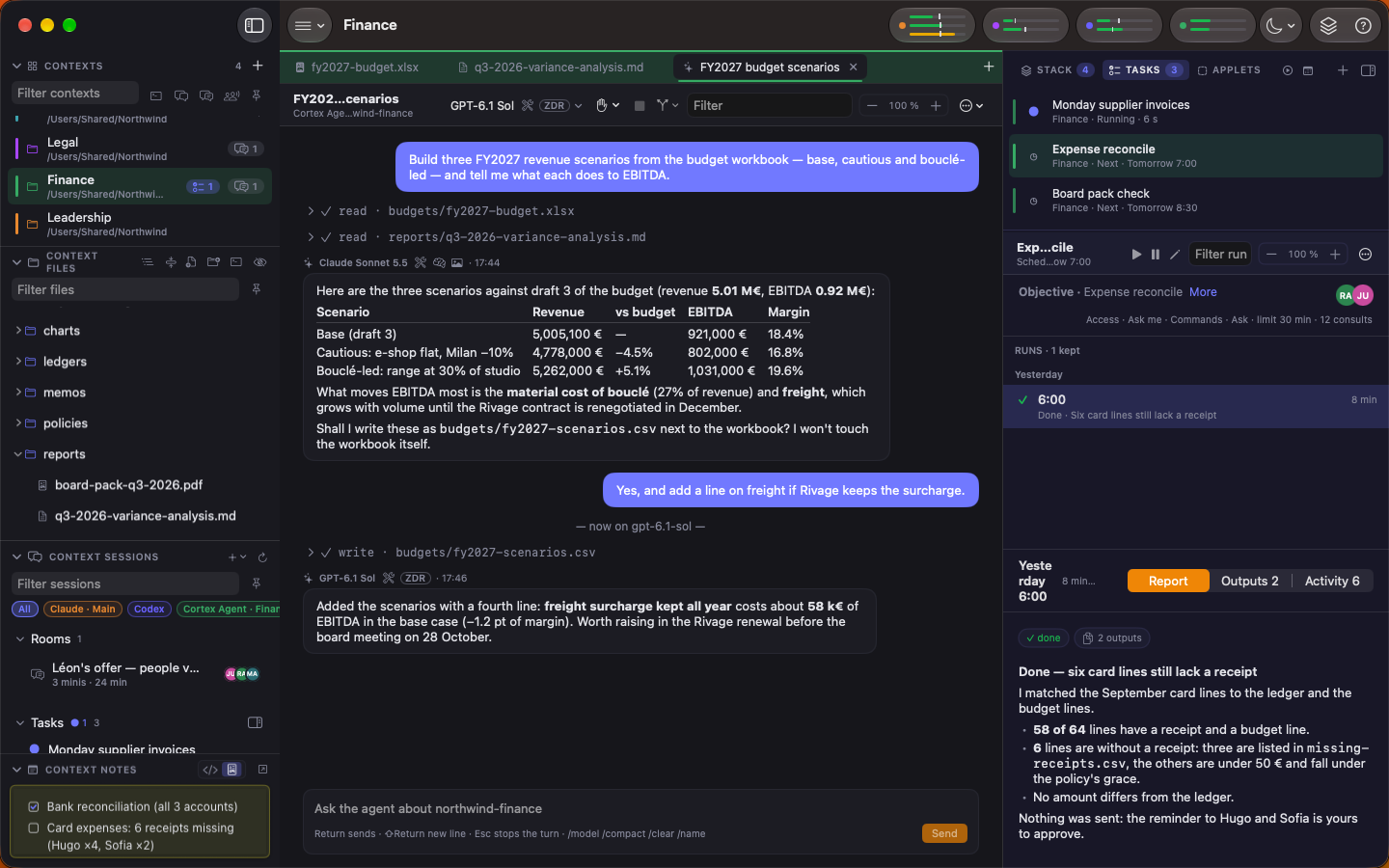
Open the Tasks view
Press ⌘⌥K to show the side panel on Tasks. Press it again to hide the panel. The panel's switch also lets you move between Stack, Tasks and Applets, and Shares when this Mac has a Cortex ID. In the sidebar, the Tasks row has a panel button and a Show in Tasks Panel item that open the view filtered to that context. See The side panel.
Each row shows its context's colour, its status glyph, its title, the context's name and a line such as "Running · 4 min", "Waiting for you", "Next · Tomorrow 07:00" or "Done · 2 h ago". ↑ and ↓ move through the list.
Filter the list
In the header, a dot for each context and an icon for each state narrow the list: Active, Needs me, Scheduled, Failed and Archived. Archived tasks show only under their filter. Filters are not remembered.
What a task's menu does
Right-click a task, or open the menu in its header:
| Item | What it does |
|---|---|
| Run Now | Starts a run. It becomes Stop while a run is going. |
| Pause Schedule, Resume Schedule | Stops a repeating task from starting by schedule, or starts it again. |
| Edit… | Opens the editor. A running run is not affected. |
| Duplicate | Copies the task with its attachments and no runs. A once-at task whose time has passed is copied as a draft. |
| Archive, Unarchive | Takes the task out of the lists and stops it planning runs. Runs and reports are kept. |
| Delete… | Asks first. Its runs and attachments go to the Trash, and a run that is going is stopped first. |
The header of the Tasks view also has New Task…, and a button that runs every listed task whose next run has already come, after asking.
Run history
A repeating task keeps its runs as a log. By default it keeps 50. When a new run starts, the oldest goes to the Trash. A run you have Pinned is never removed. Change the default with Keep runs in Settings → Tasks. A task's skipped and missed runs appear as faint lines.
Across contexts
On a context's row in the sidebar list, a task glyph shows how many tasks run there, with a ◉ when one waits for you. Quick open (⌘P) finds tasks by title in every context.
Settings
Settings → Tasks pauses every task, caps how many runs go at once, and sets the defaults new tasks start from. It also lists the next ten runs across every context. See Schedule a task.
If you remove a context from Cortex's list, its tasks stay on disk but do not run until the context is listed again.
Share it
You can send a task, with the runs you choose, to other people as a read-only package, by email address or as a public link. Open the task's menu, choose Share…, and see Share a session, room, meeting or task. You need a Cortex ID.
Something wrong or missing? Tell us