 Cortex
Add your contexts
On this page
Make a new context, add a folder you already have, drop folders in, or let Cortex find them.
The contexts in the sidebar are a list that you keep. Cortex adds nothing to it and removes nothing from it by itself. This article shows the four ways to put a folder on the list. Add, remove and organise contexts covers what you can do with the list afterwards.
A folder needs nothing special to be a context. An agent's folder in it, .claude/ for Claude Code or .codex/ for Codex, is useful, because it lets Cortex propose the folder, but it is never required. What a context is explains the idea.
The + menu
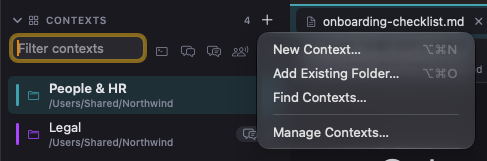
The header of the Contexts section has a + button. Its menu has four entries:
- New Context… (⌘⌥N)
- Add Existing Folder… (⌘⌥O)
- Find Contexts…
- Manage Contexts…
Make a new context
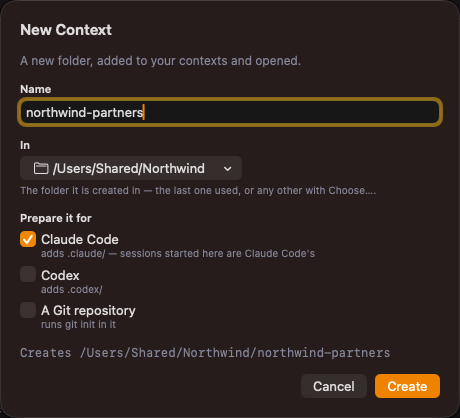
Choose New Context…, or press ⌘⌥N.
- Type a Name. It becomes the folder's name, so it cannot be empty, hold a
/, or be.or... - Choose where to make it in the In menu. It offers the folder you used last, the folders your contexts are in, and Choose….
- Under Prepare it for, tick what the folder should be ready for: Claude Code makes an empty
.claude/and is ticked when Claude Code is installed, Codex makes an empty.codex/, and A Git repository runsgit initwhen Git is found. - Press Create.
A line in the sheet shows the path that will be made. Cortex makes the folder with only what you ticked, adds it to the list and opens it with an empty tab group.
If a folder of that name exists already, Cortex says so and offers Add It instead, which adds the existing folder as it is. If the folder cannot be made, the sheet gives the system's reason and nothing is made.
Add a folder you already have
Choose Add Existing Folder…, or press ⌘⌥O, pick one or more folders in the sheet and confirm. Each is added to the list. A folder that is listed already is selected instead, and gets no second row.
Cortex refuses, with a word of explanation, your home folder itself, /, anything inside Cortex's own data folder, and anything that is not a folder.
Drop folders on the list
Drag folders from Finder onto the Contexts section. They are added as by Add Existing Folder…. If you drop files, the section says "Drop folders, not files" and ignores them.
Find contexts
If your repositories already hold agent folders, let Cortex search for them. Choose Find Contexts….
- In Search in, pick the folder to search. The menu offers the folders you searched before and the folders your contexts are in. A folder that is itself a context is not offered, because searching it would only find it again. Choose Folder… searches another one, and Forget This Folder drops a remembered one from the menu.
- Set the folder's Depth, from 1 to 8. The default is 4. The depth is remembered for that folder.
- Cortex searches and lists the folders it finds that are not on your list yet: the folder, where it is, and which agents' folders it holds. Each has a checkbox, ticked. A line under the list counts the ones already in Contexts.
- Press Add N Contexts.
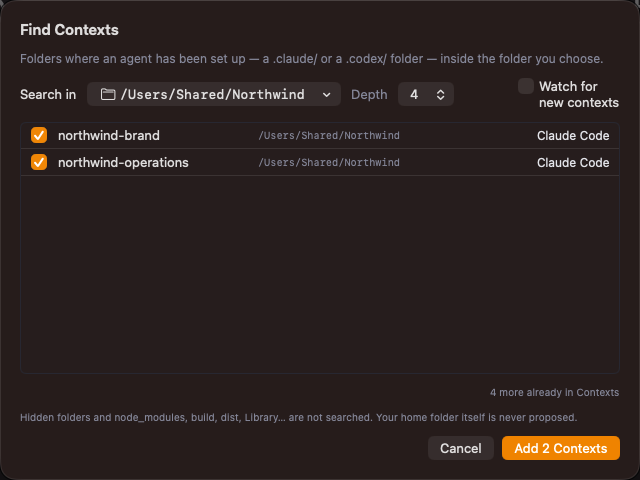
The search looks for a folder that holds .claude/ or .codex/. It does not go through hidden folders, ignored folders such as node_modules, or links, and it never searches your home folder itself, only what is inside it. A CLAUDE.md alone does not count, because drafts and planning folders carry one too. The search runs again whenever you pick another folder or change the depth. You can make the sheet larger by dragging its edge, to see more folders at once.
Watch for new contexts
Beside the depth, Watch for new contexts is a switch for the folder you are searching, off by default. For a watched folder Cortex searches again at launch and whenever Cortex comes to the front, at most once a minute. When it finds a folder with an agent's folder that is not listed and that it has not seen before, one line appears at the foot of the Contexts section, such as "2 new folders in ~/Repos", with Review.
Cortex never adds the folders by itself. Review opens Find Contexts… on that folder with the new ones ticked. The line goes when you add them or dismiss it, and a folder you dismissed is not announced again. Turning the switch on announces nothing for the folders already there.
On your first launch
The welcome tour proposes the folders your agents have worked in before, as its step Your contexts. Claude Code keeps a history of where it ran, so it supplies suggestions. Codex keeps none, so on its own it suggests nothing. The same proposal is there later in Find Contexts….
A context does not show up
- You did not add it. Nothing is listed unless you added it. Use one of the ways above.
- Find Contexts… does not list it. The folder holds no
.claude/or.codex/, it is deeper than the depth you set, or it is inside a skipped folder such as.git,node_modules,Library,DerivedData,build,dist,.buildorPods. Raise the depth, or add the folder with Add Existing Folder….
The article The sidebar shows no contexts goes through these checks in more detail.
Other ways in
You can also open a folder from Finder or Terminal without adding it. See Open a folder, file or page from outside Cortex. Cortex lists it as "opened once", with Add to Contexts to keep it.
The file tree's two options, whether hidden entries are shown and which editor Open in… uses, are in Settings → Files.
Something wrong or missing? Tell us