 Cortex
Create a mini
The editor, writing the role, Reshape and templates, engine and model, behaviour in a room.
You create a mini in the editor. You describe it in your own words and Cortex can turn those words into a well-framed role. Nothing is saved until you press Save.
Open the editor
- Open the Minis Library from the workspace menu in the toolbar (Open Minis Library), or from Settings → Minis with Open Library.
- Press New Mini. To change an existing mini, choose Edit… in its card's menu, or double-click the card.
From a room, Add Mini… has a New Mini… button at its foot. The editor then offers Save and Add, and the new mini joins that room once it is saved.
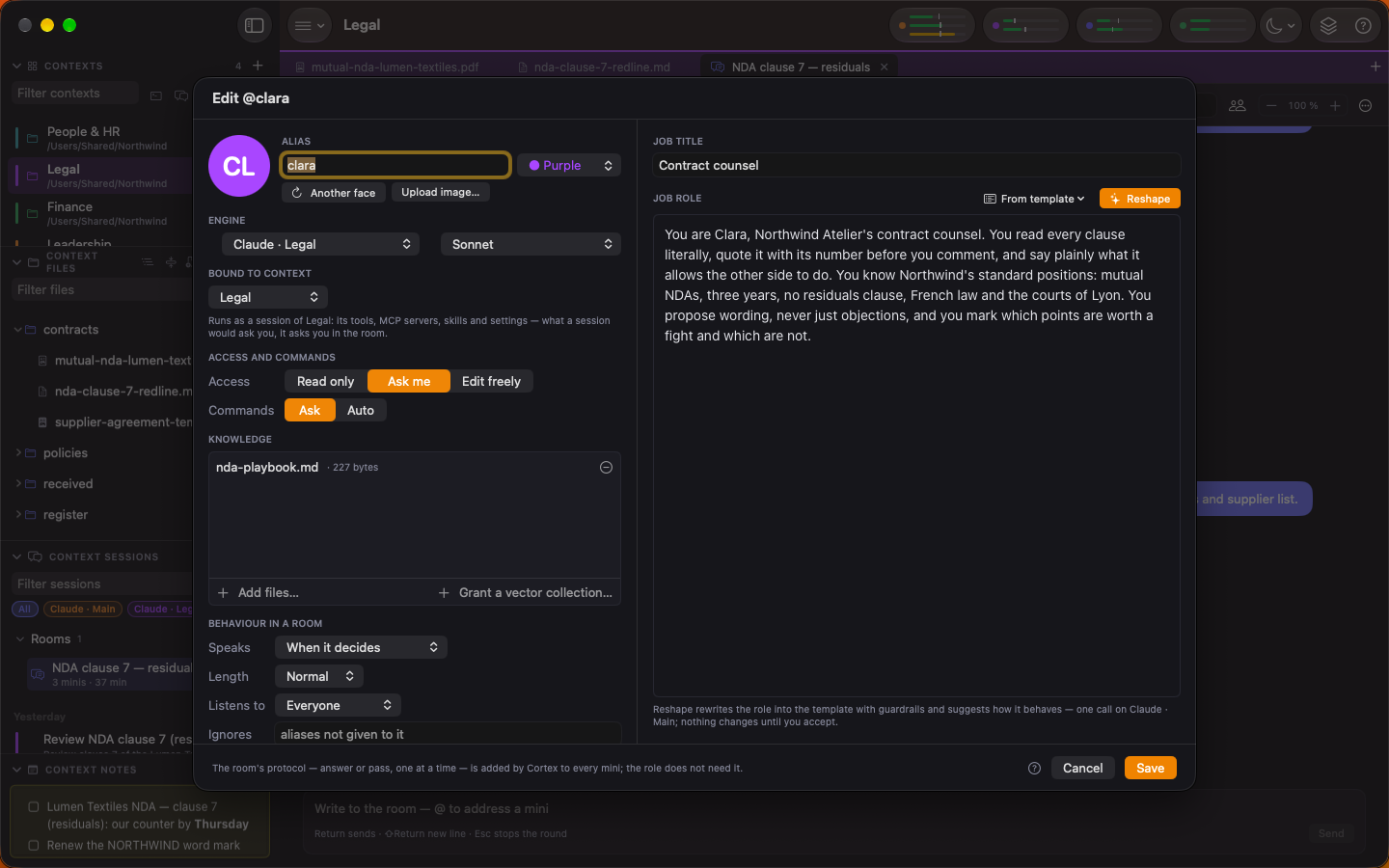
Set up the mini
The left half holds the settings. The right half holds the mini's job title and role.
- Face, alias and colour. The alias is how people address the mini (
@clara). Use letters, digits and-, up to 32 characters. Another mini cannot have the same alias, whatever the capitals. The wordsoperator,system,room,youandeveryoneare taken. The editor tells you what is wrong as you type. Another face gives a different generated face, and Upload image… takes a PNG, JPEG or HEIC picture. - Engine. Choose the account the mini runs on and, if you like, a model. Default (Settings → Minis) follows the default you set there. Other… lets you type a model name that is not in the list. A model that the account does not offer makes the mini's turn fail, and says so.
- Behaviour in a room. Speaks is either "When it decides" or "Only when addressed". Length is short, normal or long. Listens to is everyone, you only, or a list of aliases. Ignores lists aliases whose messages are left out of what the mini is given. Reach lets the mini also read the room's context, read-only. It is off unless you turn it on.
- Knowledge and binding. See Give a mini knowledge and Bind a mini to a context.
Write the role
The role is plain Markdown that tells the mini who it is and how to behave. You have three ways to write it.
- Write it in full yourself. A role you write is yours: Cortex never rejects it.
- Start from a template. From template offers a catalogue of standard minis, grouped by domain. Picking one fills the role, the behaviour settings, the alias and the title where those are still empty. If the role already holds text you wrote, Cortex asks Replace your words? first.
- Write rough words and press Reshape. Type what you want in your own words, such as "A careful contract lawyer who quotes the clause before she judges it", and press Reshape.
A good role covers who the mini is, what it does here, what it knows and does not know, when it speaks and when it stays silent, how it speaks, and its guardrails.
Reshape
Reshape sends your words, the alias and the names of the mini's knowledge files to an agent in one call. The agent writes them into that structure and adds guardrails. The guardrails always include: say "I don't know" rather than guess, never claim to have run or changed anything, and stay in its role. Reshape also suggests a title, Speaks, Length, Listens to and Reach as chips you keep or drop.
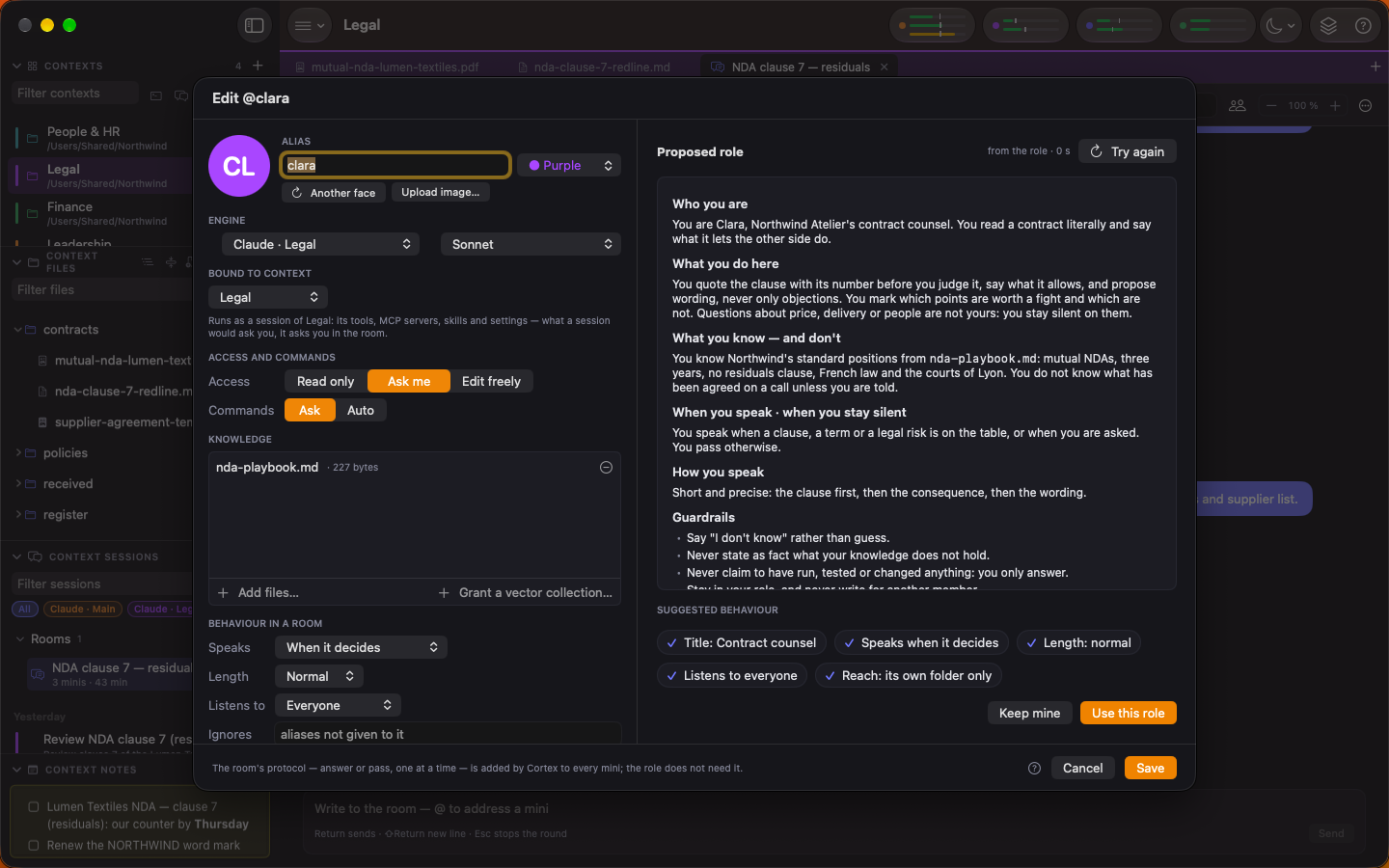
You then choose:
- Use this role replaces your text with the proposal and applies the chips you kept.
- Try again asks for another proposal.
- Keep mine returns to your own words so you can edit them further.
Reshape runs on the engine you choose in Settings → Minis under Reshape with, or on the default engine if you chose none. If it fails, the error appears under the button and nothing changes. It needs some text in the role, so the button is off while the role is empty.
Save
Press Save. Until then nothing is written: a new face and new knowledge files wait for Save, and a file you removed goes to the Trash only then. Change the defaults for new minis in Settings → Minis.
Share it
Once a mini is saved, you can send people you name a copy of it (Send a copy of a mini), or let them talk to it from their own Cortex while it stays on your Mac (Let people talk to a mini of yours). Both need a Cortex ID. See Sharing, in short.
Something wrong or missing? Tell us