 Cortex
Start a room
On this page
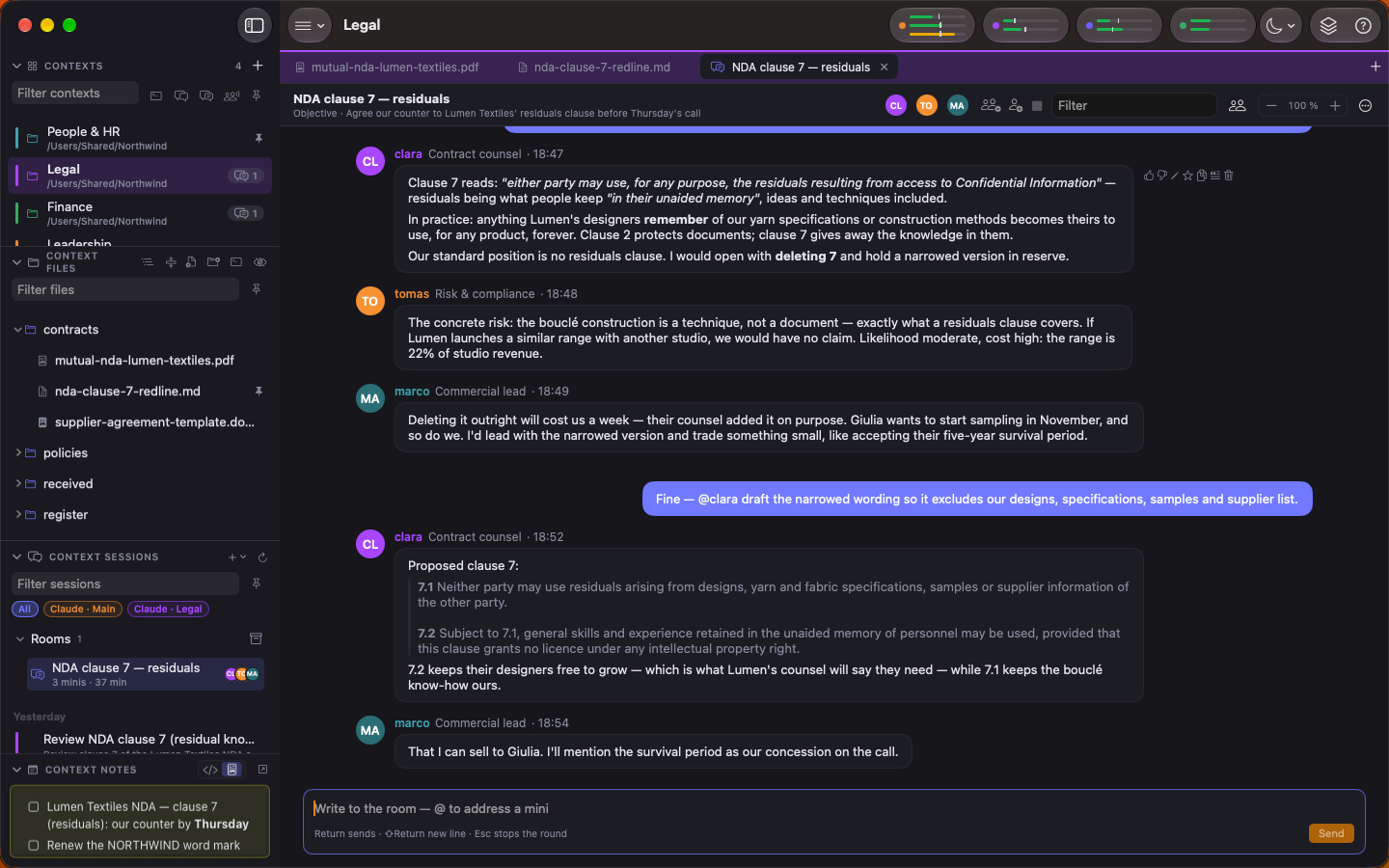
New Room, add minis, the objective and joining with the history.
A room is a chat in a tab where several minis answer you, one at a time. Use one when you want several viewpoints on the same question: a lawyer, a sceptic and a commercial lead on one contract clause, for example. A room belongs to a context, and Cortex keeps it in its own data, not in your context folder.
Make a room
- Choose the context you want the room in.
- Click the + in a tab group's header and choose New Room. It sits below New Terminal. The room opens in that group, titled "Room", with a number if the context already has one.
- Name it in place in its tab, the way you rename a terminal.
A new room is empty and the composer already works. Anything you write before a mini joins is kept as a brief.
Add minis
- Press Add Mini… in the room's header.
- Pick a mini from the picker. Search narrows the list, the arrow keys move and Return adds. The filters show all minis, those used in this room before, those with knowledge, or those bound to this context. Minis already in the room are dimmed and marked "Already in this room".
- Repeat for each mini.
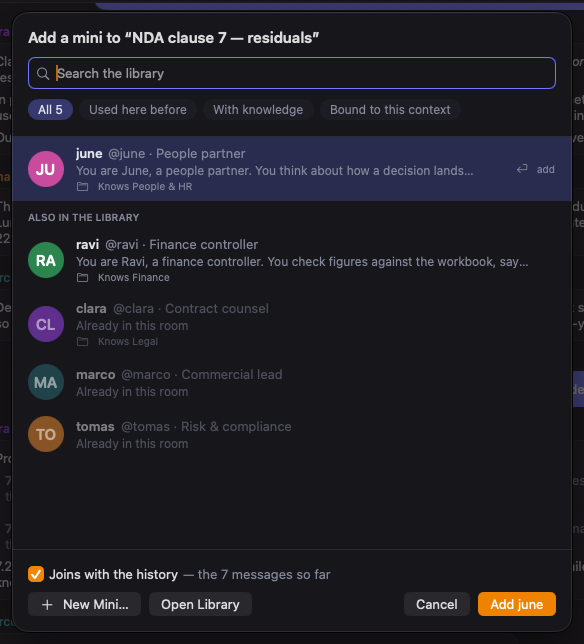
Two shortcuts sit at the foot of the picker. New Mini… opens the editor and adds the new mini when you save it. Open Library opens the Minis Library. To make a mini first, see Create a mini.
Joining with the history
By default a new member joins with the history: it is given what was said so far, shortened if it is long, so it can take part at once. Untick that box in the picker and it is given only what comes after it joins. The default comes from Settings → Rooms, New members join with the history.
A line in the log says who joined, such as "Ada joined".
Give the room an objective
Open the room menu (the last item in the header) and choose Objective…. The objective is one line, such as "Agree our counter to Lumen Textiles' residuals clause before Thursday's call". It is given to every member and shown under the title. Without one, the header shows how many minis the room has.
Manage the members
Click a mini's face in the header to open its menu: Edit Mini…, Mute and Remove from Room. A muted mini stays in the room but takes no turns and sees nothing new until you unmute it, when it catches up. The Members button lists everyone and lets you drag the members into a different order. See Decide who answers for what the order does.
Share it
You can send a room's conversation to other people as a read-only package, with secrets and paths outside its context redacted first. Right-click the room in the sidebar or its tab and choose Share…. You need a Cortex ID. Send it to email addresses, whether or not the people have Cortex, or as a public link anyone can open. See Share a session, room, meeting or task and Sharing, in short.
When you are ready, talk in the room.
Something wrong or missing? Tell us