 Cortex
Code, HTML, JSON and text
Syntax-coloured editing, rendered or source HTML, plain text and logs, and Open in….
Cortex edits text files in the same built-in editor it uses for Markdown, with colours for the language. It is meant for the quick edit next to your session, not to replace your main code editor, and it hands anything it cannot edit to the app you choose.
Code and JSON
Source files, JSON and JSONC, and .code-workspace files open syntax-coloured and editable, in Source mode only. There is no rendered mode and no mode switch. The colours come from your theme. This covers the common languages and the files without extensions, such as Makefile and Dockerfile, and dotfiles such as .env.local. A name no language claims opens as plain text in the same editor.
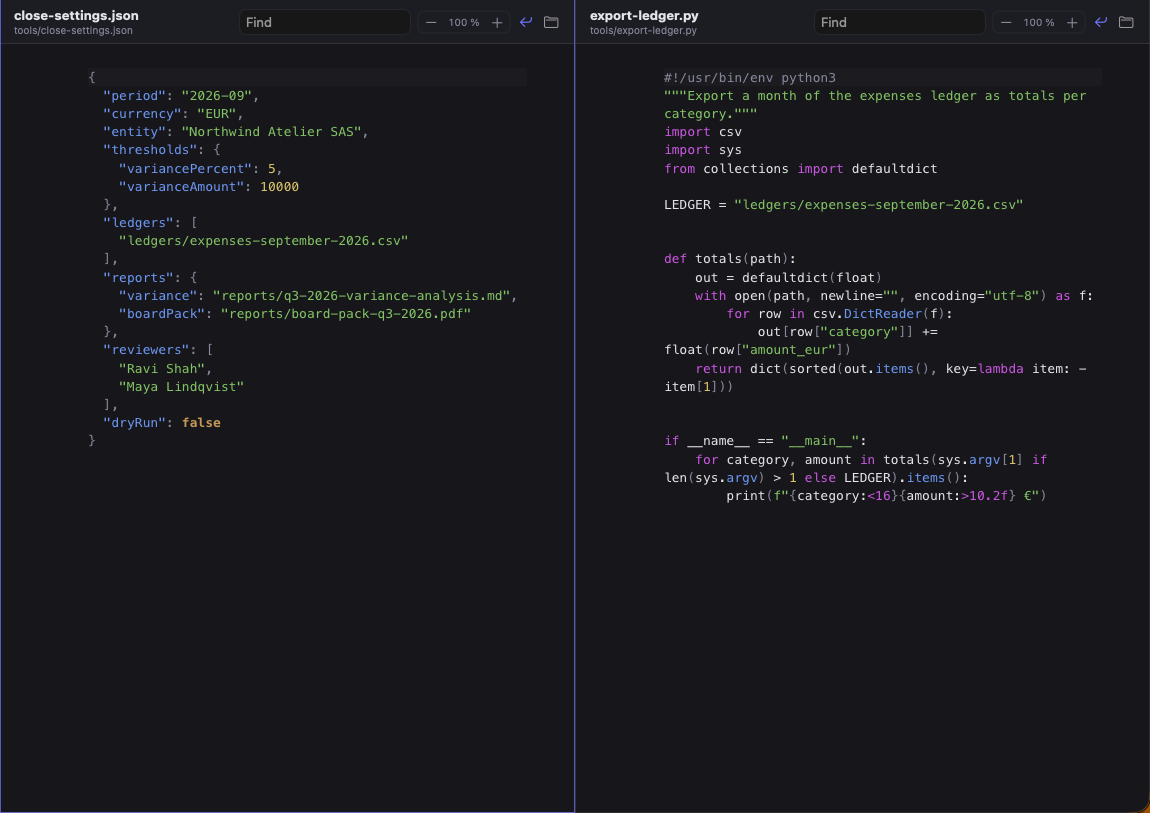
Long lines wrap by default. The wrap button in the header turns wrapping off for every Markdown, JSON and HTML tab in Source, and long lines then scroll sideways.
HTML
An HTML file opens rendered by default, as a page loaded from disk, so relative images and styles resolve. Switch to Source with the mode buttons or ⌘⇧M. Edit in Source; switching back to rendered saves first. Settings → Appearance → Open in chooses which mode a file opens in.
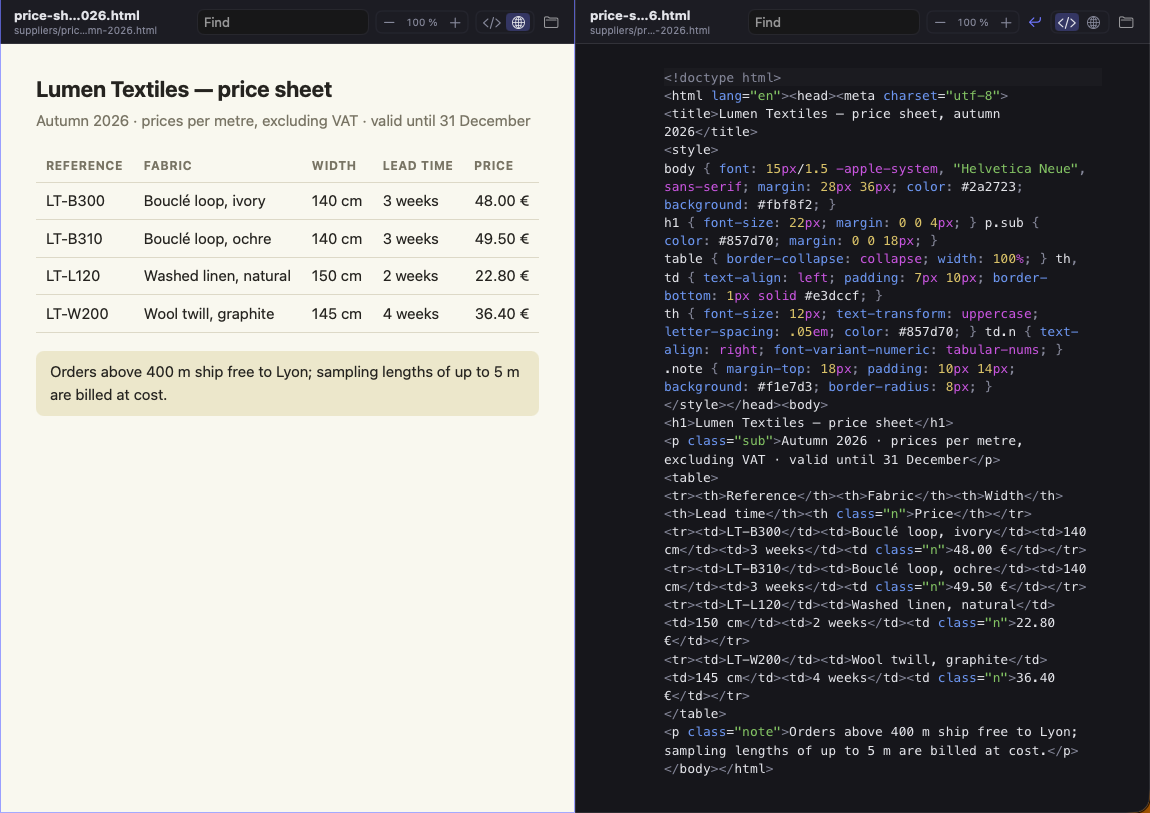
The page cannot read your files with its own script. Only a link you click yourself with the mouse is followed. A page that tries to redirect or to leave its file by itself is stopped, and the log records it.
Plain text, logs and tables
.txt, .log, .csv, .tsv, .jsonl, .lock and names like README and LICENSE open as monospaced plain text, with no colours. This suits long logs and tables. A file over 50 MB opens as a read-only preview of its start.
Saving and line endings
Press ⌘S to save. Cortex also saves when the tab loses focus, never on a timer. Line endings and the trailing newline are kept as found. A file with Windows line endings is edited with ordinary line breaks and written back with Windows line endings. A file that is not UTF-8 is never written.
Open in another app
For a file Cortex does not edit, and for any file you would rather edit elsewhere, use Open in… in the file tree or a tab's menu. It offers VS Code, Xcode, the default app, and Finder. Set which one Open in… uses in Settings → Files. If you pick an editor that is not installed, Cortex shows the file in Finder instead.
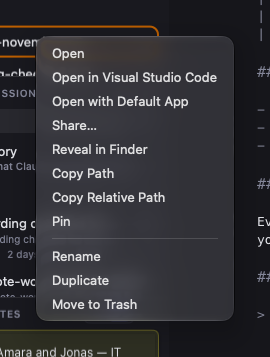
Cortex never runs a file you open this way. See What Cortex opens and edits for every type.
Something wrong or missing? Tell us