 Cortex
Edit Markdown
On this page
WYSIWYG and Source, ⌘⇧M, tables, task lists, Mermaid, maths and images; untouched lines never reformatted.
Markdown is the format most knowledge in Cortex lives in, so its editor is the one you will use most. It has two modes that edit the same file: a clean rendered page, and the plain Source text. Everything works offline.
Switch between the two modes
A Markdown file opens as a rendered page (called WYSIWYG) unless you set Open in to Source in Settings → Appearance. To switch, press ⌘⇧M, or use the two icon buttons in the tab's header: </> for Source and the page icon for WYSIWYG. Cortex remembers the choice per tab, and keeps your place when you switch.
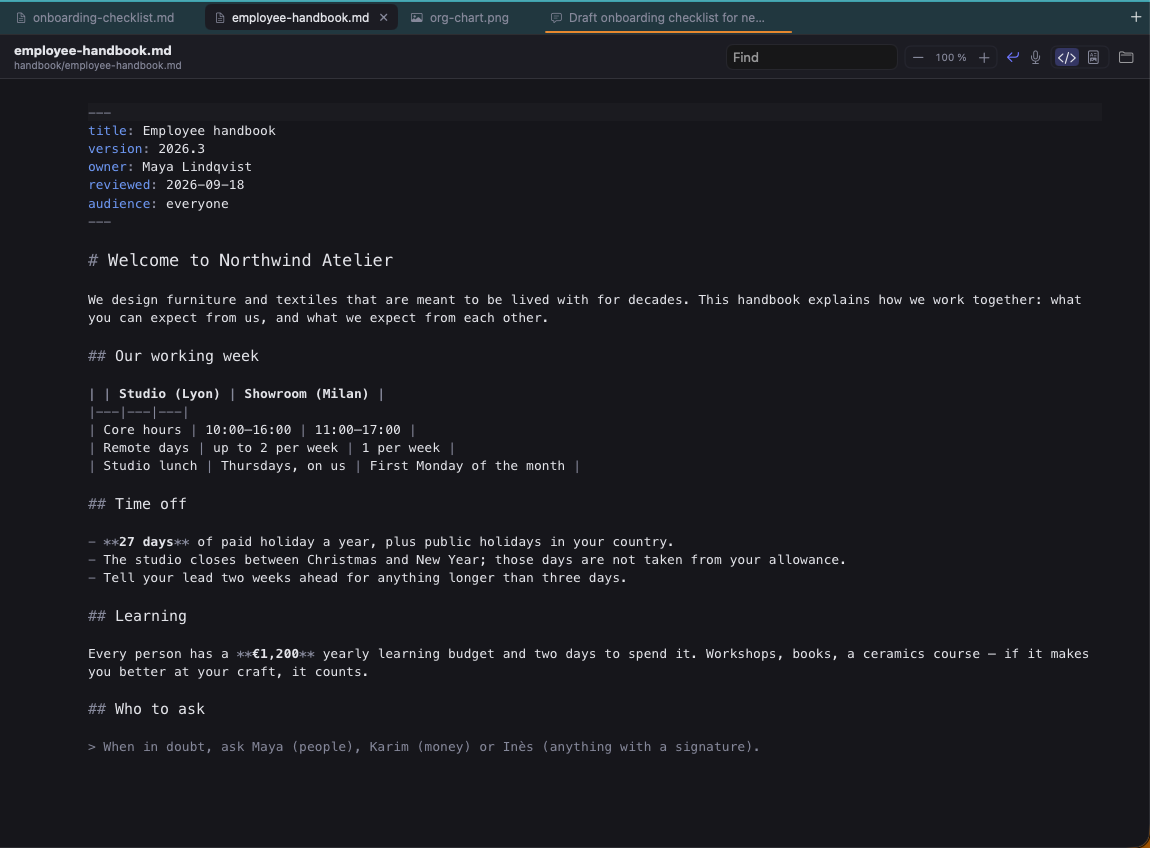
Each mode has its own undo history. Pressing ⌘Z after a switch undoes what you typed in that mode only.
Edit the rendered page
You type into the page as you would in a word processor. Floating menus help: a slash menu to insert blocks, a toolbar when you select text, and a block handle at the left of each block with a + button and a grip to drag. Tables, task lists with tick boxes, code blocks, and maths blocks are all editable in place.
- Links. A plain click edits a link, and ⌘-click follows it. Where it goes is described under Links below.
- Images. Drop or paste an image into the page, from Finder too. Cortex writes it into an
images/folder next to the document and refers to it by a relative path. - Front matter. A YAML block between
---lines at the top shows above the page as a grid headed "Front matter · N fields". Hover over it and choose Edit to change the raw YAML, then Done. If your edit would not parse back into the same YAML and body, Cortex marks the field invalid and leaves the file alone. - Raw HTML and anything the editor cannot represent stay as literal blocks. They are not dropped.
Mermaid diagrams and maths
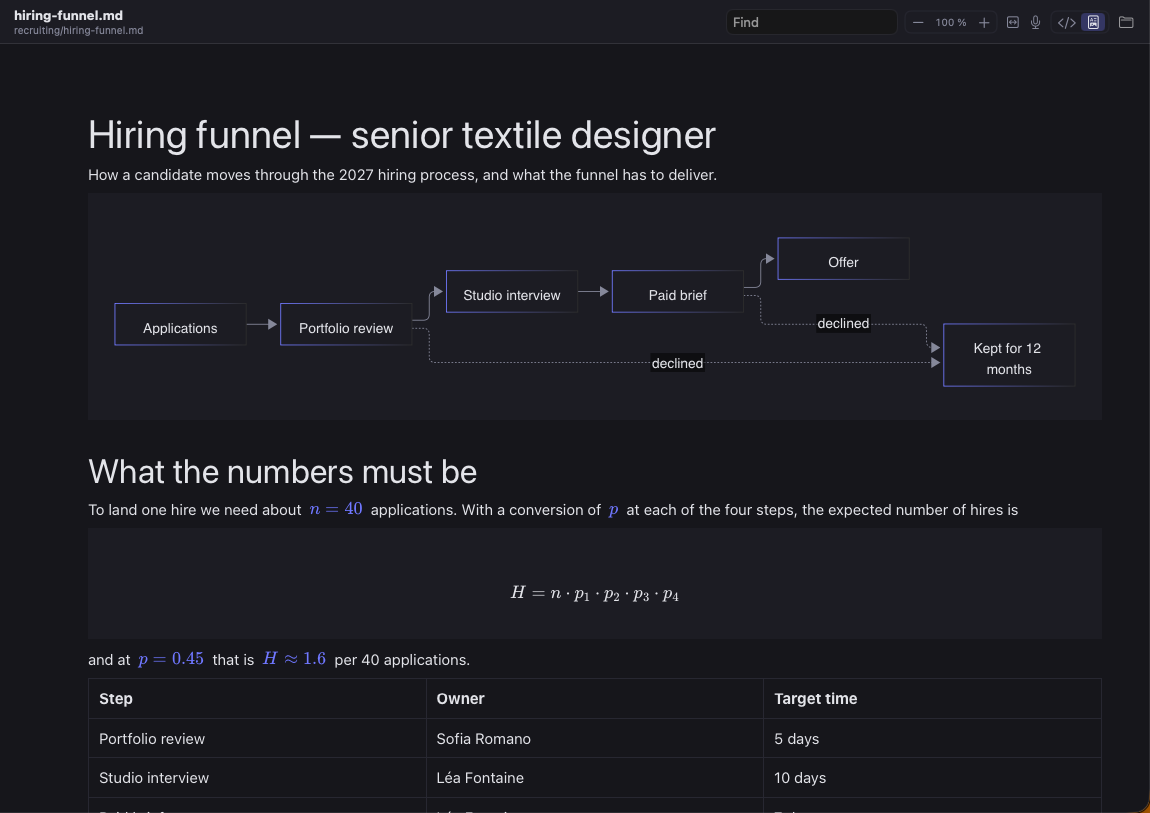
A fenced block labelled mermaid opens as the rendered diagram, with a Source / Diagram toggle on the block. Point at a diagram to see Copy, a zoom control and the toggle. A diagram that does not parse shows its error under the block.
Maths works with $…$ inline and $$…$$ as a block, drawn with KaTeX. A formula that does not parse shows its source in red instead of disappearing. A pair of dollar signs in ordinary prose is read as maths, as it is on GitHub.
Your untouched lines are never reformatted
Switching modes without editing never changes a byte of the file. An edit in the rendered page changes only the blocks you touched. Blocks you did not touch keep their exact original text, and only changed or new blocks are written in Prettier's Markdown style. Code inside a fence, including Markdown samples, is never reformatted. A file's line endings and its trailing newline are kept as found.
Saving
Press ⌘S to save. Cortex also saves when the tab loses focus or leaves the front, when you switch context, and when you quit. It never saves on a timer, because a timer could race with an agent editing the same file. Saves are atomic, so a half-written file is never seen. If the file changes on disk while you have unsaved edits, Cortex stops saving and shows a banner; see When an agent changes a file you are editing.
Wrapping and page view
In Source, long lines wrap. The wrap button in the header turns that off for every Markdown, JSON and HTML tab in Source, and long lines then scroll sideways. The rendered page always wraps. Its header has a page button instead, which puts the text in a centred column of reading width. You can set the width in Settings → Appearance → Page width, from 60 to 200 characters. See Appearance and Terminal settings. Context notes are never shown as a page.
Links
A link you click is decided by one policy. A local file that exists opens as a tab. A #fragment scrolls the page. A web link opens in your default browser, or as a web tab if you set Web links in Markdown to Open as web tabs. Other schemes, such as mailto:, go to the system. Cortex never hands a local file to the system, because that could run a program.
Something wrong or missing? Tell us