 Cortex
Addresses and passkeys
Add and remove addresses, add passkeys, why the last of each stays.
A Cortex ID can hold several email addresses and several passkeys. This is how you add and remove them, in Settings → Cortex ID.
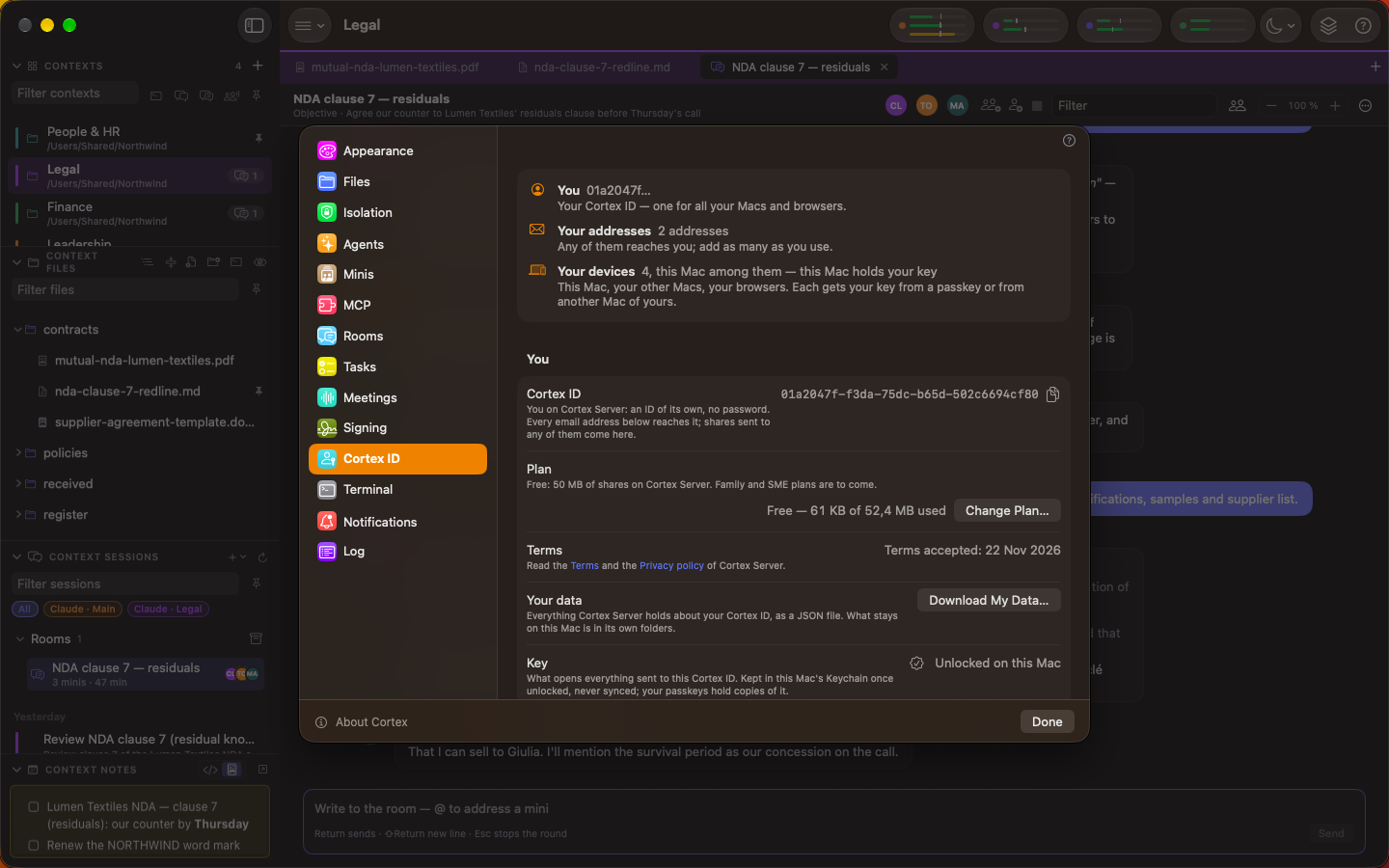
Addresses
Any address you add reaches the same Cortex ID. A share, an invitation or a mini request addressed to any of them comes to you.
Add an address
- Choose Add Email….
- Type the address. A code is mailed to it.
- Type the code. The sheet shows each step and what happened.
An address can belong to only one Cortex ID. If it already belongs to another, Cortex says so. The invitations still open to the new address reach you once their senders' Cortex send you the keys. An invitation that lapsed is not revived.
Remove an address
Remove any address except the last one. New shares sent to it stop reaching you. Shares you already received through it stay in your list, until their sender revokes or deletes them. The address is free for another Cortex ID to use.
Passkeys
Your passkey holds a locked copy of your key, so your other Macs can unlock it. Each passkey you add holds a copy of its own.
Add a passkey
- In the pane, under your passkeys, choose Add Passkey….
- Approve the passkey when macOS asks.
Cortex makes the copy from the key this Mac holds and proves to the server that it holds it. This Mac must hold your key to add one.
Remove a passkey
Remove a passkey in the same section. Its copy of your key is deleted. You can never remove the last copy.
Why the last of each stays
An address is how you are reached, and a passkey is how you get your key back. Removing the last of either would lock you out. A new device, added in the last 8 hours, also cannot remove addresses, passkeys or other devices. See Your devices.
Why have more than one
- A second address means shares sent to your work and personal mail both reach you.
- A second passkey is a backup if one password manager is lost.
If every passkey is lost and no Mac holds your key, see Rotate or reset your key.
Something wrong or missing? Tell us