 Cortex
Use your Cortex ID on a new Mac
On this page
Sign in with a code, unlock with a synced passkey, or ask another Mac to approve with a six-digit code.
A Cortex ID works on any number of Macs, but each Mac has to get your key separately. There are two ways to give it one: a passkey that is already synced there, or another Mac of yours that approves it. Both start the same way.
Sign in
- On the new Mac, open Settings → Cortex ID.
- Type one of your Cortex ID's addresses and click Send Code.
- Type the code and click Continue. This Mac becomes a device of your Cortex ID.
It is now a device, but it does not hold your key yet. The pane's Next step list says how it gets it, each way with its button and whether it is open.
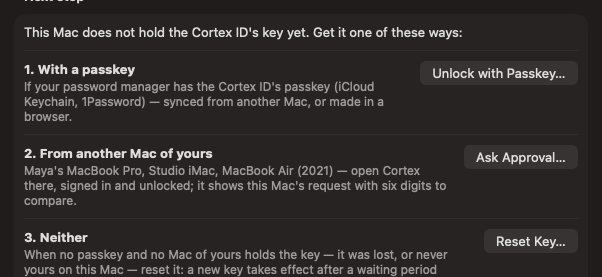
Way 1: unlock with a passkey
If your password manager syncs your passkey to this Mac, as iCloud Keychain does, choose Unlock with Passkey…. Approve when macOS asks. Cortex opens your key and keeps it in this Mac's Keychain. You will not need the passkey again on this Mac unless the Keychain item goes away.
Way 2: ask another Mac to approve
If there is no passkey here, for example because this Mac is outside your password manager, choose Ask Approval…. It is open when another Mac of yours is listed in the pane.
- The new Mac shows a sheet with a six-digit code, and the words "Approve this Mac from another Cortex of yours".
- On a Mac that already holds your key, a sheet appears over the main window, and also under Asks to be approved in the pane. It shows the new Mac's name and a six-digit code.
- Compare the two codes. If they are the same, choose The Codes Match — Approve.
- The new Mac receives the key, keeps it in its Keychain, and offers to add a passkey on it.
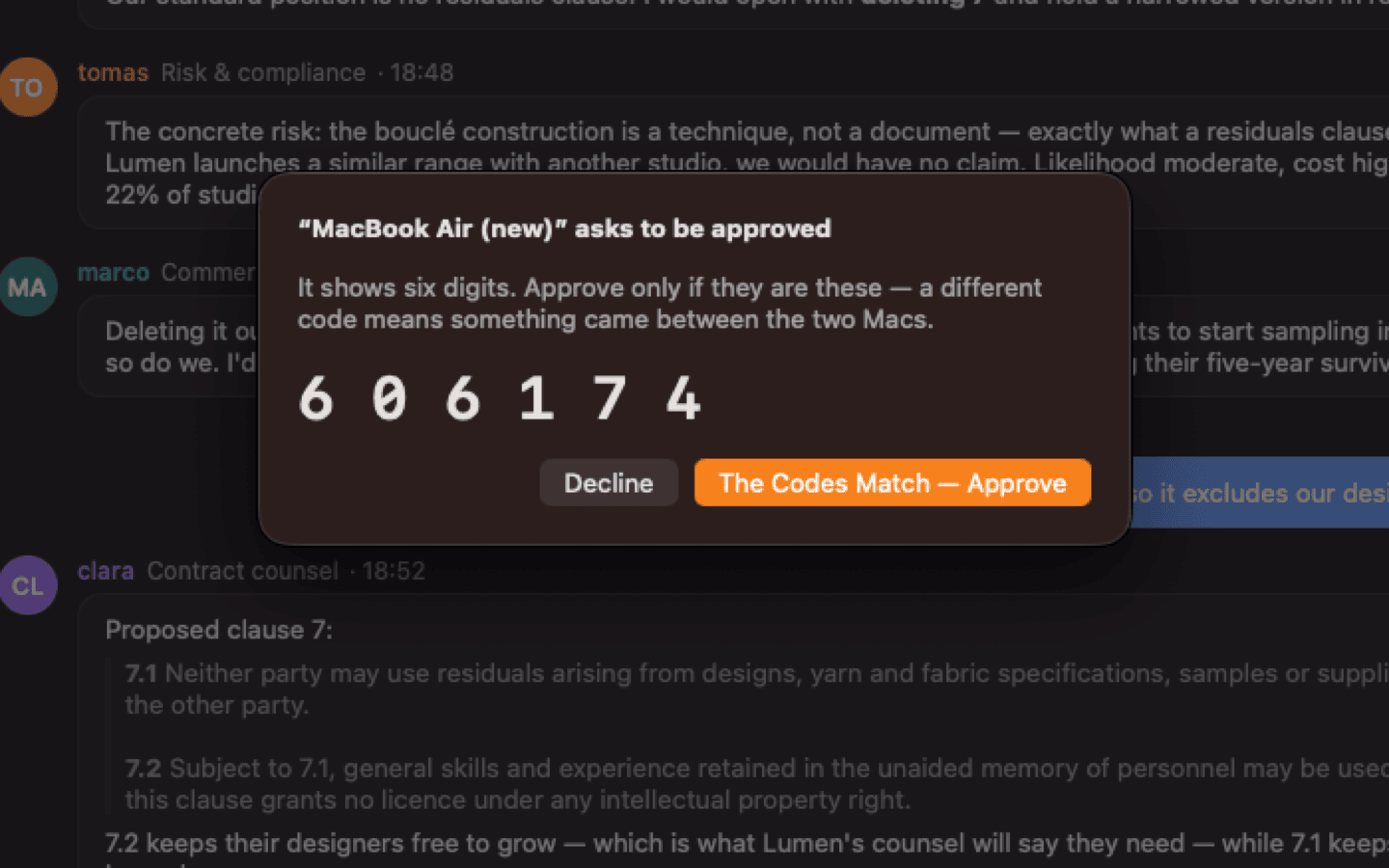
Decline leaves the request unanswered. Cortex does not offer it again until the new Mac asks again.
The approval itself needs a Mac that is connected and already holds the key. It is never the way in for the first Mac.
If neither works
If you have no synced passkey and no other Mac, the only way left is Reset Key…. It waits and has costs, see Rotate or reset your key.
After it works
Add a passkey on the new Mac if it did not already have one, so you have a way back in. See Addresses and passkeys. If you sign PDFs, this Mac makes its own signing key the first time you sign, and your hand signatures do not travel: add them again on this Mac. See Signing PDFs, in short. New devices cannot remove addresses, passkeys or other devices for their first hours, see Your devices.
Something wrong or missing? Tell us