 Cortex
Create a Cortex ID
On this page
Give an address, type the code mailed to it, create a passkey — in the app or in a browser.
You make a Cortex ID by giving an email address, typing the code that is mailed to it, and creating a passkey. You can do this in Cortex, or in a browser when someone shares something with you.
In Cortex
- Open Settings → Cortex ID. You can also do it during the first-launch tour, in the Sharing step, with Set Up Cortex ID.
- If the pane first shows a short choice with a single option, accept it.
- Type your email address and click Send Code.
- A mail arrives with a code of six letters, shown as
ABC DEF. Type it in Cortex and click Continue. It is good for 10 minutes and for 3 tries. If you get it wrong three times, or wait too long, ask for a new code. - If the address has no Cortex ID yet, Cortex says so and that creating one means you accept the Terms of the Cortex service; the Privacy policy says what the server keeps about you. Click Accept and Create. Nothing is made before you do, and the code stays good.
- Cortex creates a passkey for you, in your password manager. Approve it when macOS asks.
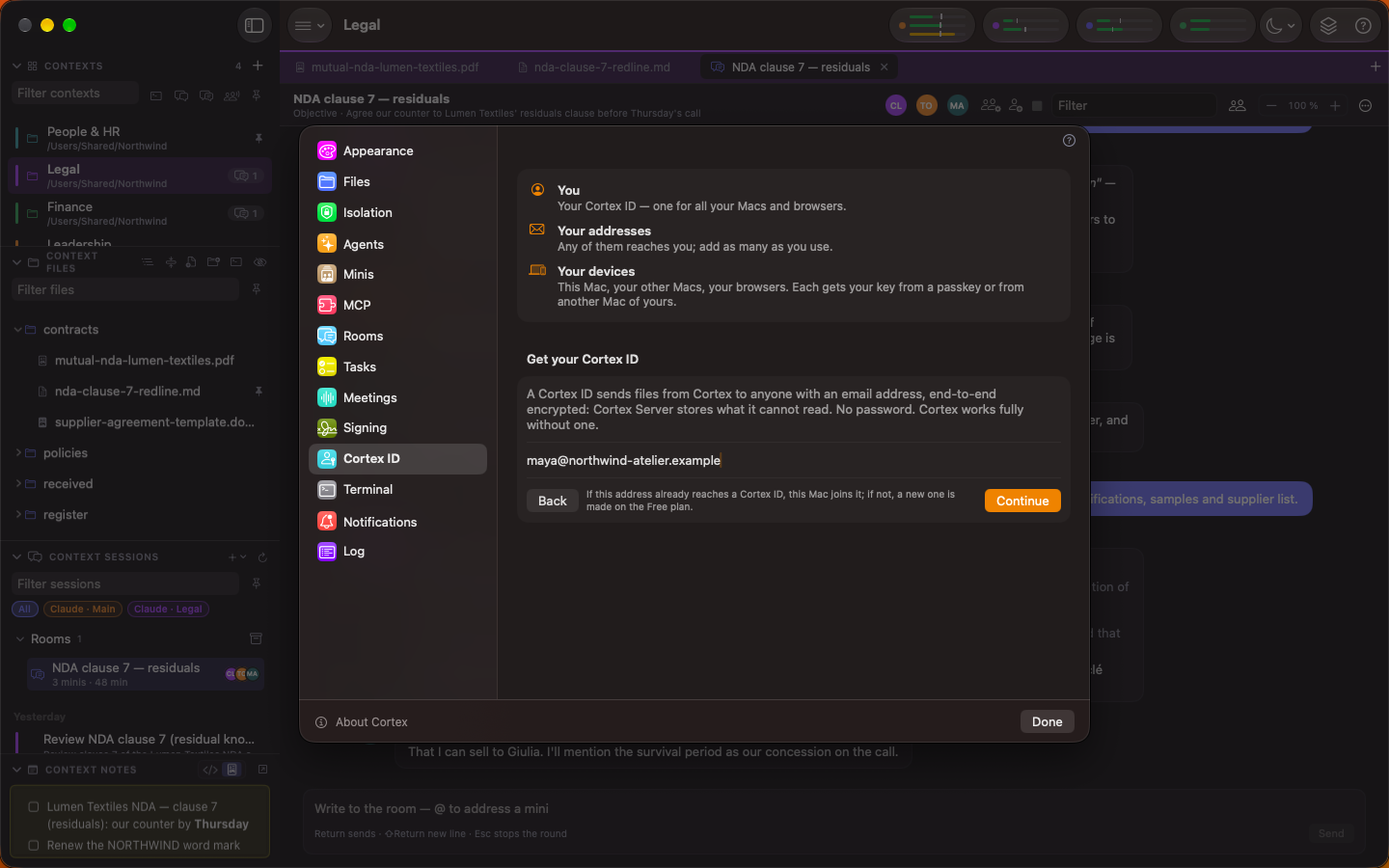
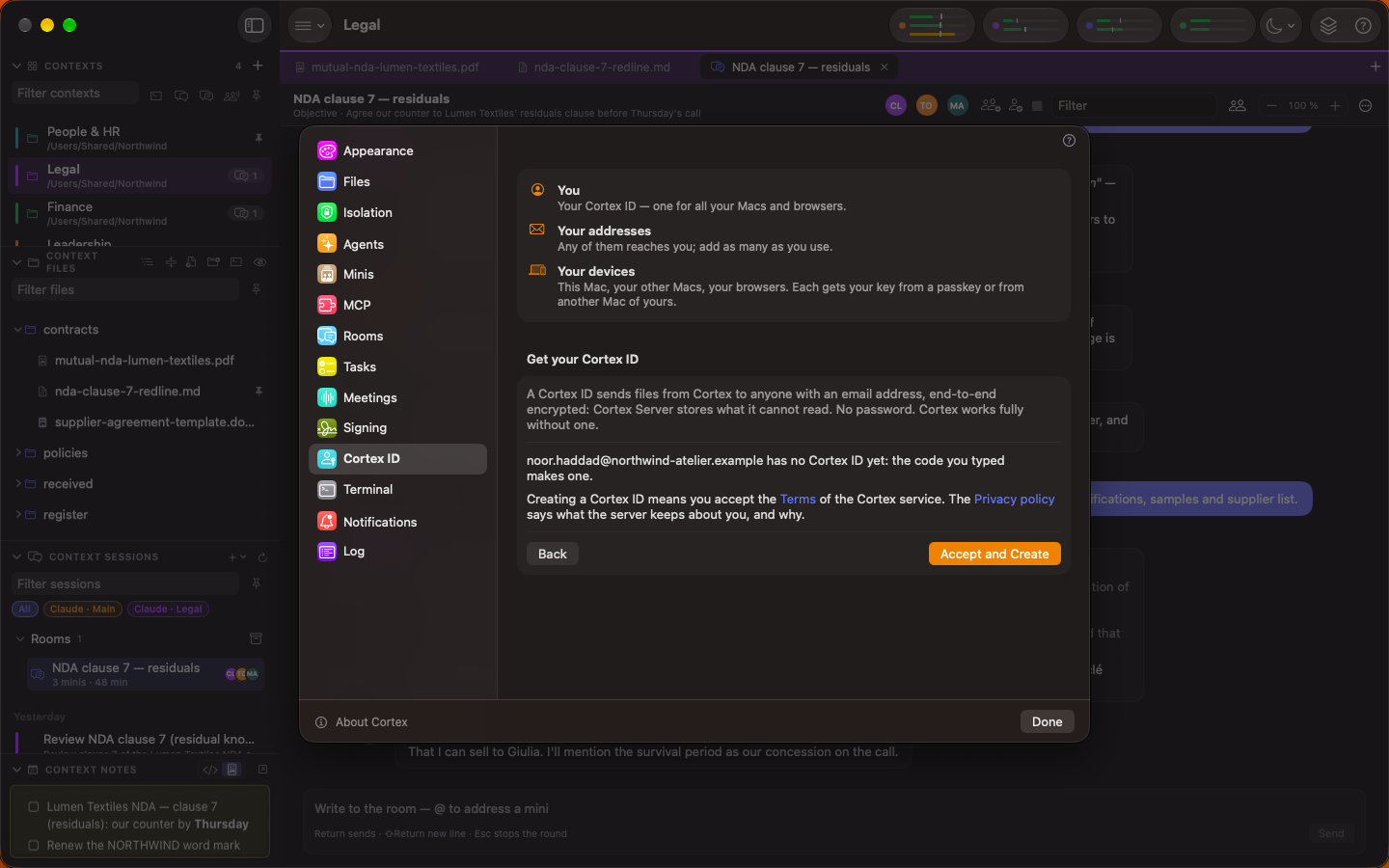
There is no choice between signing in and signing up. If the address already belongs to a Cortex ID, Cortex signs this Mac into it. If not, Cortex asks you to accept the Terms, then makes a new one with the same code. Your Cortex ID is made once, and this Mac becomes its first device.
If the passkey step is interrupted, the pane's Next step offers Create Passkey… until your key exists. Until a passkey holds a copy of your key, other Macs cannot unlock it.
In a browser
If someone shares with an address that has no Cortex ID yet, the email link opens the viewer page. It asks for a code mailed to that address and, when the address has no Cortex ID yet, for Accept and create, which accepts the Terms; then it makes a passkey. That is a Cortex ID with no app. See Share with someone who doesn't have Cortex.
Which passkey
The passkey must support a feature called PRF. It lets a passkey lock and unlock your key. Passkeys in iCloud Keychain work, and your Mac syncs them for you. If your password manager's passkey does not, Cortex says so, names the manager and offers iCloud Keychain instead.
Who can sign up
Cortex Server lets an address sign up when something has been shared with it, when a mini has been listed for it, or when the operator has allowed it. Any other address is told it may not sign up yet.
If something goes wrong
- Wrong or expired code. Ask for a new one. Each new code voids the one before.
- "This address may not sign up yet". Ask whoever you expect to share with you to send something to this address first.
- The address is already used by another Cortex ID. An address belongs to at most one Cortex ID. You can sign in with it instead.
- No connection. See A Cortex ID won't connect.
The Terms in Settings
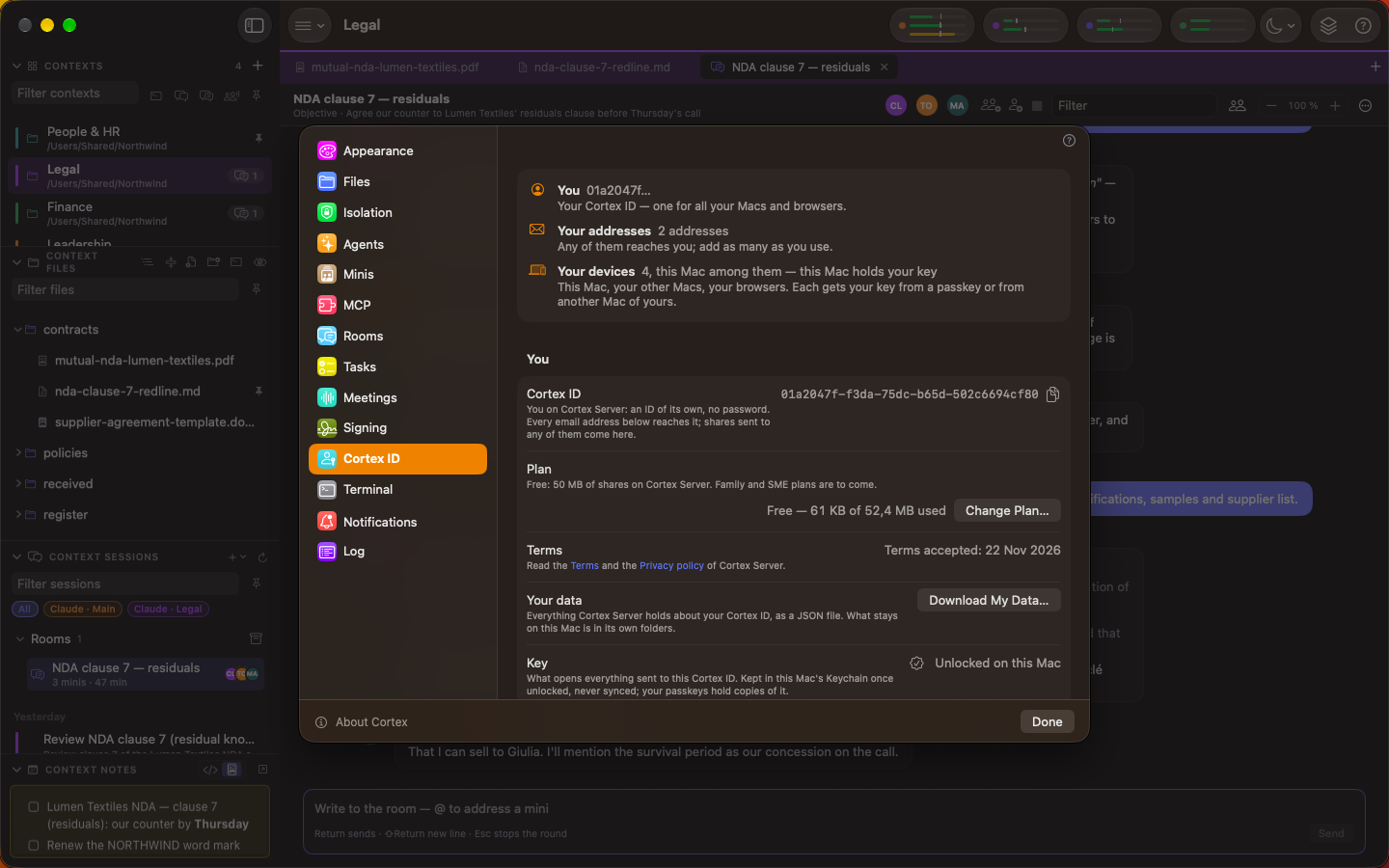
Once you have joined, a quiet Terms row in Settings → Cortex ID links to the Terms and the Privacy policy and says which version you accepted, for example "Terms accepted: 22 Nov 2026". If you have not accepted the current version yet, it says so and offers Accept.
When the Terms change
When a new version of the Terms comes into force, Cortex asks you to accept it the next time it connects, and the viewer page the next time you sign in to it: Accept, or Not Now to be asked again later. Nothing stops working meanwhile. If you do not accept the new Terms, you can have your Cortex ID deleted: see Delete your Cortex ID.
Something wrong or missing? Tell us